
In Odoo, the Chatter feature allows users to communicate directly within records such as leads, opportunities, sales orders, purchase order or tasks. It keeps all conversations, emails, notes, and activities in one place.
To enable email communication through Chatter, Outgoing (SMTP) and Incoming (IMAP) email servers must be configured. This configuration allows users to send emails from Odoo and automatically receive replies, which are then displayed in the Chatter section of the related record.
This functionality helps businesses manage customer communication effectively within the system.
Key Benefits
Configuring email servers in Odoo provides several advantages:
⬦ Automatic Lead Tracking
Incoming emails can automatically create leads or update existing records.
⬦ Improved Customer Interaction
Sales teams can send and receive emails directly from Odoo.
⬦ Better Collaboration
Email conversations are automatically recorded in the Chatter, allowing team members to access and follow communication history from a single location.
⬦ Complete Communication History
All incoming and outgoing email exchanges are linked to the relevant record, providing a comprehensive and traceable history of interactions.
1. Outgoing Email Server Configuration
The Outgoing Mail Server allows Odoo to send emails such as notifications, replies, and automated messages. Debug mode must be enabled for this configuration.
Steps to Configure Outgoing Email Server
▸ Navigate to Settings in Odoo:
Settings > Technical > Email
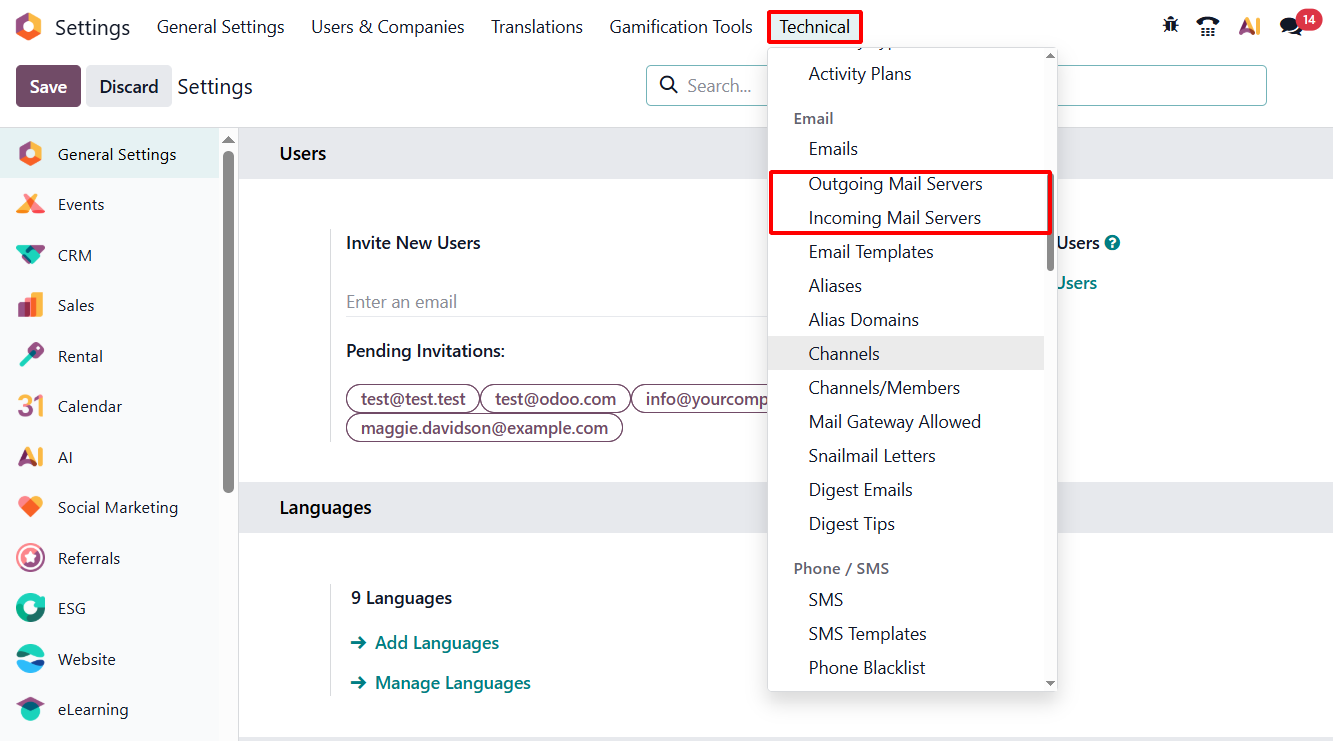
▸Search for Outgoing Mail Servers.
▸Click Create to add a new server.
▸Enter the required SMTP details.
Configuration Example (Gmail SMTP)
Name: Testing Outgoing Server
Authenticate with: Username
Connection Encryption: SSL/TLS (Encryption Only)
SMTP Server: smtp.gmail.com
SMTP Port: 465
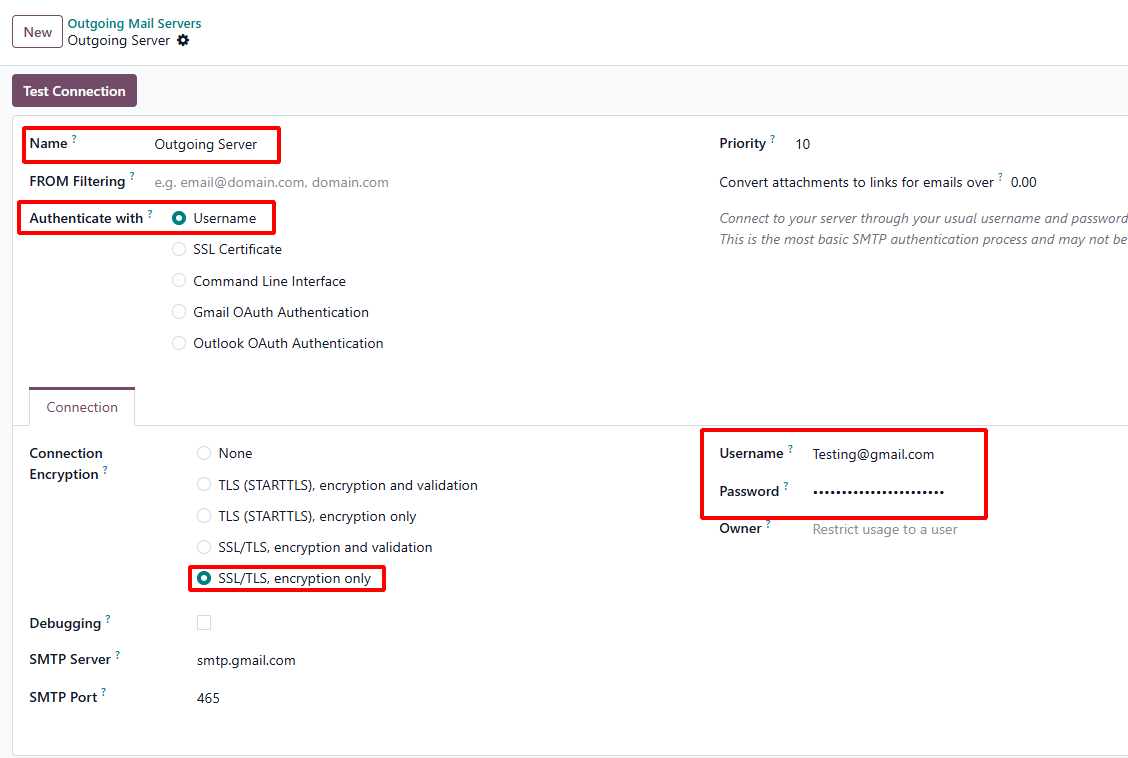
Username:
Enter the email address that will be used to receive incoming emails in Odoo. This should be the same Gmail account you want to connect with Odoo, for example: yourname@gmail.com.
Password:
Enter the Gmail App Password, not your normal Gmail account password.
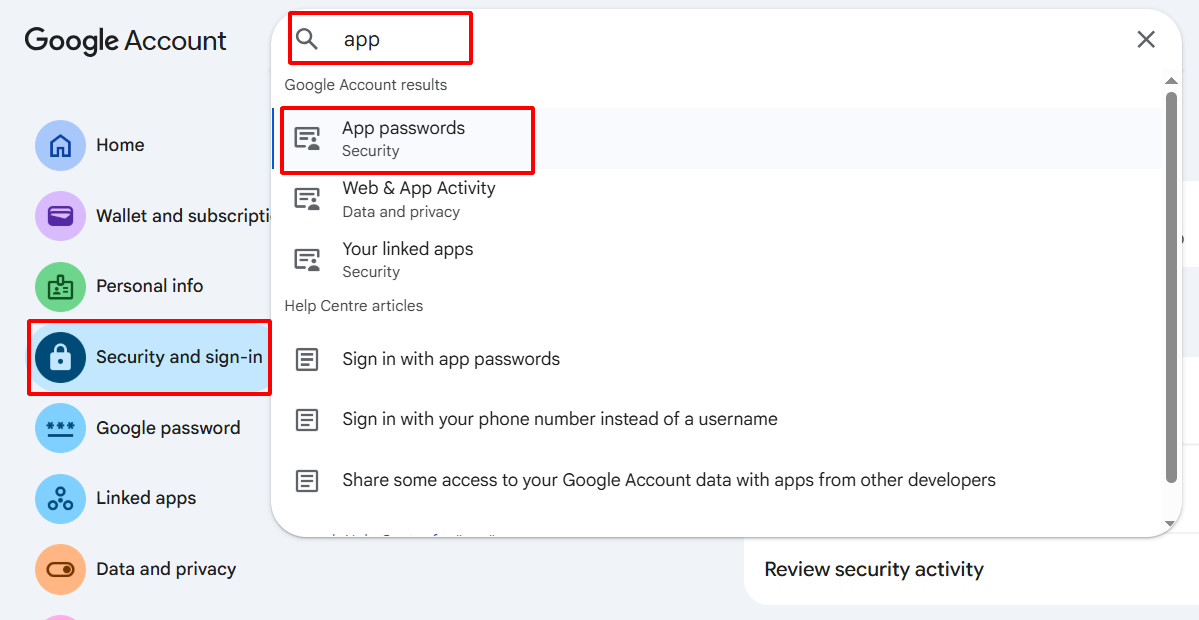
To generate the Gmail App Password, first go to your Google Account and click Manage your Google Account. Then open the Security section. In the search bar, type App Passwords and select the App Passwords option from the results.
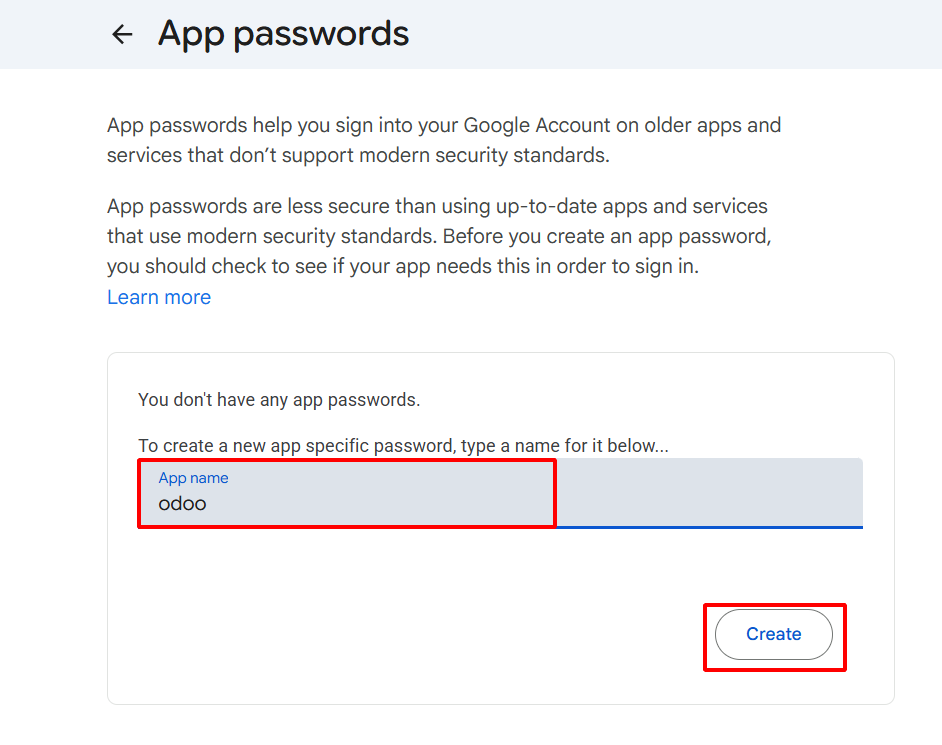 Now go to Odoo Settings, open Outgoing Mail Server or Incoming Mail Server, and enter your Gmail address as the username. In the password field, paste the generated app password instead of your Gmail account password.
After filling in the outgoing mail server details, click the Test Connection button at the top left to verify the SMTP configuration.
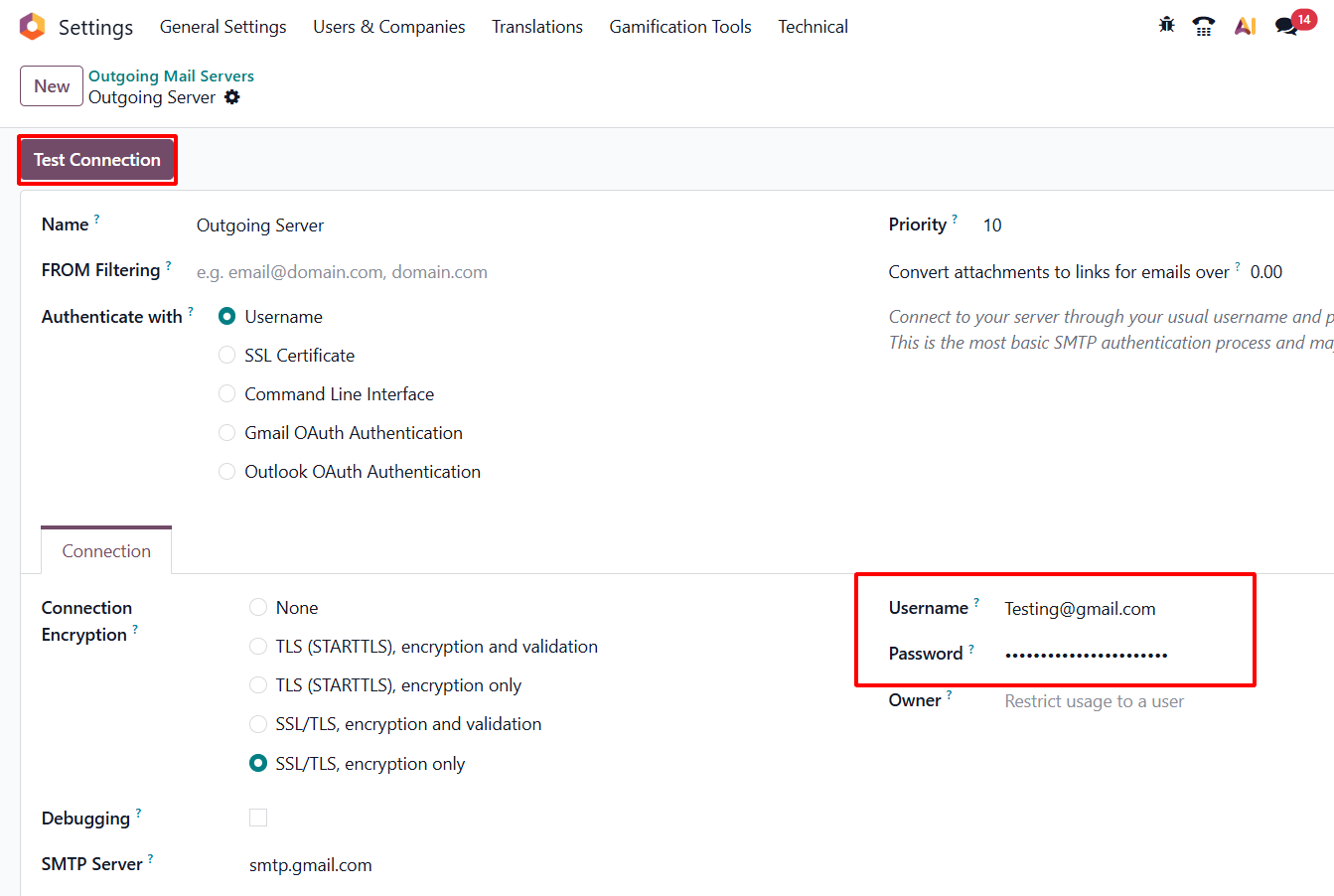
Once you click Test Connection, Odoo will check the connection with the Gmail SMTP server. If everything is configured correctly, the connection test will be successful, and the outgoing mail server will be ready to send emails.
This configuration allows Odoo to send emails through the connected G mail account.
2. Incoming Email Server Configuration
The Incoming Mail Server allows Odoo to receive emails and attach them automatically to the appropriate record in the Chatter.
Steps to Configure Incoming Email Server
▸Go to Settings.
▸Search for Incoming Mail Servers.
▸Click Create.
▸Enter the IMAP server details.
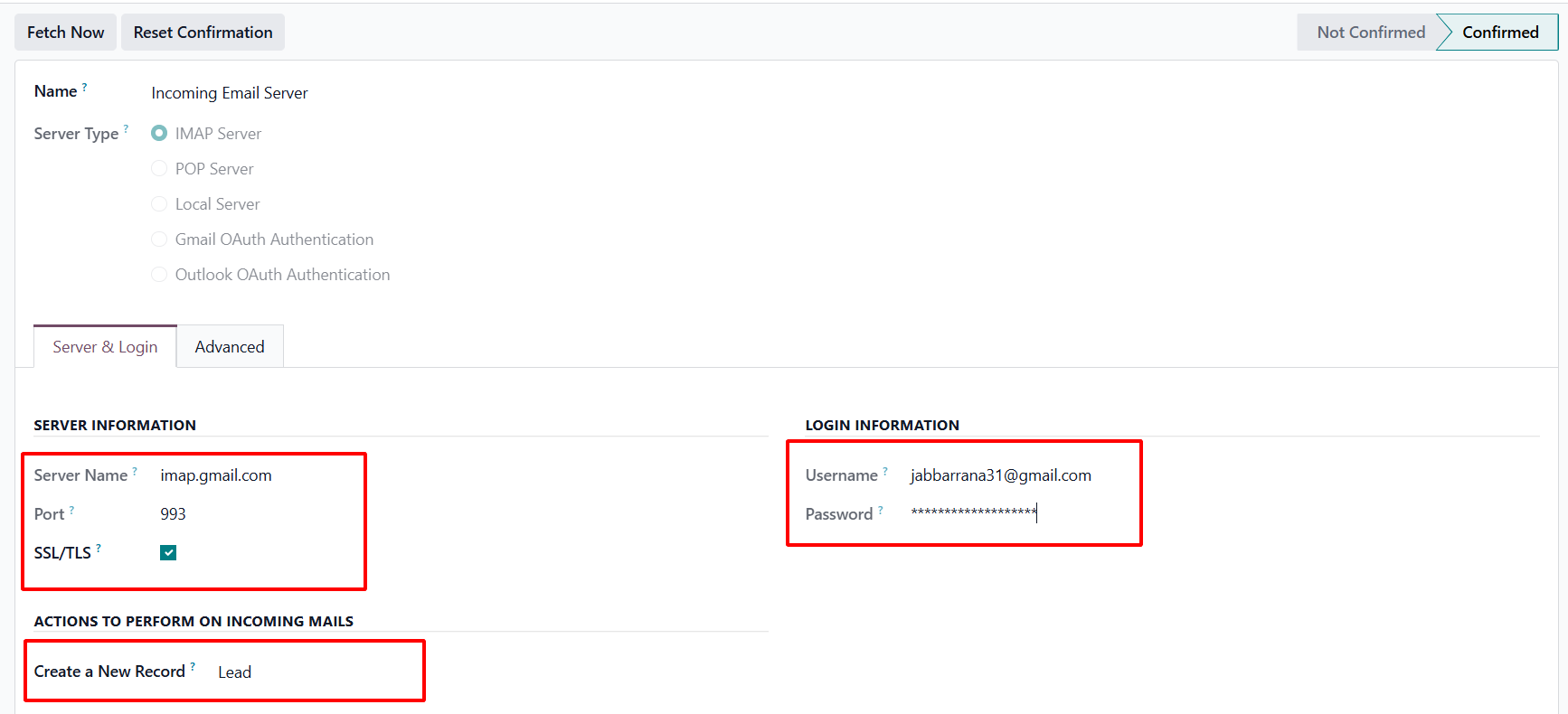
Gmail IMAP Configuration for Incoming Emails in Odoo
To receive emails directly inside Odoo, you need to configure an incoming mail server using Gmail IMAP. This setup allows Odoo to fetch emails from your Gmail inbox and create email threads or records automatically inside the system. Before starting, make sure IMAP is enabled in your Gmail settings and you have generated a Gmail App Password.
Configuration: Gmail IMAP
Name: Testing Incoming Email
Server Type: IMAP Server
Server Name: imap.gmail.com
Port: 993
SSL/TLS: Enabled
Create a New Record: Lead
Username: Enter the same Gmail address that is used for sending emails from Odoo
Password: Enter your Gmail App Password
Testing the Configuration
To ensure that the configuration works correctly:
- Open a CRM Lead
- Use the Send Message option in Chatter to send an email
- Verify that the email is delivered successfully
- Reply to the email from the external email inbox
- Check that the reply appears automatically in the Chatter
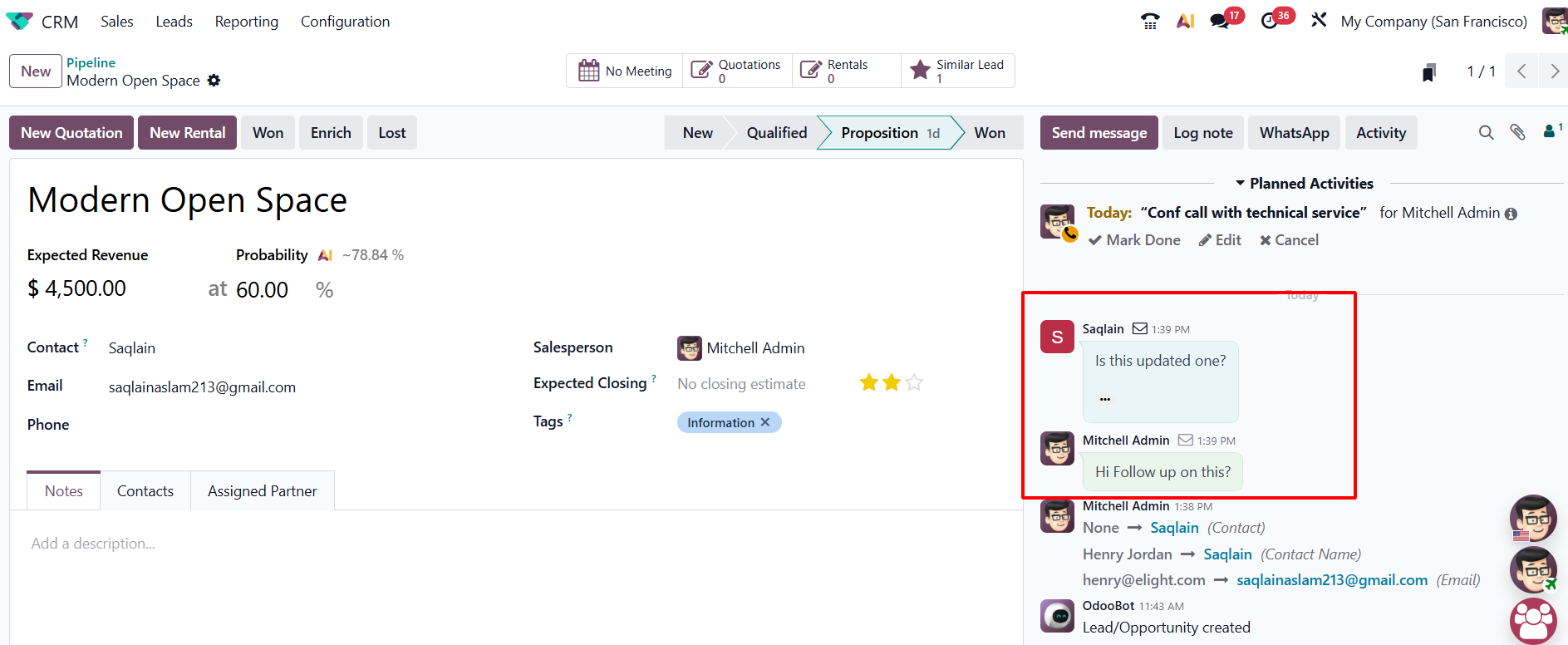
By connecting email with Odoo Chatter, businesses can manage customer communication in a more organized and efficient way. All emails, replies, and follow-ups stay linked with the related record, which helps teams avoid missed messages and manual tracking.
This improves collaboration, saves time, and allows sales and support teams to respond faster from one centralized system.