The remaining configuration options define how that foundation behaves in real business scenarios—from calculating taxes and converting foreign currencies to managing payment terms, follow-ups, reporting structures, and international trade conditions.
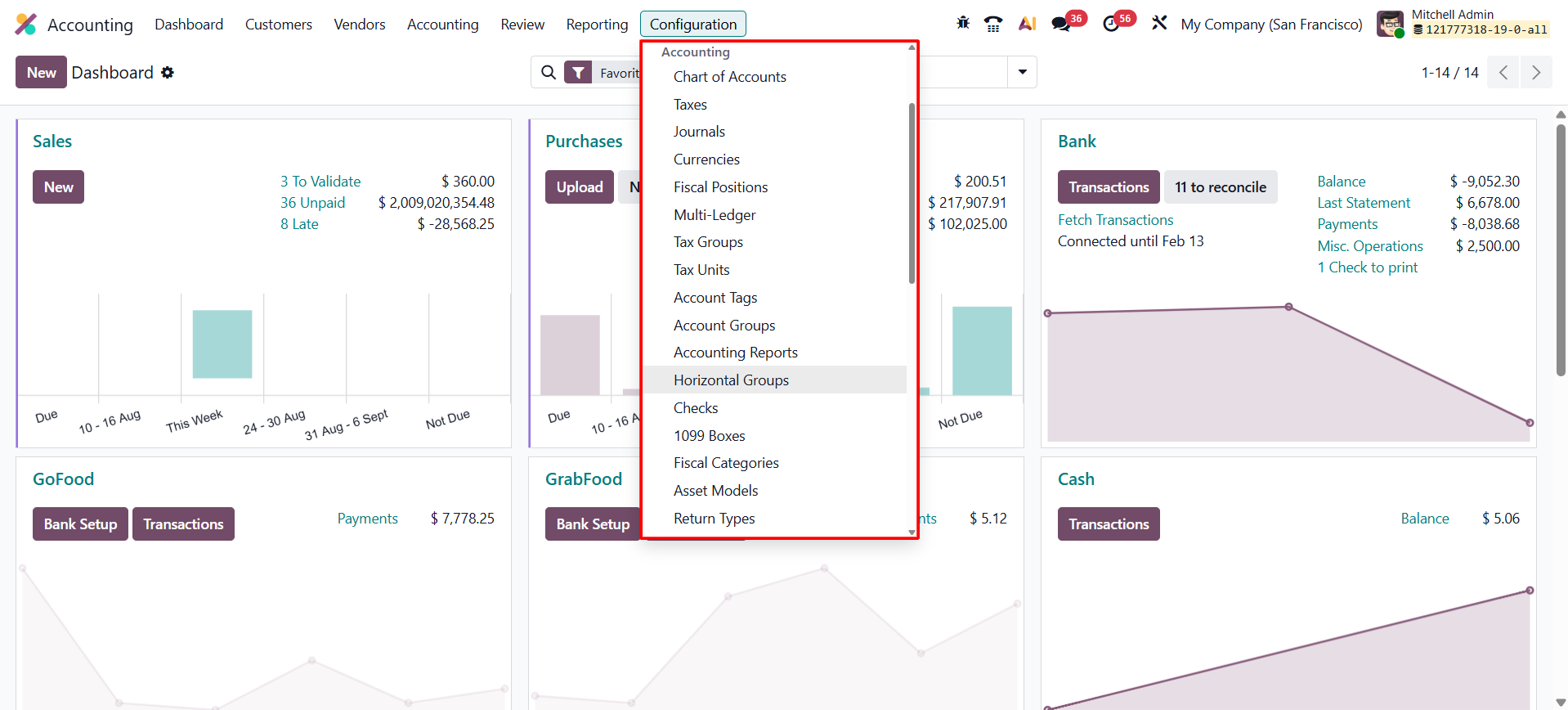
Odoo 19 brings these settings together under the Accounting Configuration menu, allowing finance teams to maintain consistent accounting rules without relying on manual adjustments for every transaction. This guide covers the major configuration areas that follow Chart of Accounts and Journals, with a practical focus on what each option controls and how it is configured.
1.1 Taxes
Tax configuration determines how Odoo calculates, records, and reports tax amounts on customer invoices, vendor bills, refunds, and other taxable transactions. Because tax rules affect both transaction totals and accounting entries, the configuration should reflect the company’s fiscal localization and applicable tax requirements.
Accounting → Configuration → Taxes.
The list view provides an overview of the tax rules already available in the database and can be filtered by sales, purchases, goods, services, active, or archived records. Before creating a new rule, it is good practice to review the taxes already supplied by the company’s localization.
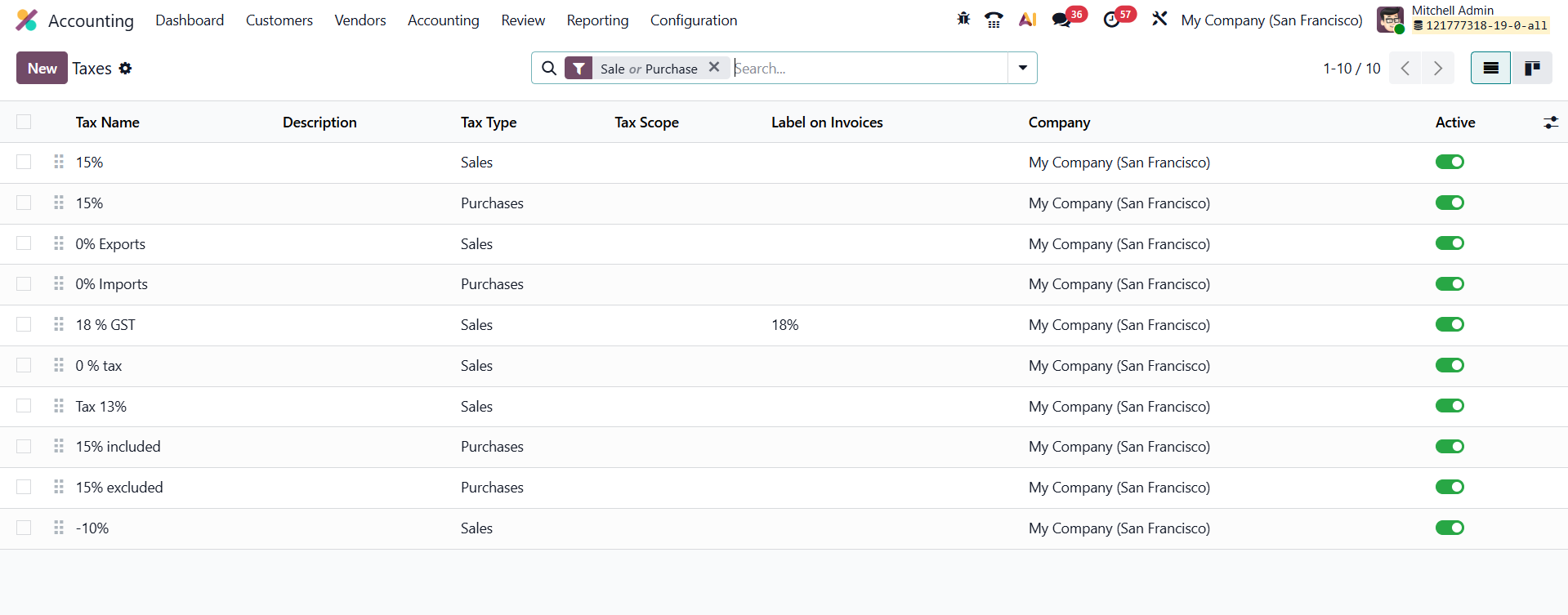
Click New to create a tax. Enter a clear Tax Name, specify whether it applies to Sales or Purchases, and use Tax Scope when the rule should apply only to goods, services, or another supported scope. The Active option allows an outdated tax to be disabled without removing its historical use.
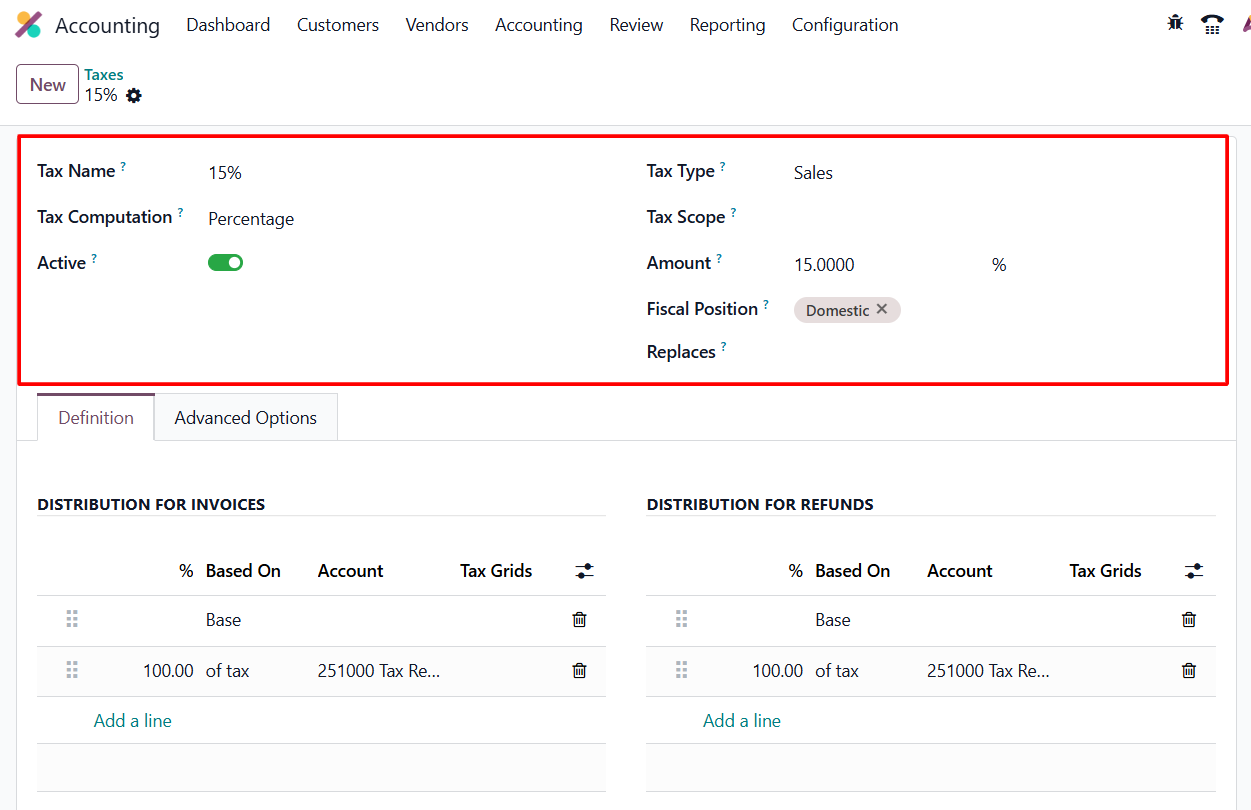
The Tax Computation method dictates how Odoo calculates the tax. Odoo 19 supports five main computation types:
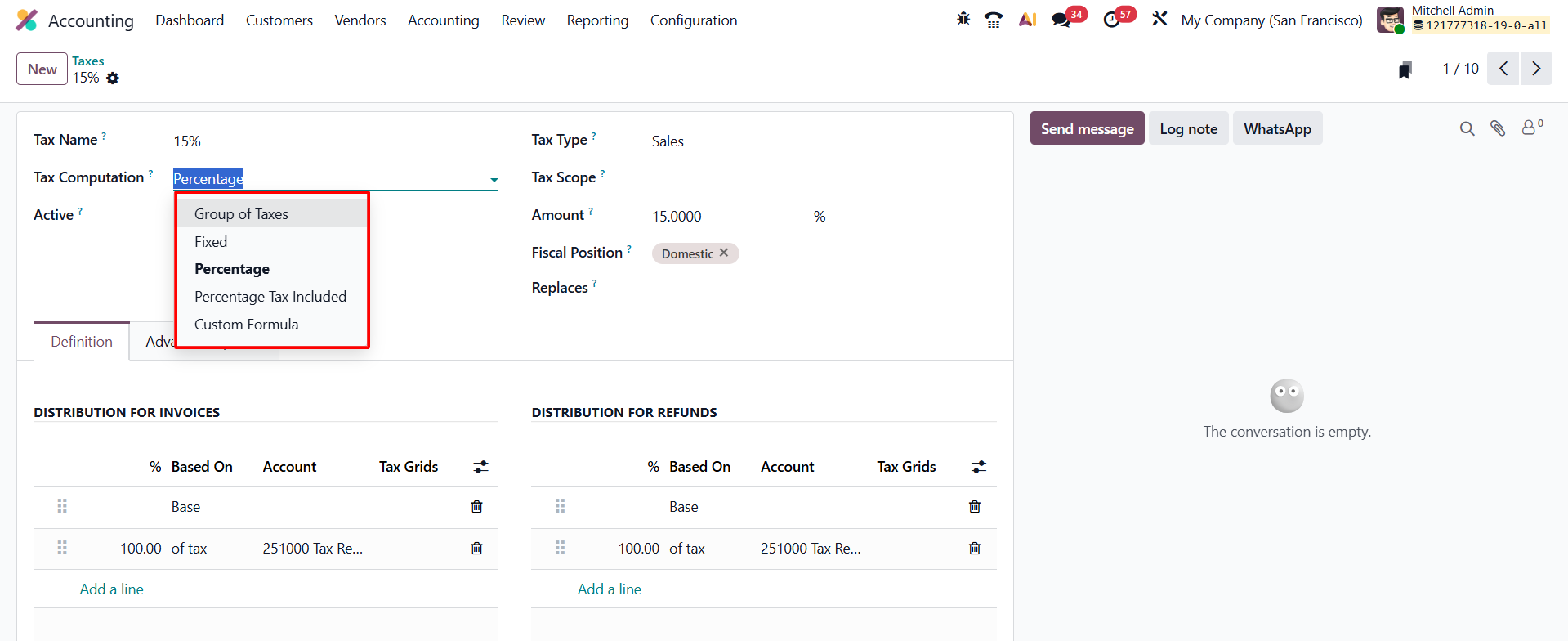
● Fixed — applies a fixed amount rather than a
percentage of the transaction value.
● Percentage of Price — calculates tax as a
percentage of the tax-excluded sales or purchase price.
● Percentage of Price Tax Included — derives the
tax from a price that already includes the tax.
● Group of Taxes — Combines multiple sub-taxes into a single rule, allowing you to stack federal, state, and local taxes in a specific sequence.
●Custom Formula — supports a custom calculation
when the corresponding tax functionality is available.
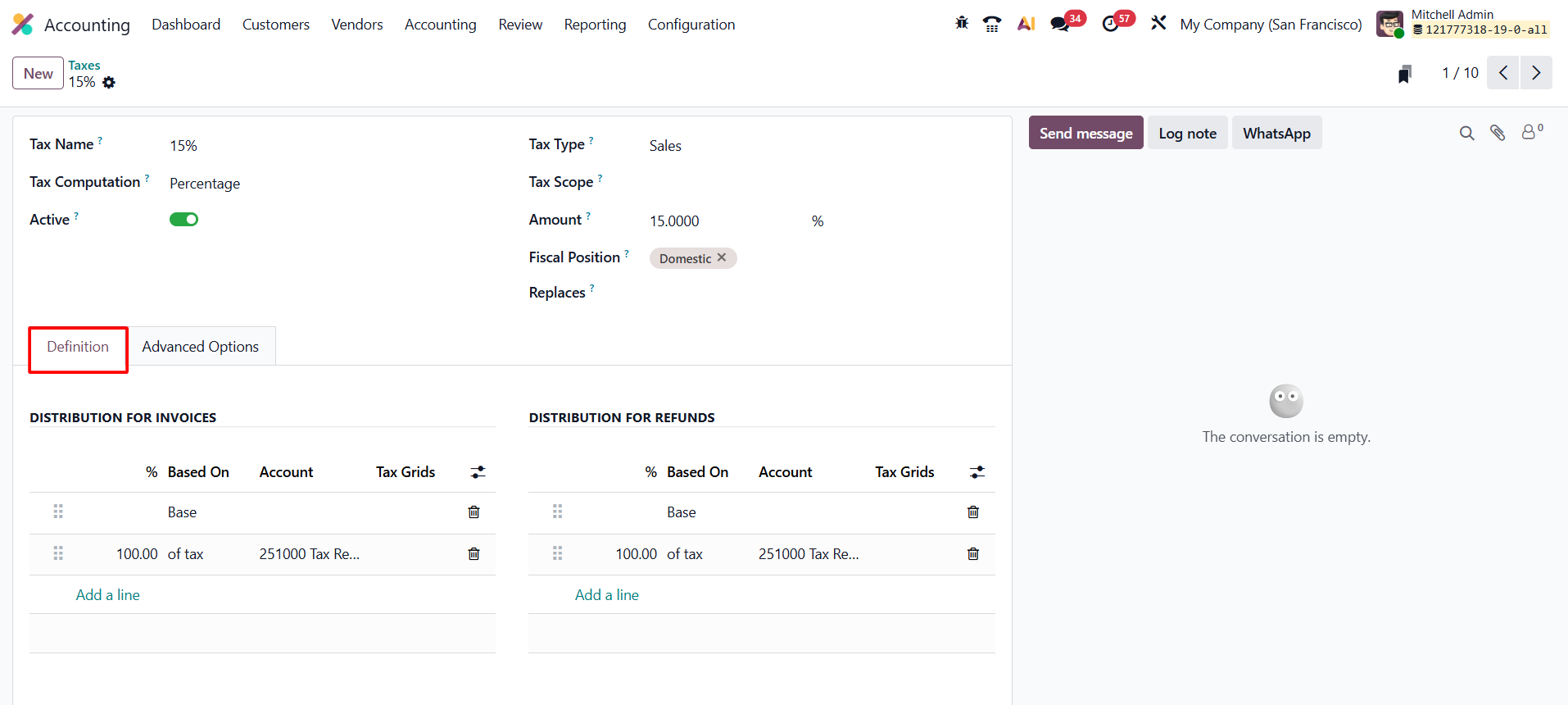
The Definition area controls the tax base, tax posting
accounts, and tax grids used for reporting. For grouped taxes, the Definition
section is also used to add the individual taxes and determine their order.
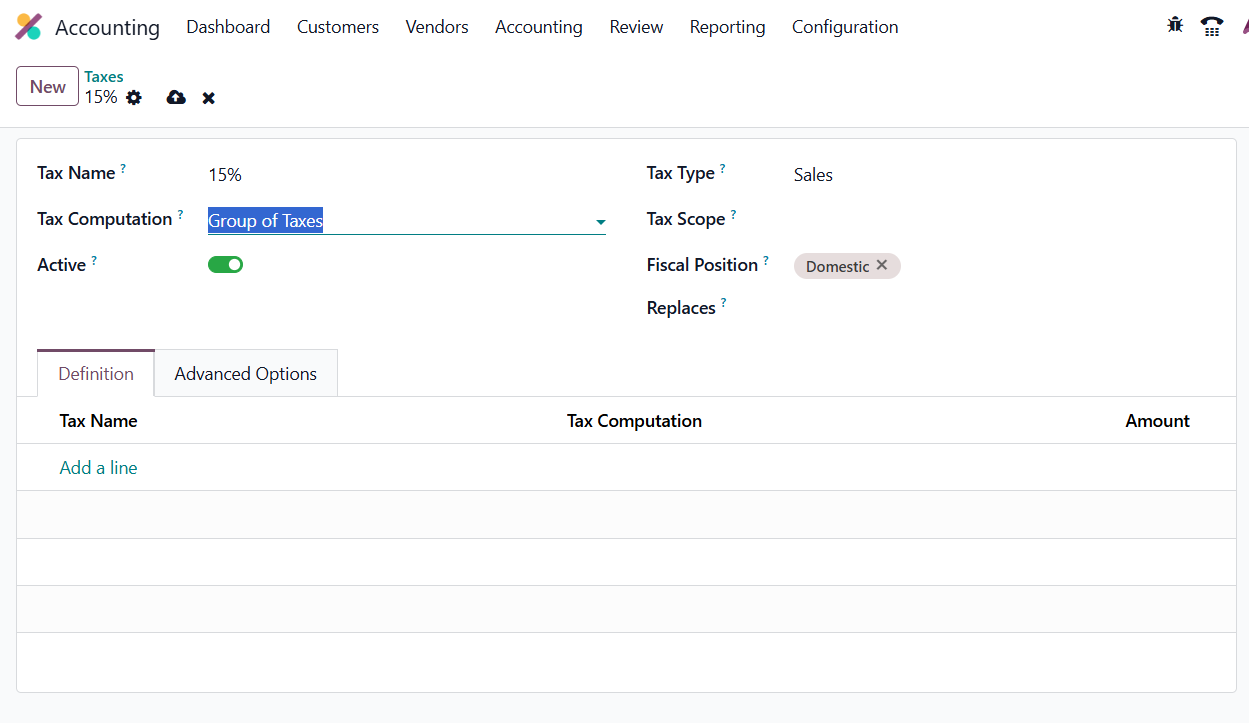
Each tax method includes a Definition tab that determines the computation base, the general ledger accounts for tax postings, and the tax grids (boxes) where Odoo will place the reported values for both invoices and refunds.
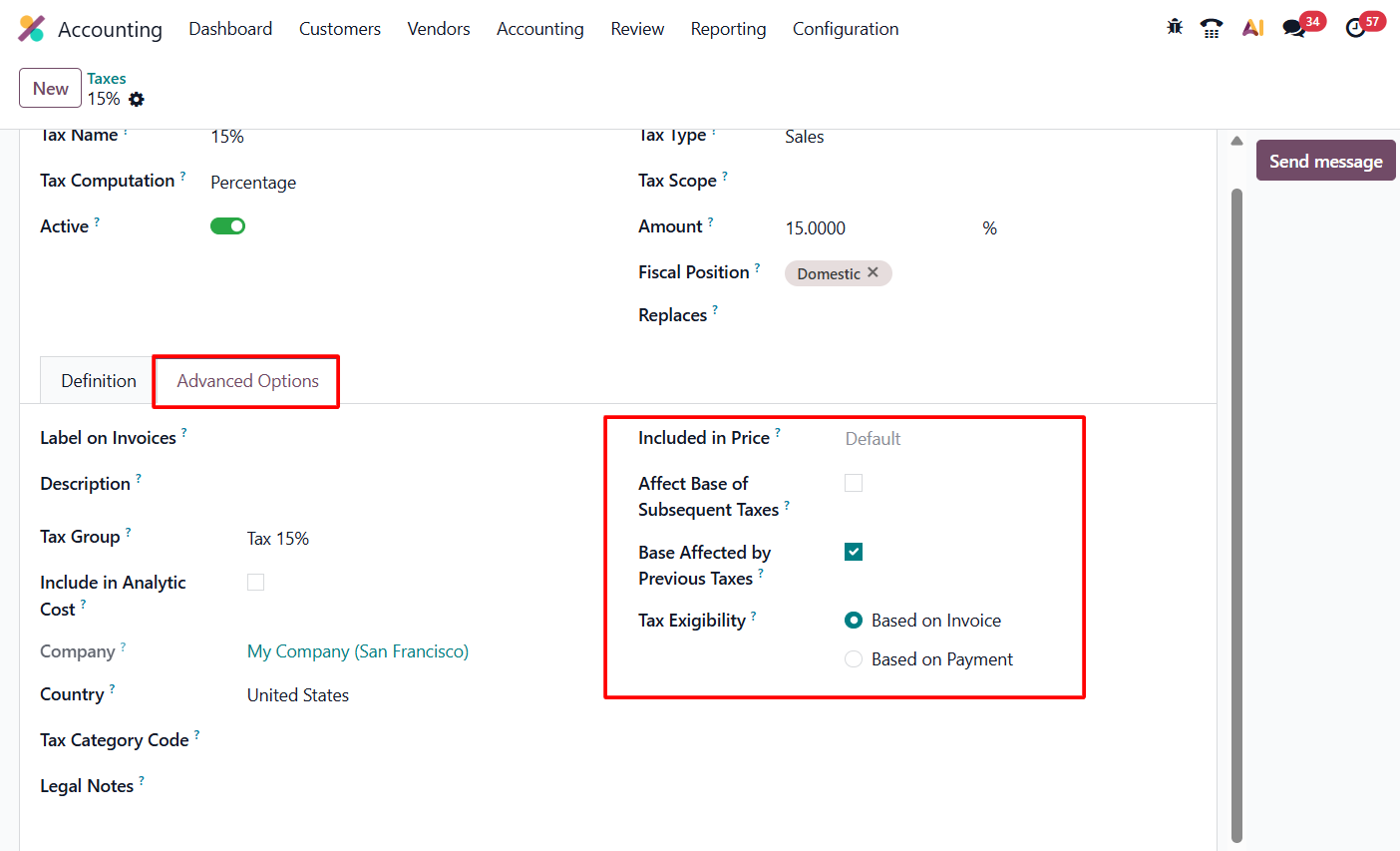
Advanced tax options control how taxes are displayed, grouped, calculated, and recognized in Odoo. Key settings include Label on Invoices, Tax Group, Included in Price, tax-base behavior, and Tax Exigibility. Once configured and saved, Odoo applies the tax rule automatically to relevant transactions.
After confirming the Company and Country, hit Save. From that moment, Odoo 19 automatically applies the correct tax to every invoice, refund, and vendor bill, posting values to the right accounts and filling the corresponding return boxes.
1.2 Currencies
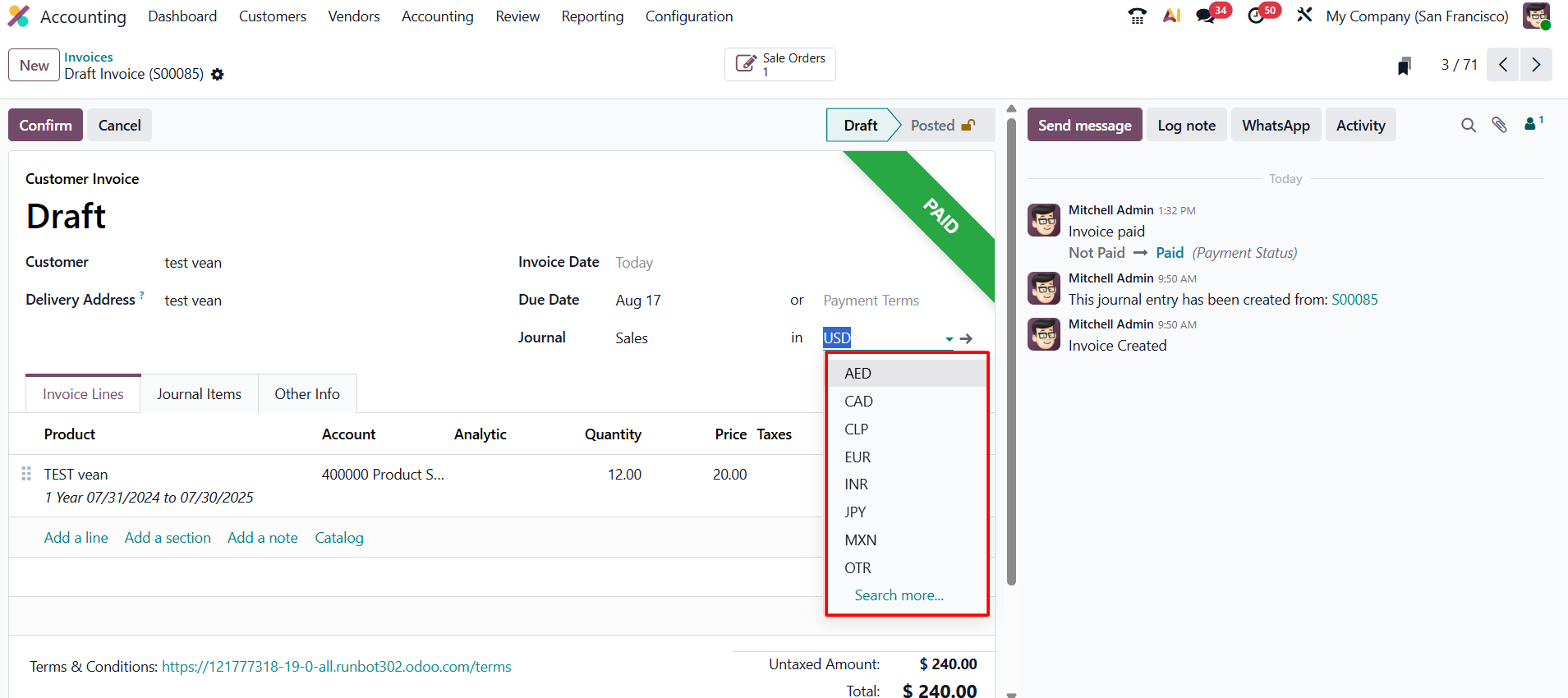
Multi-currency accounting allows a company to invoice customers, receive vendor bills, process payments, and record accounting entries in currencies other than the company’s main currency.
Go to Accounting → Configuration → Currencies
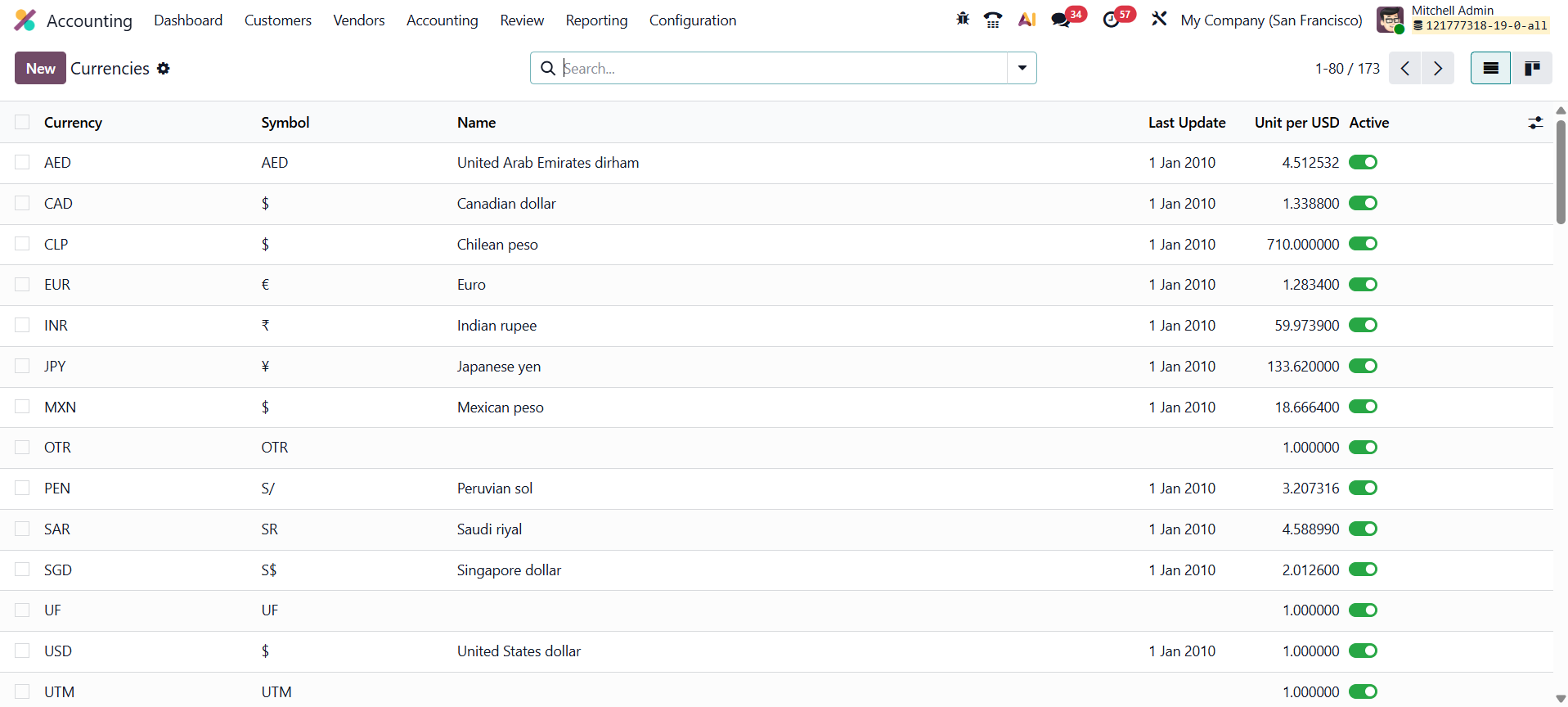
You can view the
currencies available in the database. The list provides key information such as
the currency name, symbol, latest rate information, and whether the currency is
active.
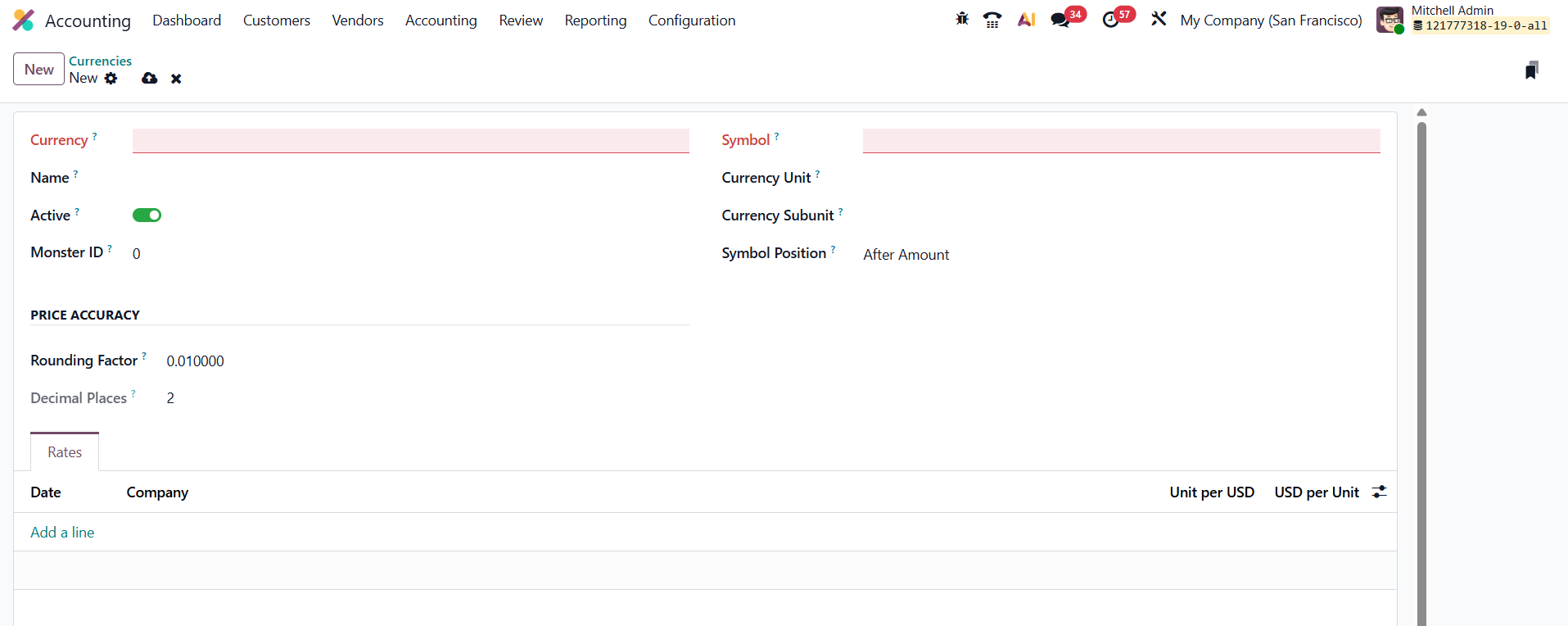
To add or configure a currency, open an existing record or click New. Enter the currency code, name, unit, subunit, and rounding or price-accuracy settings required by the currency. Activate the currency to make it available for transactions.
 Exchange rates are maintained from the Rates tab. Click Add
a Line to enter or update a rate manually. When automatic currency-rate updates
are enabled in Accounting Settings, Odoo can update rates from the selected
provider according to the configured schedule.
Exchange rates are maintained from the Rates tab. Click Add
a Line to enter or update a rate manually. When automatic currency-rate updates
are enabled in Accounting Settings, Odoo can update rates from the selected
provider according to the configured schedule.
The rate date is important because Odoo converts foreign-currency transactions using the rate applicable to the transaction or accounting date. This allows invoices, bills, payments, and journal entries to retain their foreign-currency value while also recording the equivalent in the company currency.
1.3 Fiscal Positions
Fiscal Positions automate tax and account changes when a
transaction requires different accounting treatment because of location, VAT
status, or another fiscal condition. They are particularly useful when a
company serves customers or vendors across multiple regions.
Accounting → Configuration → Fiscal Positions
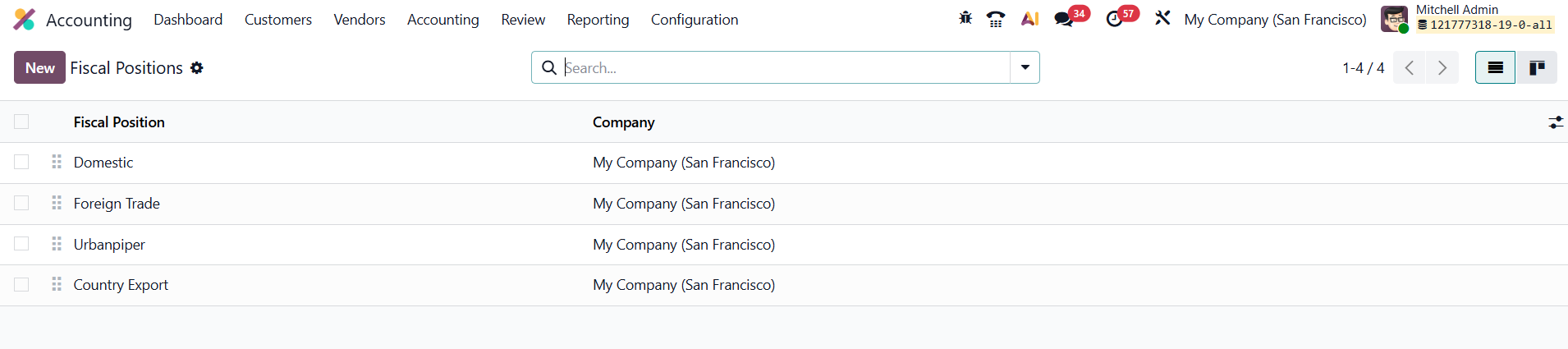
Now, you can review
existing rules. To create one, click New and enter a descriptive name that
clearly reflects the purpose of the rule.
When Detect Automatically is enabled, Odoo can apply the fiscal position based on matching conditions such as Country or Country Group. VAT Required can limit the rule to partners with a VAT number, while Foreign Tax ID can store a tax registration used in the relevant jurisdiction.
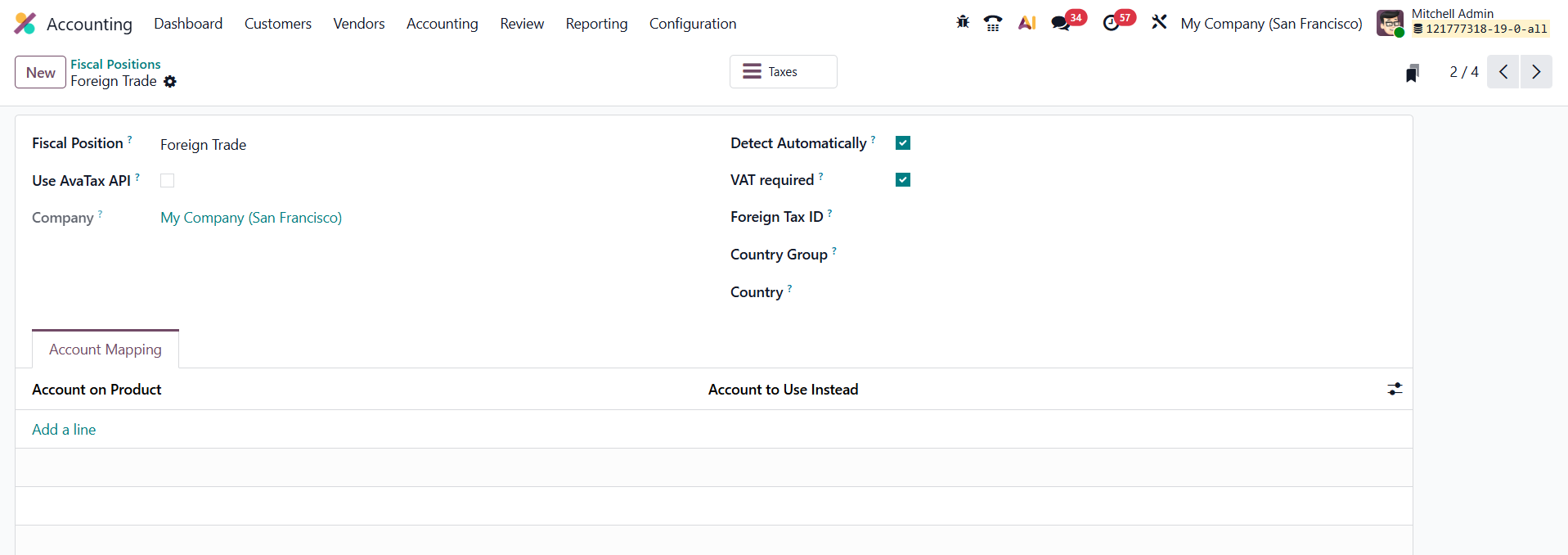 The Account Mapping section is used when one ledger account
should be replaced by another under the fiscal position. Odoo 19 also connects
fiscal positions with tax configuration, allowing taxes to be replaced when the
fiscal rule applies.
The Account Mapping section is used when one ledger account
should be replaced by another under the fiscal position. Odoo 19 also connects
fiscal positions with tax configuration, allowing taxes to be replaced when the
fiscal rule applies.
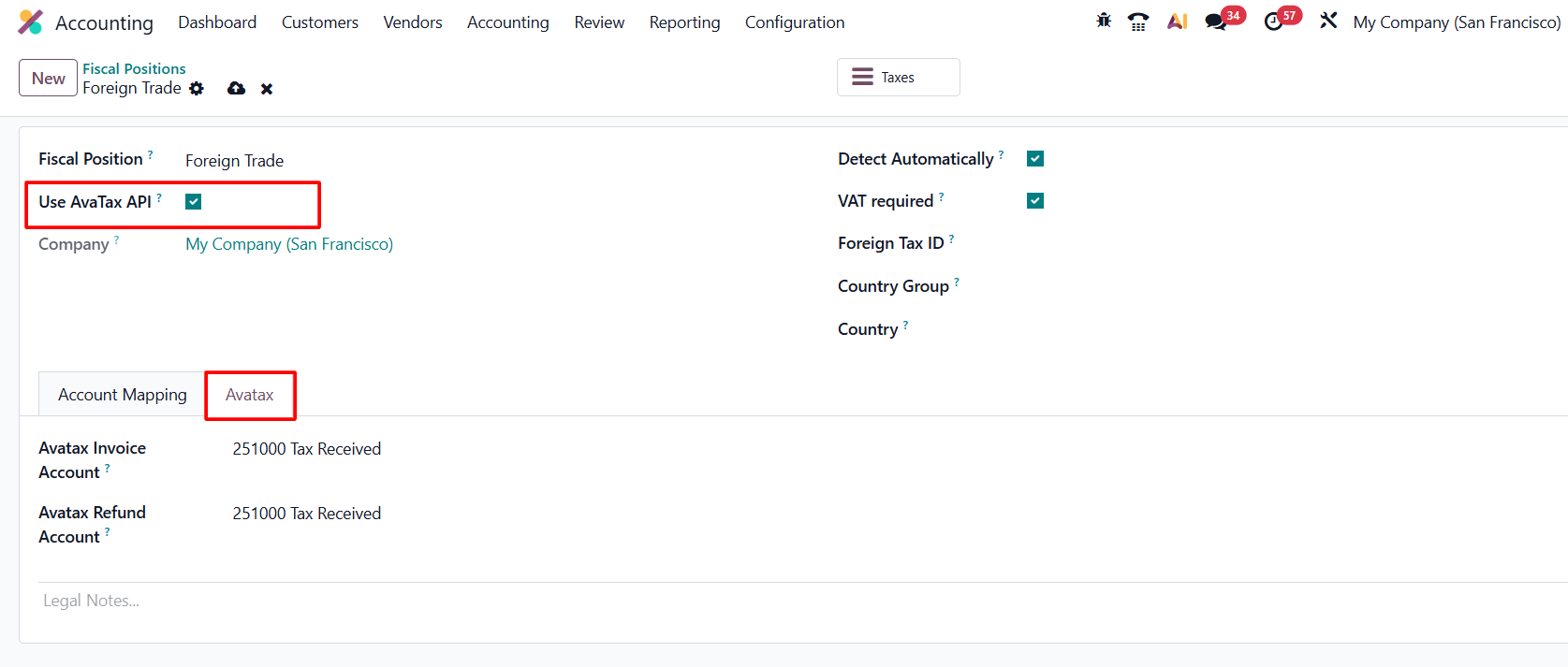
If AvaTax integration is used, additional AvaTax configuration becomes available for the fiscal position. Once saved, the rule helps Odoo apply the appropriate tax and account treatment automatically when the transaction meets the defined conditions.
1.4 Multi-Ledger
Multi-Ledger configuration is designed for environments that require additional ledger views, particularly multi-company and consolidation scenarios. It allows operational accounting to remain separate while specific consolidation or adjustment journals can be controlled at the ledger level.
Go to Accounting → Configuration → Multi-Ledgers
Now click
New. Enter a Ledger Name, select the Company, and define any journals that
should be excluded from that ledger. After saving, the ledger becomes available
in the reporting environment so finance teams can analyze the appropriate set
of accounting entries.
1.5 Tax Groups
Tax Groups organize related taxes under a common structure and support consistent presentation and tax-account management. They can be used to group taxes such as VAT or service taxes and may include accounts for tax payable, tax receivable, or tax advances depending on the localization.
Navigate to Accounting → Configuration → Tax Groups
You can review the available groups. Open a record to review its Name, Country,
Company, sequence, display label, and the tax accounts provided by the
localization.
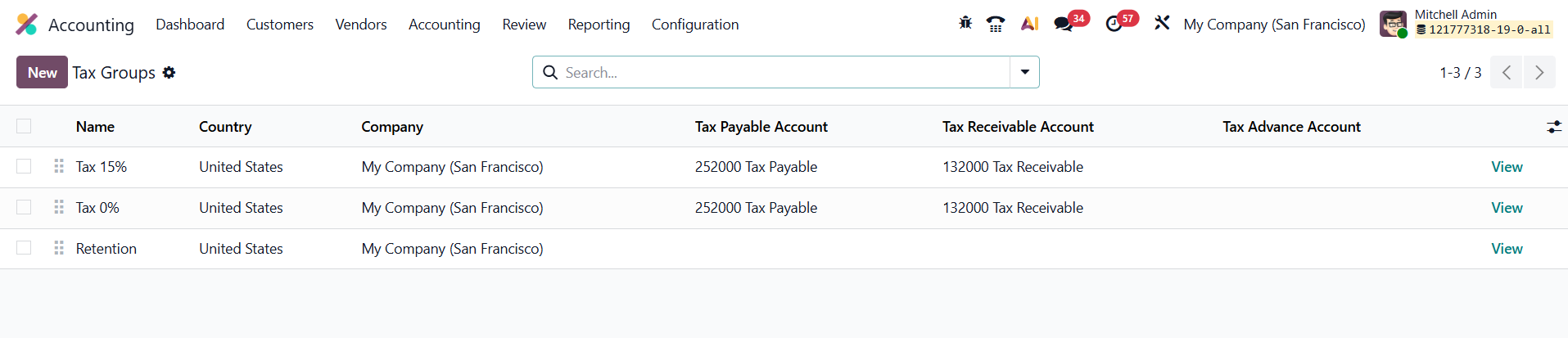 The sequence determines how the group is ordered in relevant
displays, while the Point of Sale label controls how the tax group is shown on
supported receipts. The payable, receivable, and advance accounts determine
where related tax balances are tracked in accounting.
The sequence determines how the group is ordered in relevant
displays, while the Point of Sale label controls how the tax group is shown on
supported receipts. The payable, receivable, and advance accounts determine
where related tax balances are tracked in accounting.
1.6 Tax Units
Tax Units support specific multi-company tax-reporting structures where several eligible companies are treated as one reporting unit for tax purposes.
From Accounting → Configuration → Tax Units, click New to
create a unit. Enter the Title, select the Country, add the Companies included
in the unit, and designate the Main Company. The Tax ID identifies the unit for
the relevant tax-reporting process.
Once configured, the tax unit can be used where Odoo
supports aggregated tax reporting for the included companies. Because
eligibility for tax-unit treatment depends on local rules, the accounting setup
should follow the company’s legal and fiscal requirements.
1.7 Cash Rounding
Cash Rounding is useful when physical cash is not available in the smallest accounting denomination. It adjusts invoice totals so that cash payments can be settled using the denominations available in the relevant currency.
First enable Cash Rounding from Accounting → Configuration →
Settings. 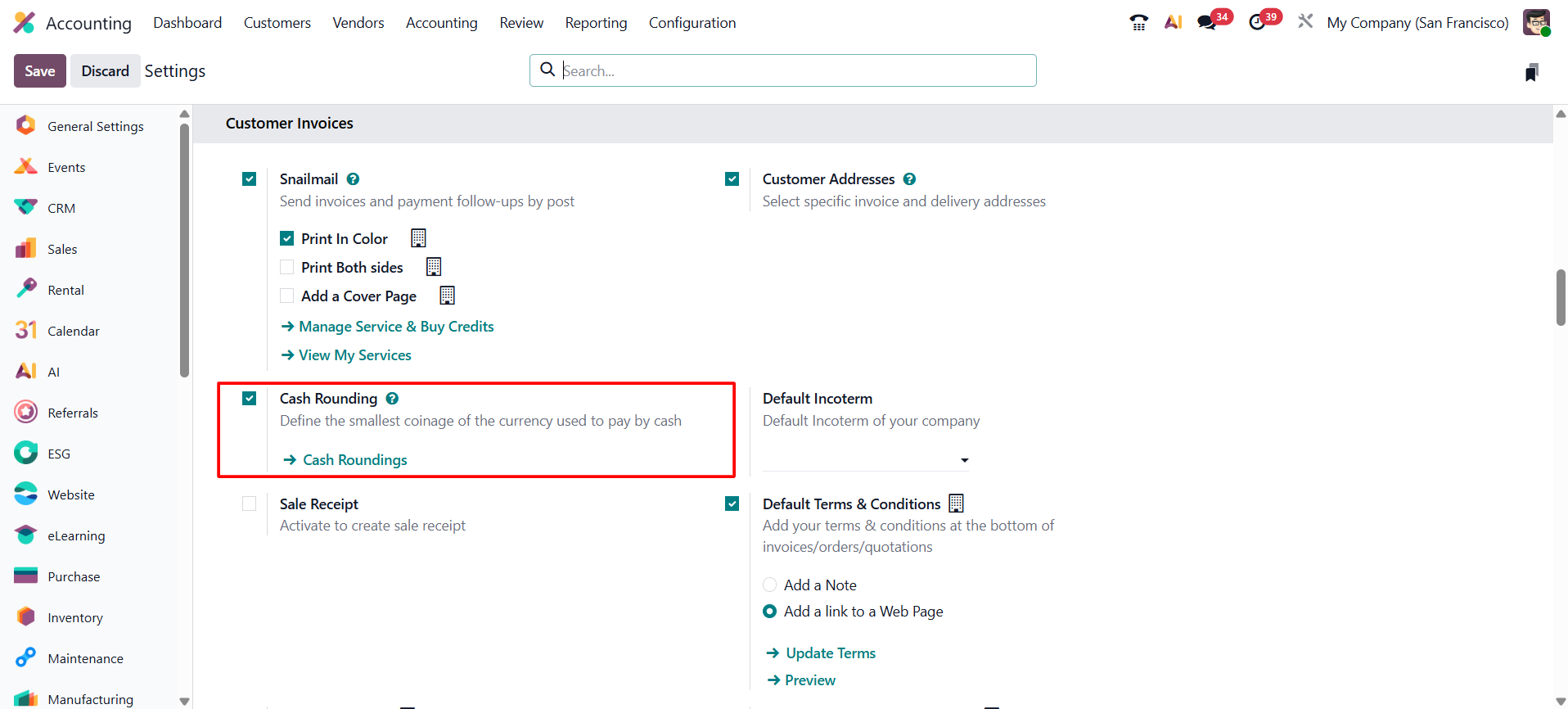
Then open Accounting → Configuration → Cash Roundings.
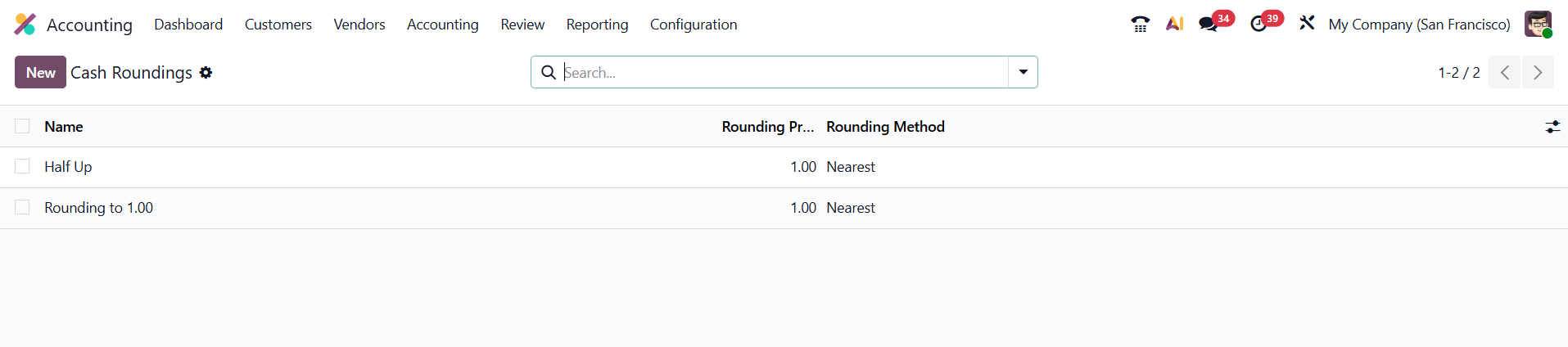 Click New.
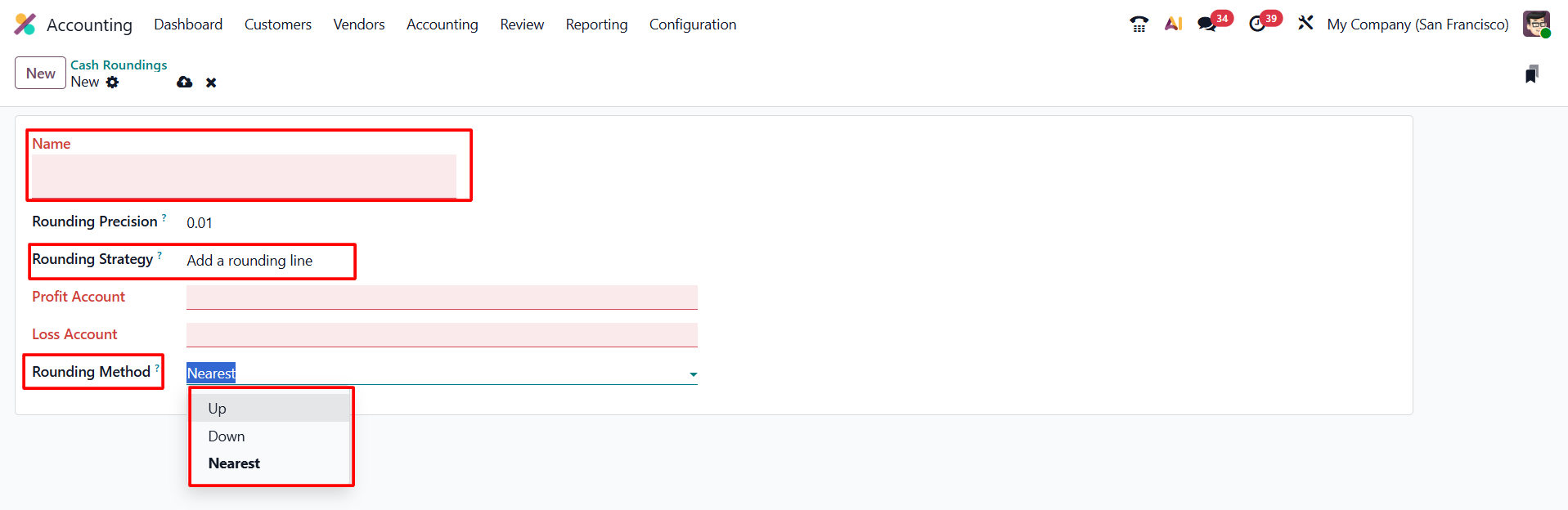
Enter a Name and set the Rounding Precision.
Click New.
Enter a Name and set the Rounding Precision.
Odoo 19 provides two rounding strategies:
▪ Add a Rounding Line — adds a separate line to
the invoice for the rounding difference.
▪ Modify Tax Amount — adjusts the tax calculation
so that the final total matches the rounding precision.
When a separate rounding line is used, configure the Profit and Loss accounts that should receive the rounding difference.
The rounding method determines the direction of the adjustment:
▪ Up — always rounds toward the next valid denomination.
▪ Down — always rounds toward the lower valid
denomination.
▪ Nearest — rounds to the closest valid
denomination.
After saving the method, it can be selected on applicable transactions so that the final amount follows the configured cash-rounding rule.
1.8 Account Tags
Account Tags provide an additional way to classify accounting-related records for filtering, organization, and reporting.
Go to Accounting → Configuration → Account Tags to view
existing tags. Click New to create a tag, enter a clear Tag Name, and choose
its Applicability. Depending on the option selected, a tag can be made
available for Accounts, Taxes, or Products.
Tags can then be used in the relevant records to make
specific balances or categories easier to identify and analyze.
1.9 Account Groups
Account Groups organize related ledger accounts under a common structure. This helps maintain a cleaner Chart of Accounts and supports grouped balances and subtotals in financial reports.
Odoo can assign accounts to groups automatically based on their account-number prefixes. Where manual control is required, the group can be selected on the account record.
To create an additional group, enable Developer Mode and go to Accounting → Configuration → Account Groups. Click New, enter a Name, define the Code Prefix range used by the child accounts, and select the Company when the group is company-specific.
 Once saved, the group becomes available for account
assignment and its child accounts can be aggregated in supported accounting
views and reports.
Once saved, the group becomes available for account
assignment and its child accounts can be aggregated in supported accounting
views and reports.
1.10 Accounting Reports
Odoo 19 provides a configurable financial-reporting framework for reports such as the Balance Sheet, Profit and Loss, Tax Report, and management reports. The reporting configuration is intended for advanced requirements where the standard report structure needs to be extended or adapted.
Open Accounting → Configuration → Accounting Reports to review available reports. A report can be created as a standalone root report, as a variant that inherits from an existing root report, or as a composite report containing multiple report sections.
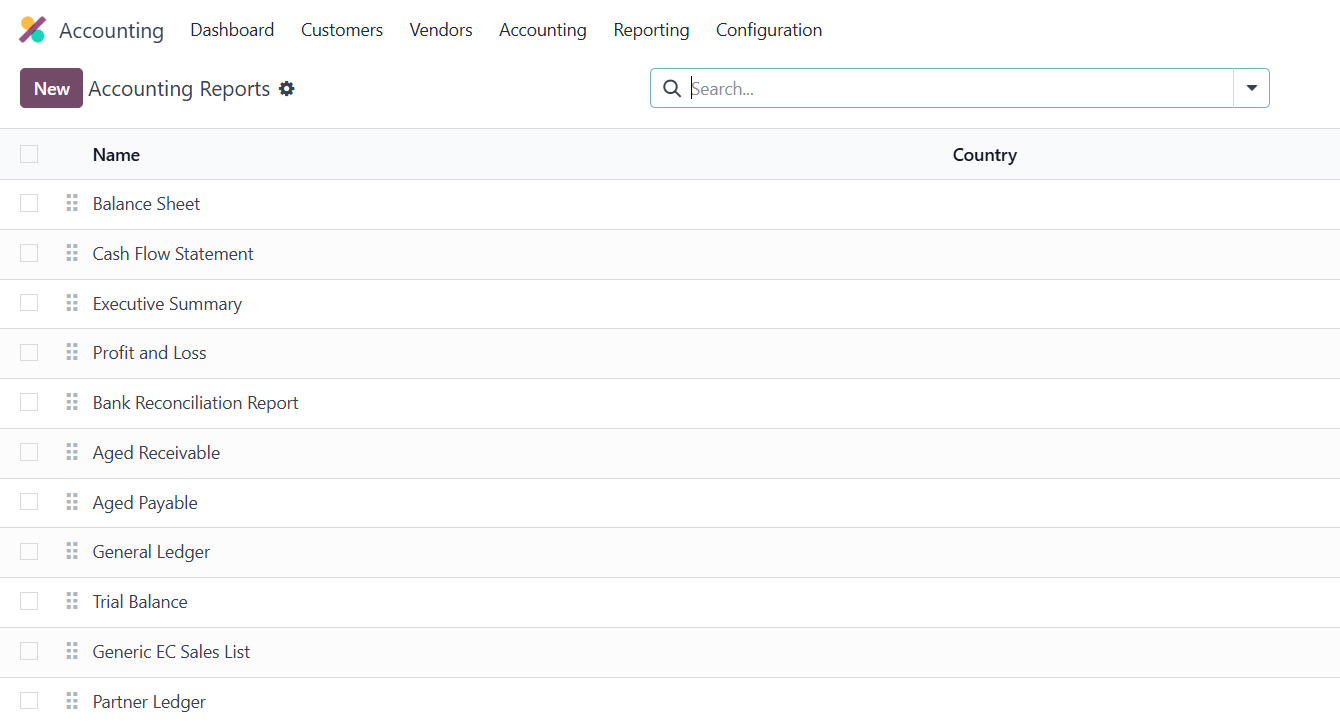
Here, you can either create a new root report or develop a variant of an existing report.
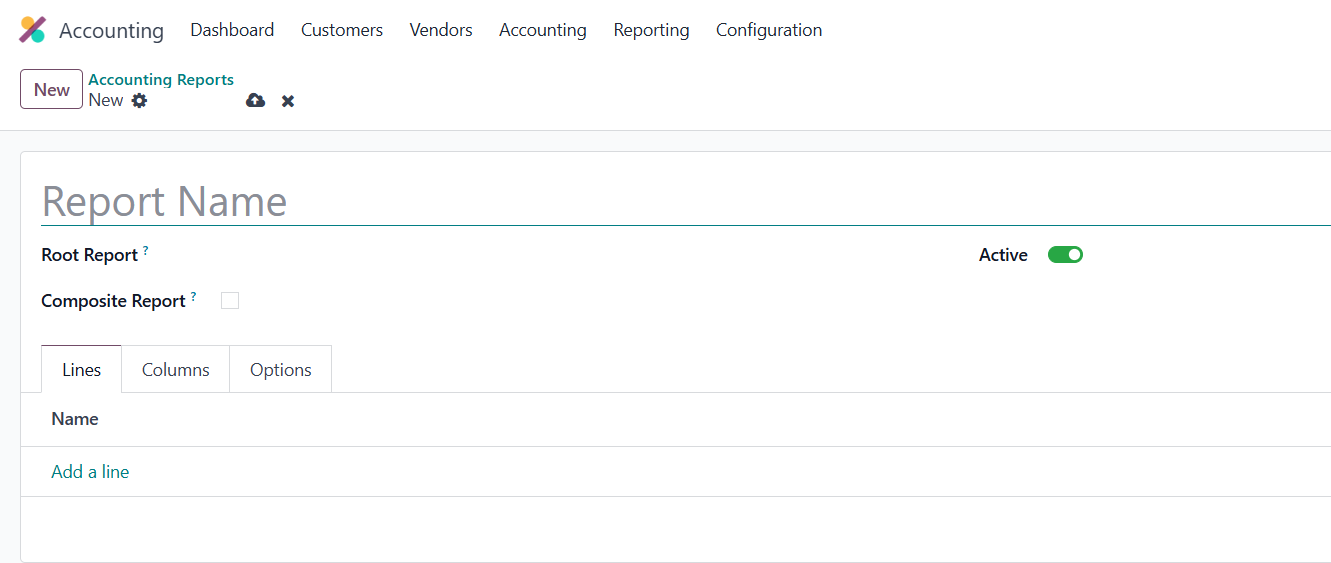
1.11 Horizontal Groups
Horizontal Groups provide an additional reporting dimension by allowing values to be displayed side by side according to defined grouping criteria.
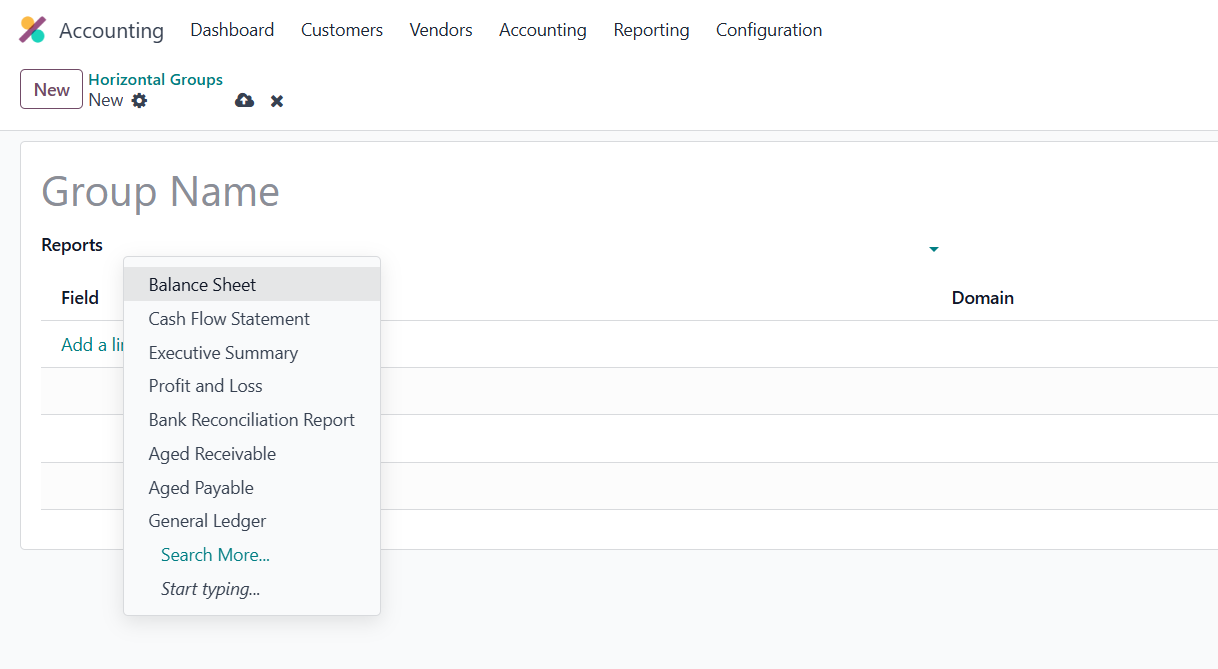
Go to Accounting → Configuration → Horizontal Groups to review existing groups. Click New, enter the Group Name, select the Reports where the group should be available, and add lines that define the Field Name and Domain used to segment the data.
After saving, the Horizontal Group becomes available in the supported financial reports, allowing users to compare values across the configured categories without manually restructuring the report.
1.12 1099 Boxes
For U.S.-based accounting environments, Odoo provides 1099 configuration for categorizing reportable vendor payments.
Navigate to Accounting → Configuration → 1099 Boxes to create and maintain the reporting categories used for 1099 processing. Each box has a Name and description that identifies the type of payment being reported.
After the relevant vendor transactions have been categorized, the yearly information can be reviewed from the 1099 reporting area. The report displays the related accounting entries and can be reviewed before the reporting data is generated for the required filing process.
1.13 Fiscal Categories
Fiscal Categories support localization-specific tax treatment by grouping accounts that share a particular fiscal rule or deduction behavior.
From Accounting → Configuration → Fiscal Categories, open an existing category or create a new one. The Code provides a reference for the category, while Category Name describes its fiscal purpose. The Company field keeps the rule within the correct entity in a multi-company environment.
Related Accounts determines which ledger accounts belong to the category. Where available, Requires a Vehicle can limit the category to expenses associated with registered vehicles, which is useful for fiscal rules that depend on vehicle-related expenditure.
Because Fiscal Categories are localization-dependent, the fields and practical use can vary by country and installed accounting package.
1.14 Online Synchronization
Online Synchronization connects supported bank accounts with Odoo so that bank transactions can be imported automatically into Accounting.
Connected accounts can be managed from the online synchronization configuration when Developer Mode is enabled. A new bank connection can also be started from the Accounting Dashboard by clicking New, choosing Bank, searching for the financial institution, and selecting Connect.
Depending on the bank and country, Odoo may use a supported third-party provider to establish the connection. If the institution is not listed, a bank account can be created manually by entering details such as the Account Number, Bank, and SWIFT Code.
A manually created bank account provides the related bank journal, but it does not create an online connection by itself; transactions for that account must be imported using the available manual workflow.
1.15 Payment Terms
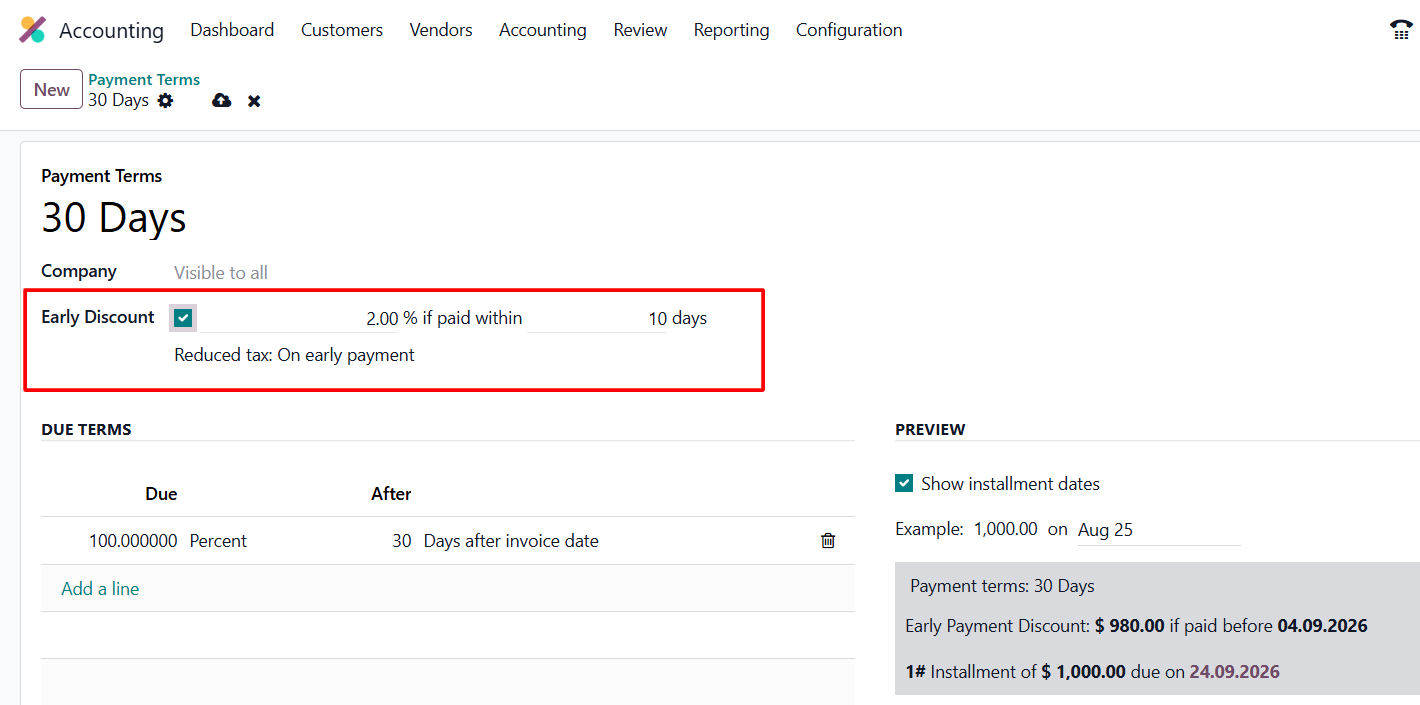
Payment Terms define when customer invoices or vendor bills become due. They can represent a single due date, an installment schedule, or an early-payment discount.
Go to Accounting → Configuration → Payment Terms and click New. Select the Company when required and enter a clear Name such as Net 30 or 50/50 Installment Plan.
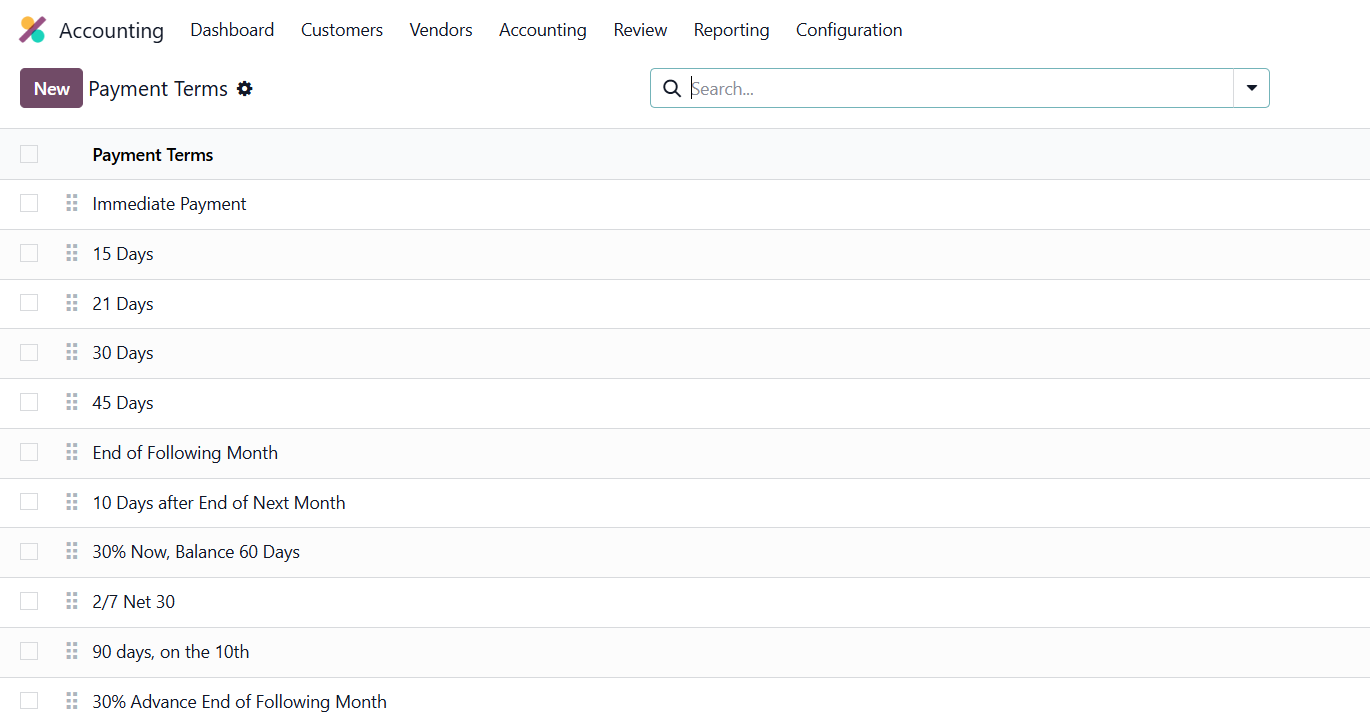
If an early-payment incentive is offered, enable Early
Discount and define the discount percentage and validity period. The Due Terms
section controls the payment schedule. A single line can make the full amount
due after a specified period, while multiple lines can split the balance into
installments.
Preview Text explains the payment rule on documents, and Show Installment Dates can display the actual scheduled dates rather than only relative terms.
 Once configured, the payment term can be assigned to
contacts so that Odoo applies the expected payment policy automatically to
future sales, purchases, invoices, and bills for that partner.
Once configured, the payment term can be assigned to
contacts so that Odoo applies the expected payment policy automatically to
future sales, purchases, invoices, and bills for that partner.
1.16 Incoterms
Incoterms standardize the responsibilities, costs, and risks agreed between buyers and sellers in international trade.
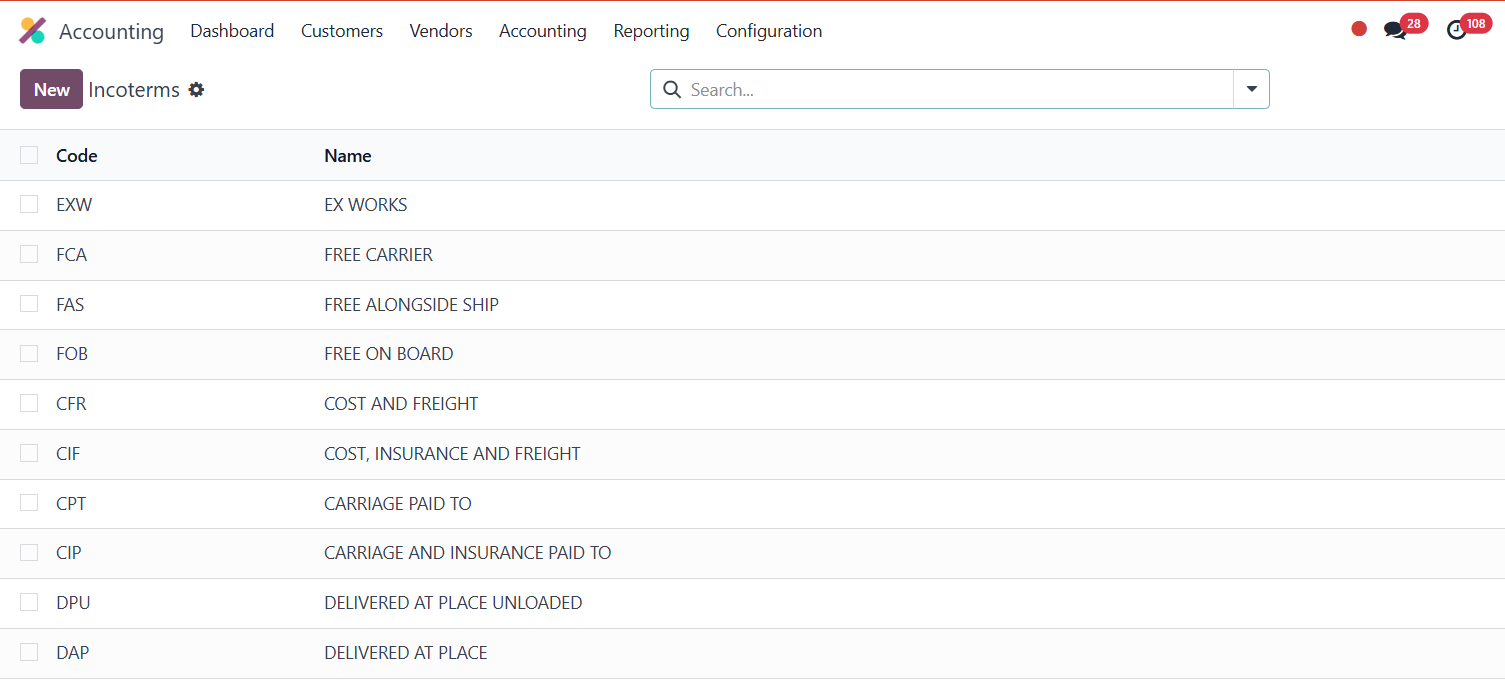
Go to Accounting → Configuration → Incoterms to review the available terms. The list shows the official Code and Name, such as EXW, FOB, or DDP.
To add a term that is not already available, click New and enter the official three-letter Code and Full Name. Once saved, the Incoterm can be selected on supported sales, purchase, delivery, and invoicing documents.
A default Incoterm can also be defined in Accounting Settings so that the preferred term is applied consistently where appropriate.
Odoo 19 Accounting configuration is most effective when each option is set up according to a clear business and accounting requirement. The goal is not to create more rules, but to ensure that taxes, currencies, reporting structures, payment conditions, and regional requirements are applied consistently.
With the core configuration aligned to the company’s localization and operational processes, day-to-day transactions require fewer manual corrections, financial reports become easier to review, and accounting teams gain a more reliable structure for compliance and decision-making.