

Opening stock is one of the first and most important inventory entries a company records when starting with Odoo or beginning a new accounting period. It represents the quantity of products physically available in the warehouse before regular stock transactions, such as Purchases, Sales, Deliveries, Receipts, and Manufacturing operations, begin in the system.
In Odoo 19, opening stock is normally entered through the Physical Inventory process. This allows users to record the counted quantity of each product at a specific location and then apply the adjustment so that the system updates the on-hand quantity. When opening stock is entered correctly, Odoo can provide reliable stock availability, accurate inventory valuation, and better control over future stock movements.
What is Opening Stock?
Opening stock is the quantity of products available at the beginning of a new period or when a business moves to Odoo. It serves as the starting inventory balance, allowing Odoo to track future stock movements, calculate availability, support replenishment, and generate accurate inventory reports.
Why Opening Stock is Important
• Accurate inventory records: It gives Odoo the correct starting point so that future receipts, deliveries, and transfers are tracked properly.
• Better stock visibility: Users can immediately see the actual on-hand quantity available in each warehouse or location.
• Reliable financial reporting: When inventory valuation is configured, correct opening stock helps reflect the proper value of stock in accounting reports.
• Correct COGS calculation: Opening stock contributes to the cost structure used to calculate the Cost of Goods Sold during a period.
• Improved operational control: Accurate starting quantities reduce stock discrepancies and help the team make better purchasing, sales, and replenishment decisions.
Before Adding Opening Stock in Odoo 19
Before entering opening stock, make sure the basic inventory configuration is ready. The products should be created with the correct product type, unit of measure, product category, cost, and tracking method if lots or serial numbers are required.
It is also important to confirm the correct warehouse and internal location where the stock physically exists. If inventory valuation is used, the product category and costing method should be reviewed before applying large opening stock quantities.
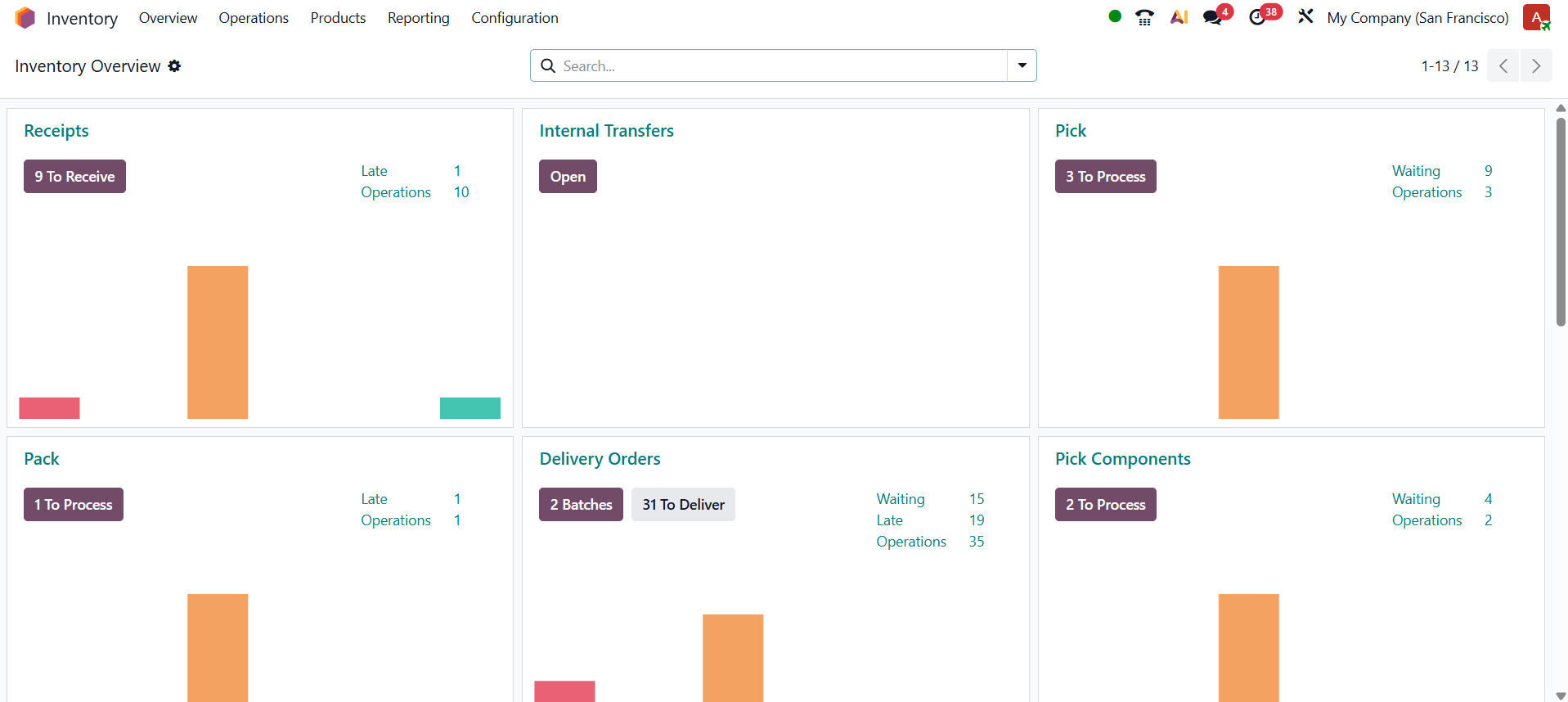
Method 1: Add Opening Stock Manually Through Physical Inventory
The most direct way to add opening stock in Odoo 19 is through the Physical Inventory screen. This method is useful when only a few products need to be updated, or when the opening stock is being entered location by location.
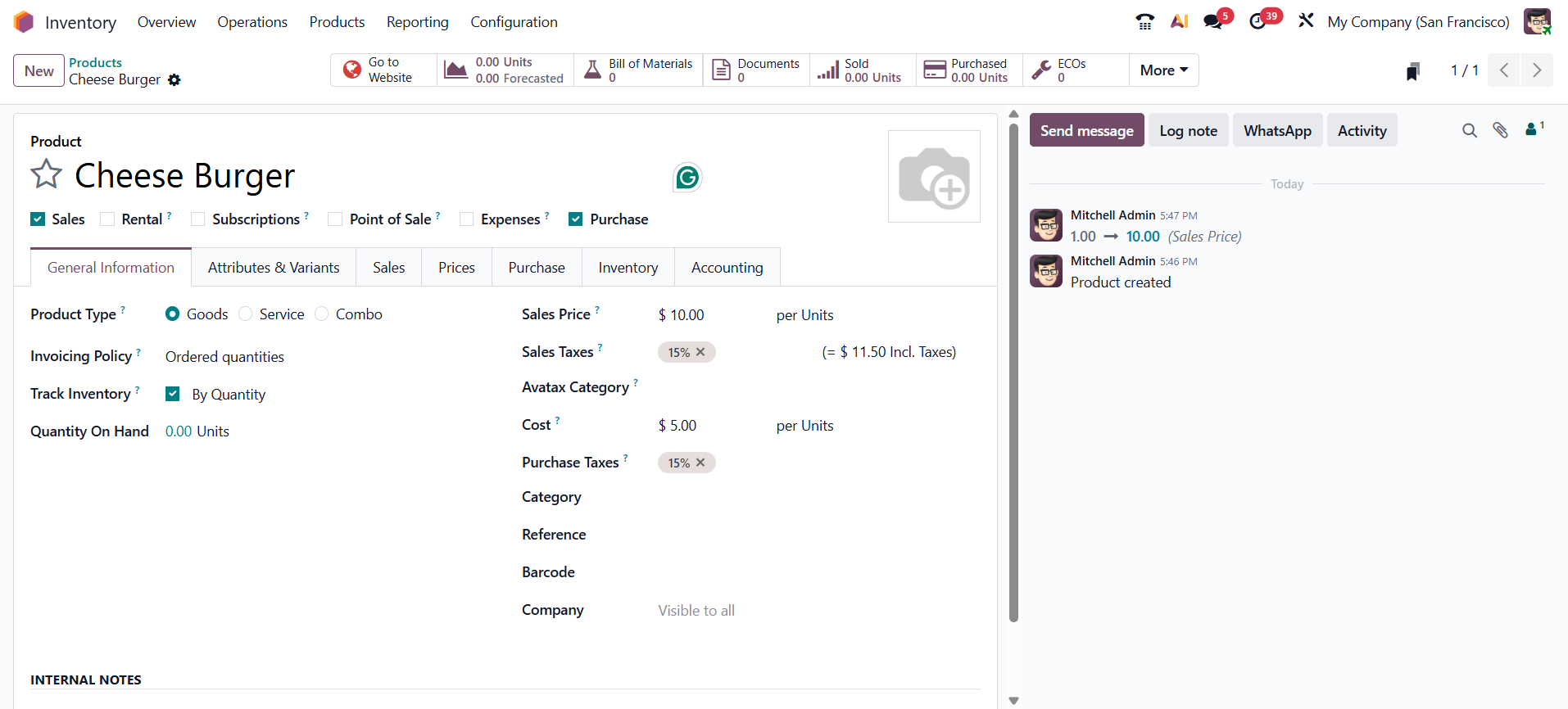
Step 1: Create or Open the Product
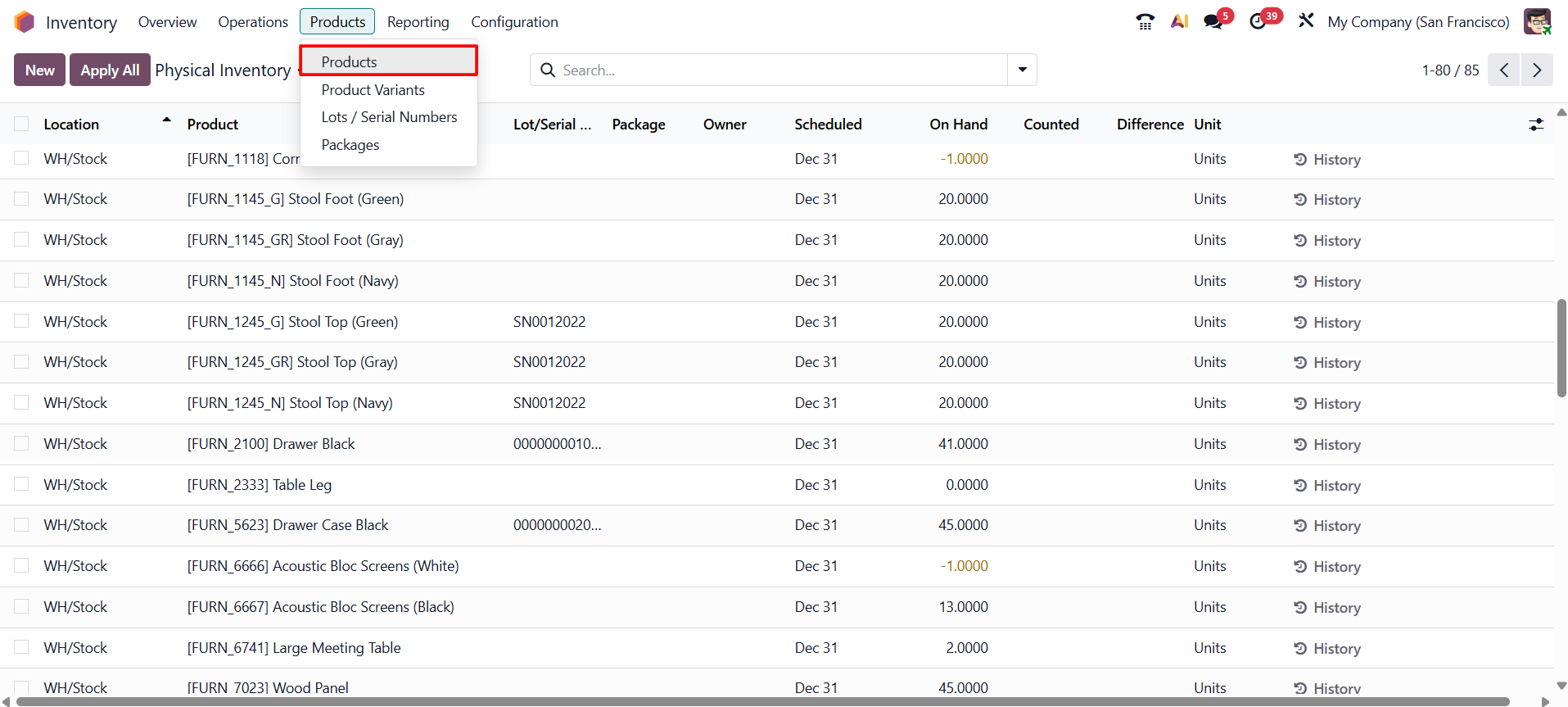
Go to Inventory > Products > New to create a new product.
If the product already exists, go to Inventory > Products, search for the product, and open its product form.
On the product form, enter the required details such as Product Name, Product Type, Unit of Measure, Sales Price, Cost, and Product Category.
For stock-managed products, set the Product Type as Goods.
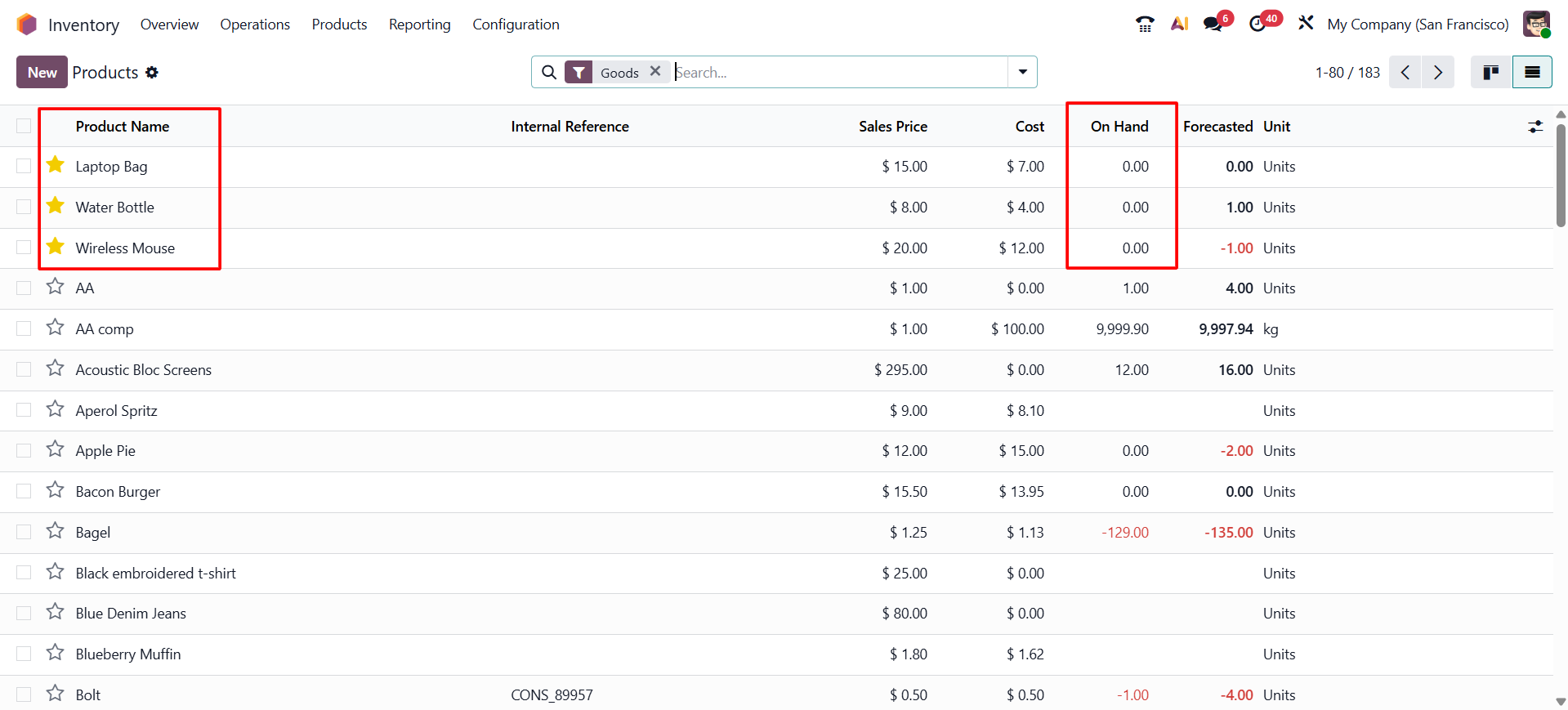
At this stage, the On Hand Quantity may show as zero because the opening stock has not been added yet.
Step 2: Open Physical Inventory
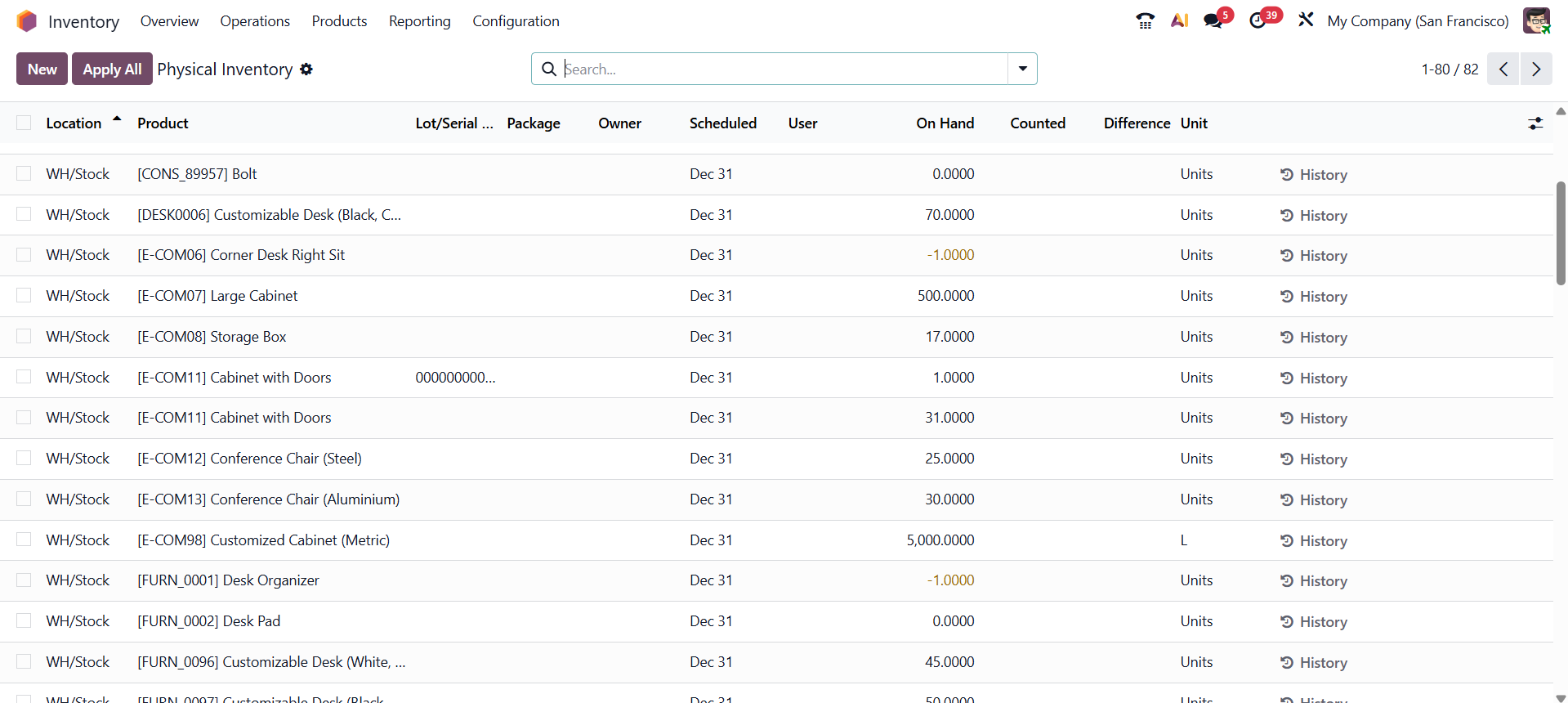
From the Inventory module, go to Operations and select Physical Inventory. This screen is used to count products and apply inventory adjustments. It displays inventory adjustment lines based on products, locations, counted quantities, and related inventory information.
Inventory > Operations > Physical Inventory
Step 3: Create a New Inventory Adjustment Line
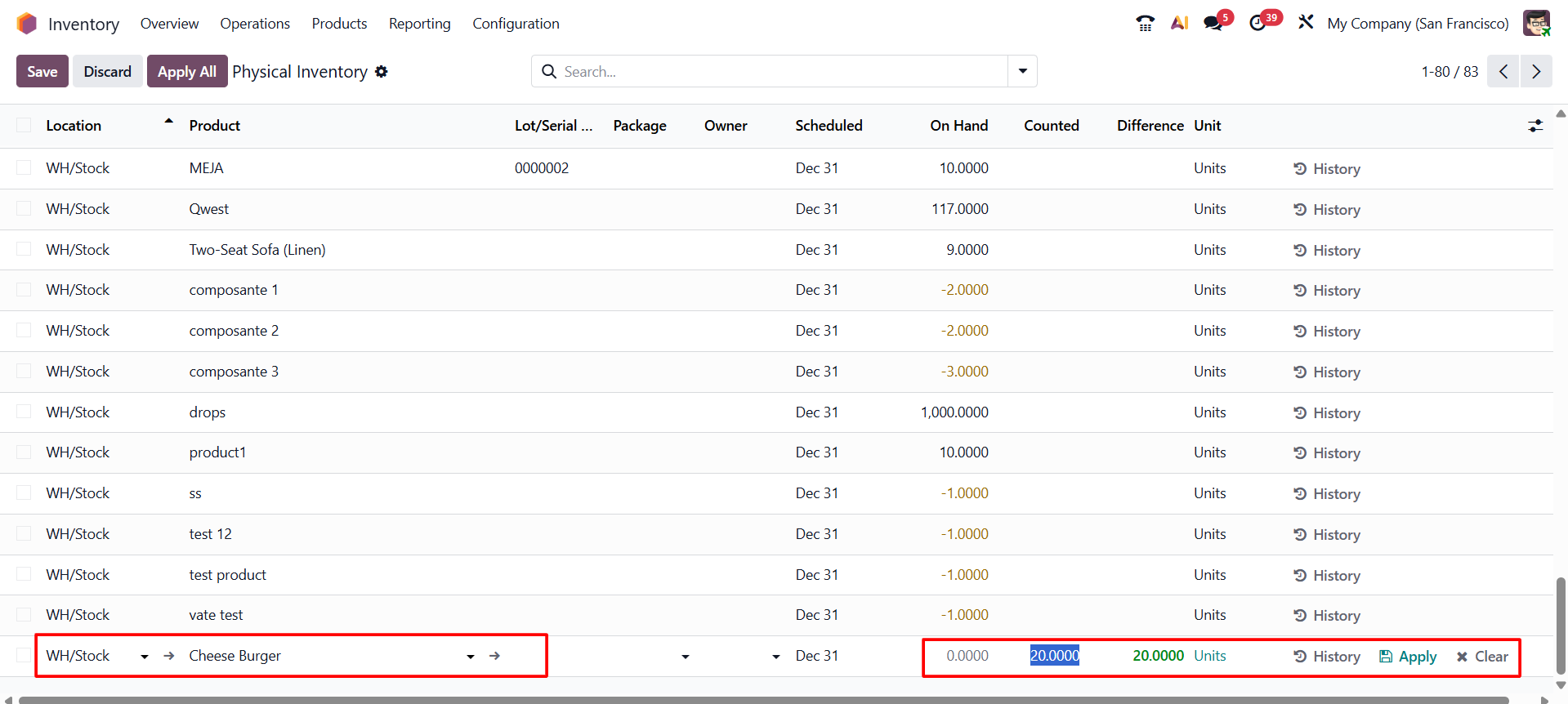
Click New to create a new inventory adjustment line to add opening stock for the product we created.
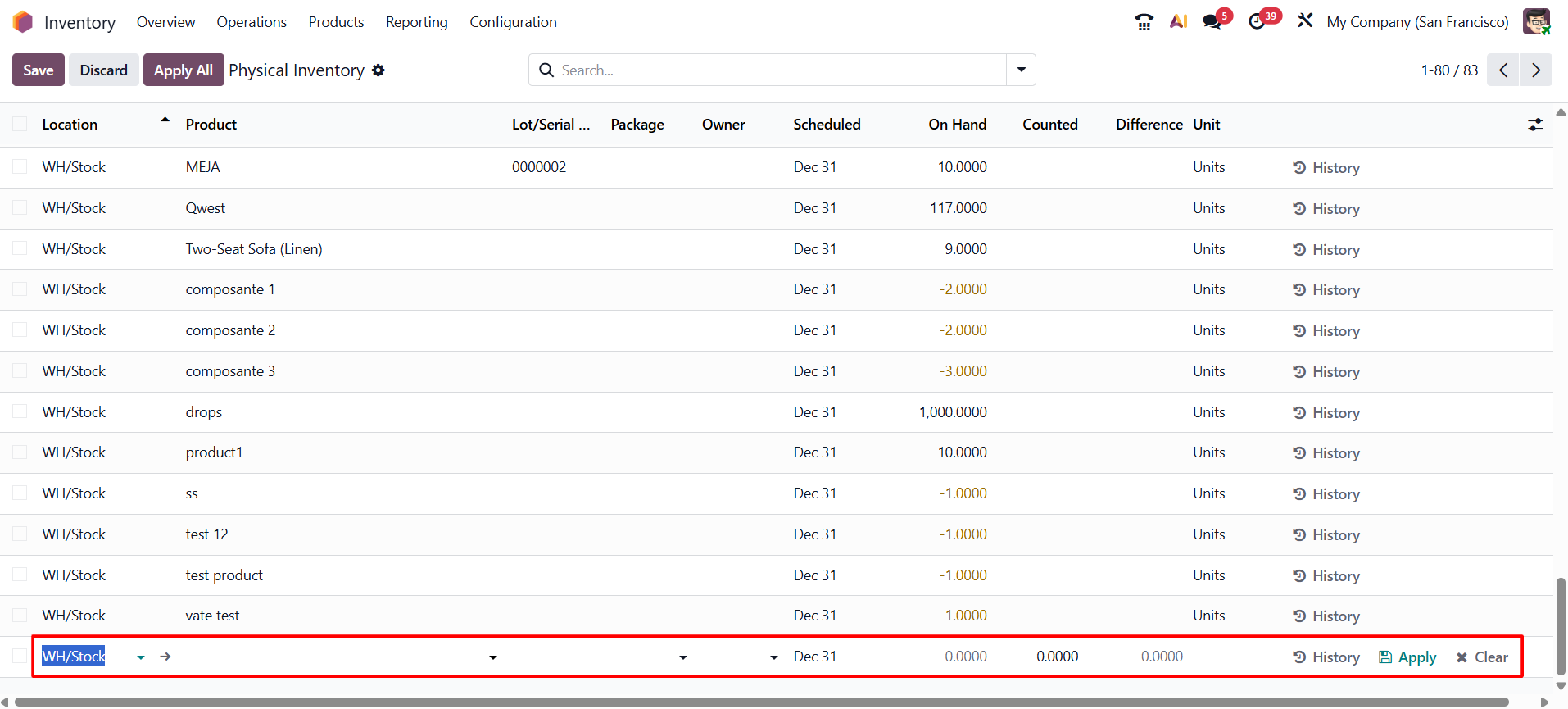
Select the product for which the opening stock needs to be added. Then select the correct internal location where the stock is physically available.
Enter the counted quantity in the Counted Quantity field. For example, if the physical warehouse contains 20 units of the selected product, enter 20 as the counted quantity.
Step 4: Save and Apply the Counted Quantity
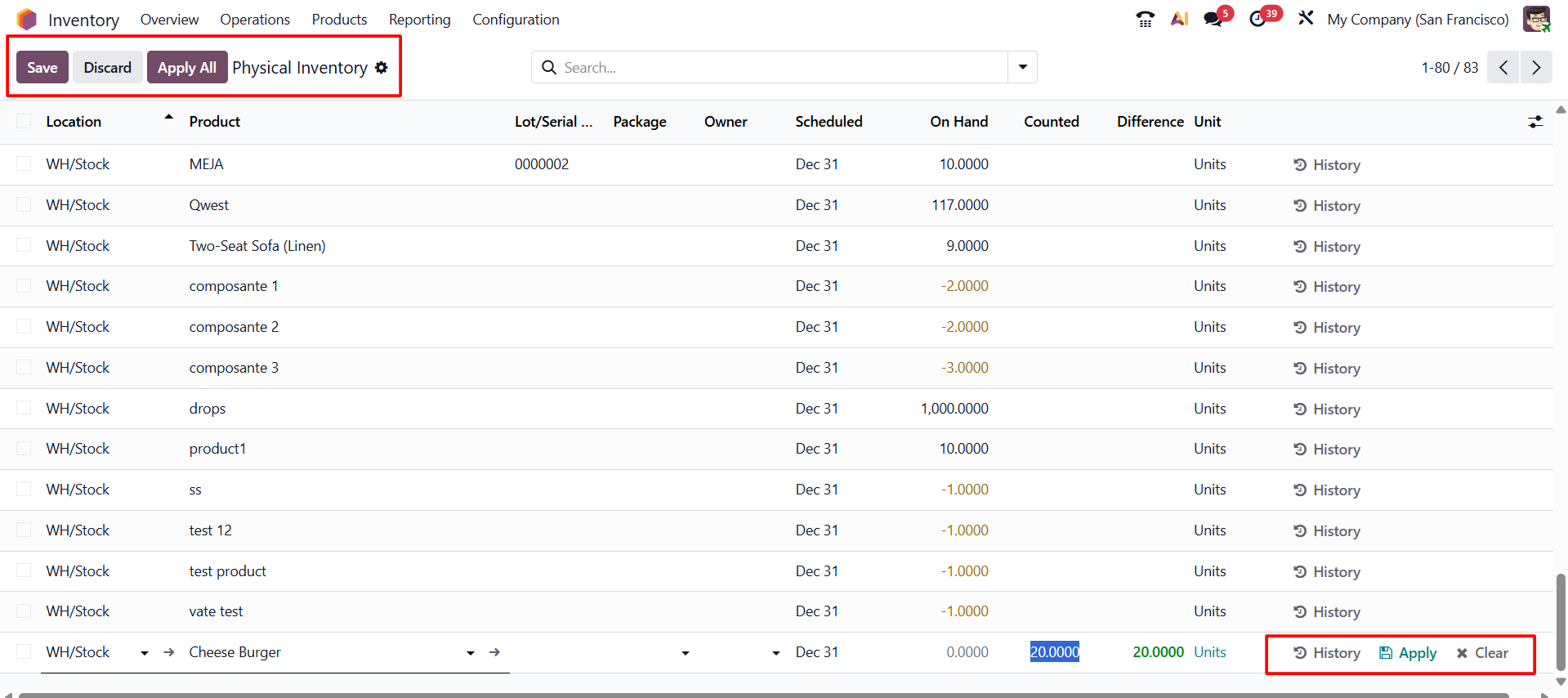
After entering the product, location, and counted quantity, save the line. Then use the Apply or Apply All option, depending on whether you are applying one line or multiple selected lines. Odoo will update the on-hand quantity based on the counted quantity entered in the Physical Inventory screen.
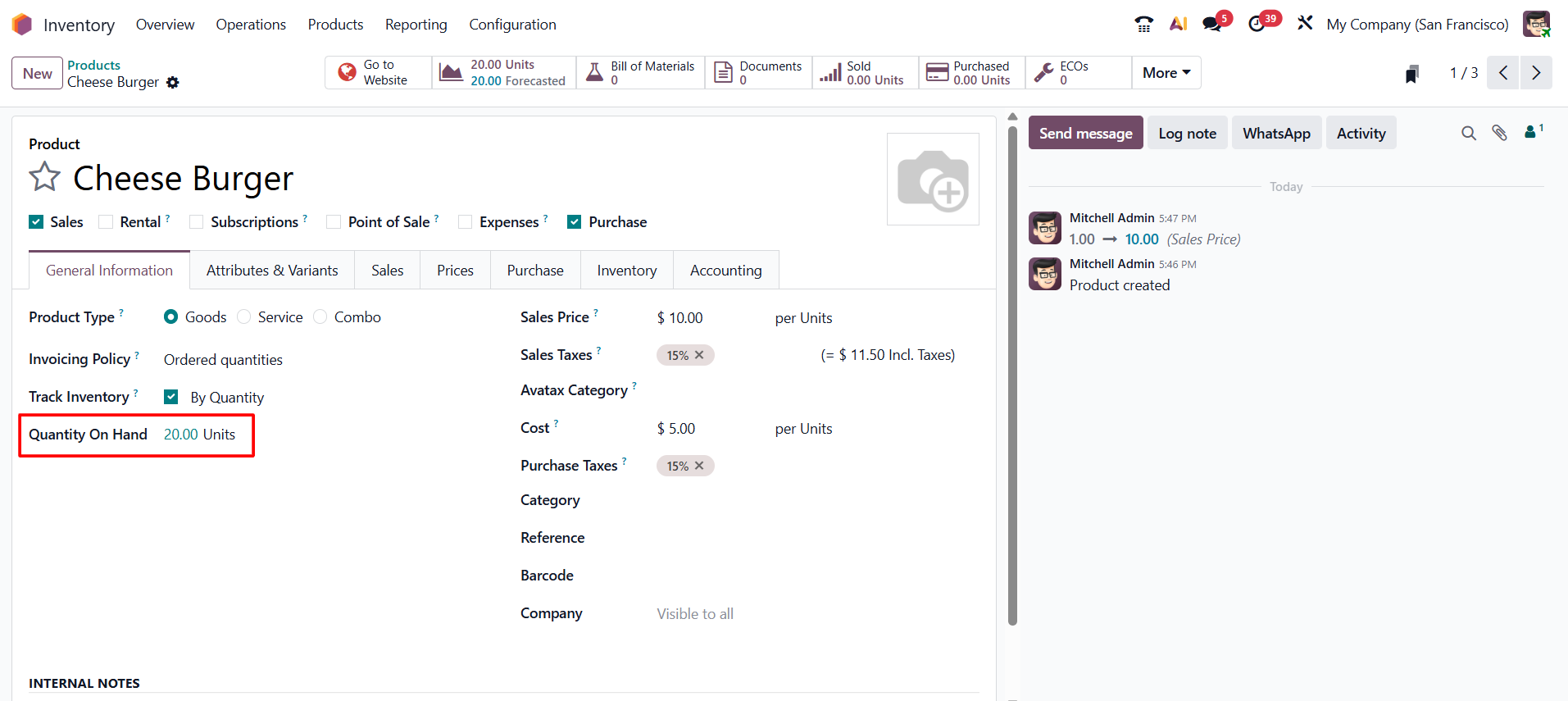
 After applying the adjustment, return to the product form and
check the On Hand Quantity smart button.
After applying the adjustment, return to the product form and
check the On Hand Quantity smart button.
Inventory > Products
Now, The product quantity should reflect the opening stock
entered through the inventory adjustment.
Method 2: Import Opening Stock in Bulk
When a company has many products, entering opening stock manually can take time. In this case, Odoo allows users to import inventory adjustment lines in bulk. This approach is useful during implementation, migration from another system, or warehouse go-live preparation.
Step 1: Prepare Products and Locations
Before importing opening stock, make sure all required products and warehouse locations already exist in Odoo. The import file should use names or references that match the records available in the database. This helps Odoo map the imported data correctly.
Step 2: Export an Import-Compatible Template
Inventory > Operations > Physical Inventory
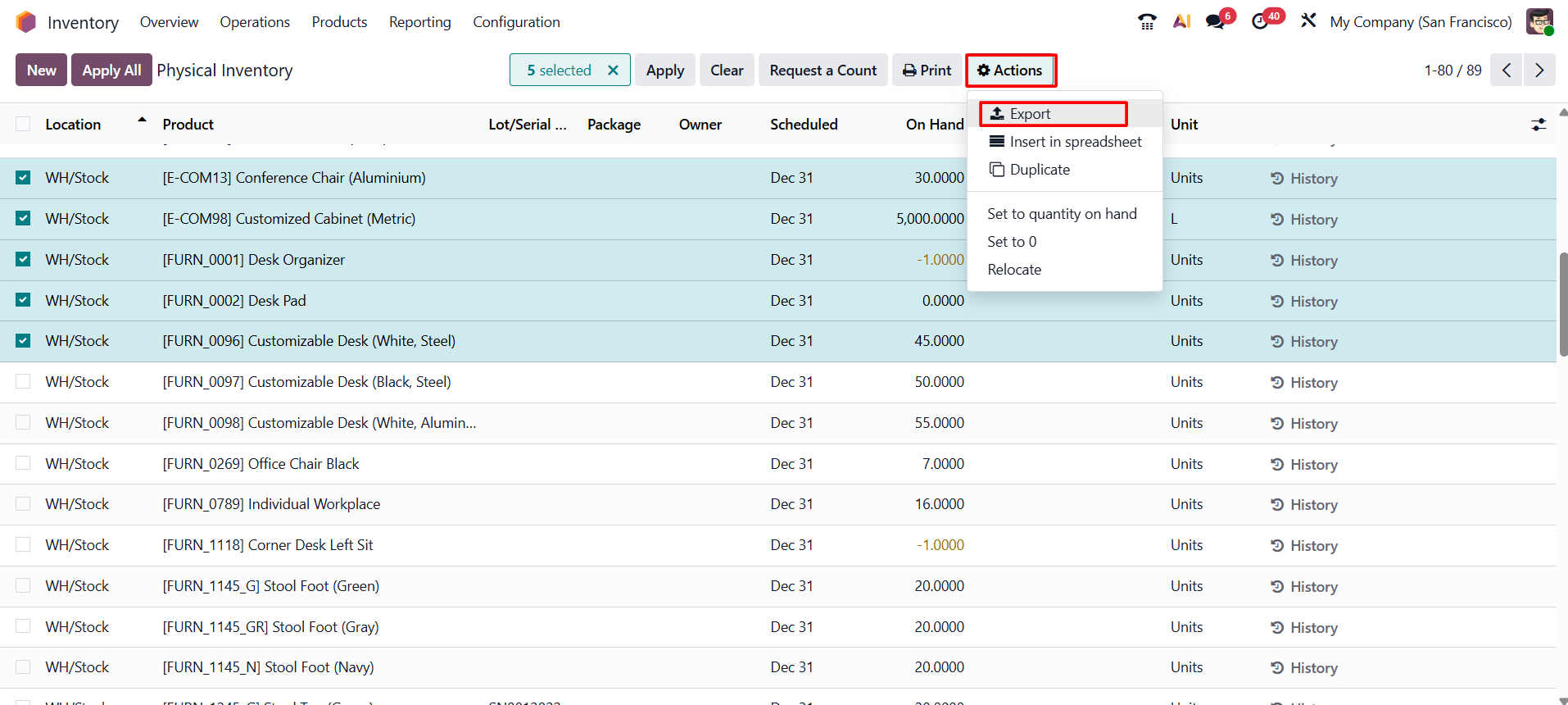
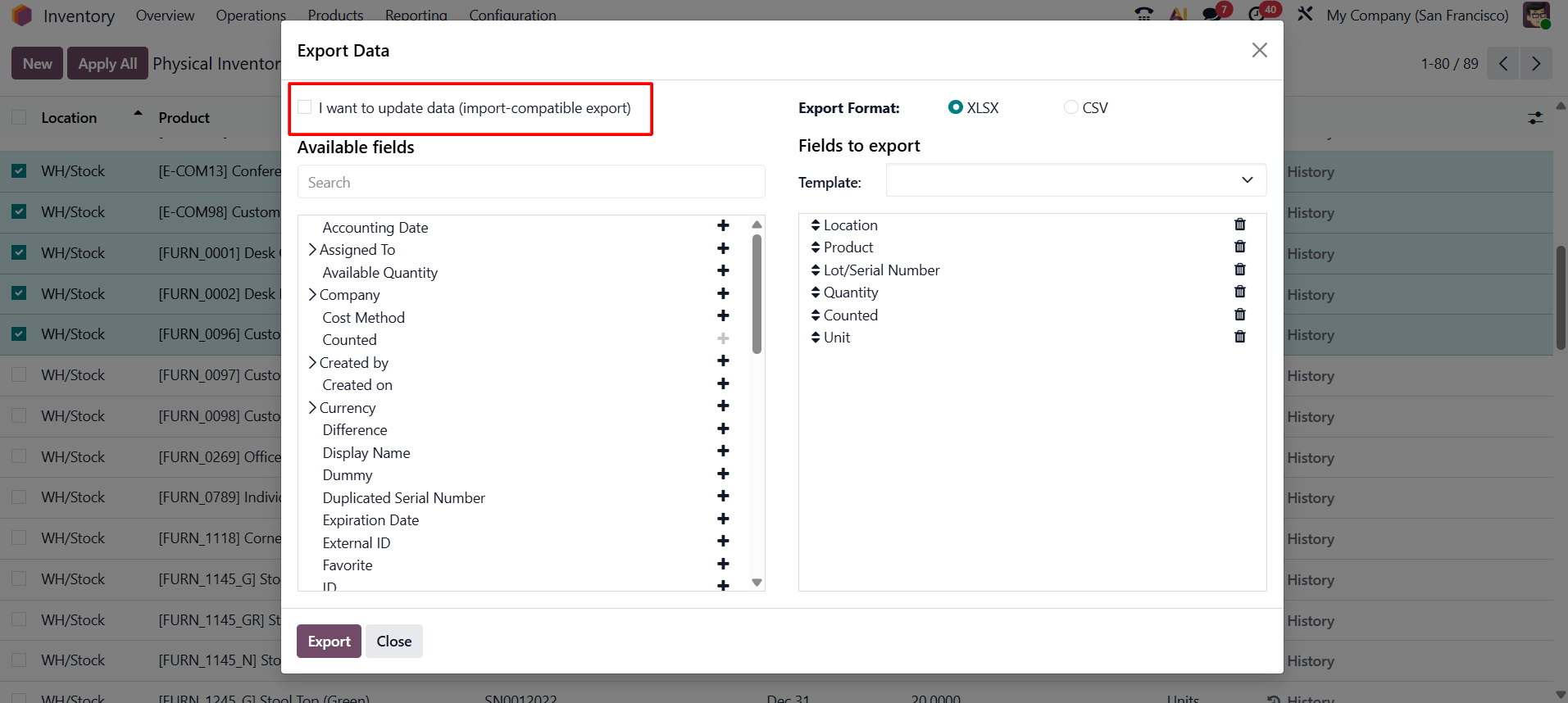
Lets Export a template from the Physical Inventory. Select the lines and from the Action menu choose the Export option. When exporting, enable the import-compatible option so that Odoo shows fields that can be safely imported back into the system.
Common fields used for an opening stock import may include Product, Location, Counted Quantity, Unit of Measure, Scheduled Date, Assigned User, and other relevant inventory fields based on the company process.
There is also a feature named "I want to update data (import-compatible export)." Only the fields that can be imported will be displayed if we select that option. In order to identify the existing data that has to be updated, we can add an external ID field to the file we are exporting. When we import the data, Odoo maps the field with the supplied unique ID. You have a lot more field possibilities when the box is left unchecked because all of the fields are shown, not only the ones that can be imported.
Click on the Export button.
Step 3: Fill in the Opening Stock Sheet
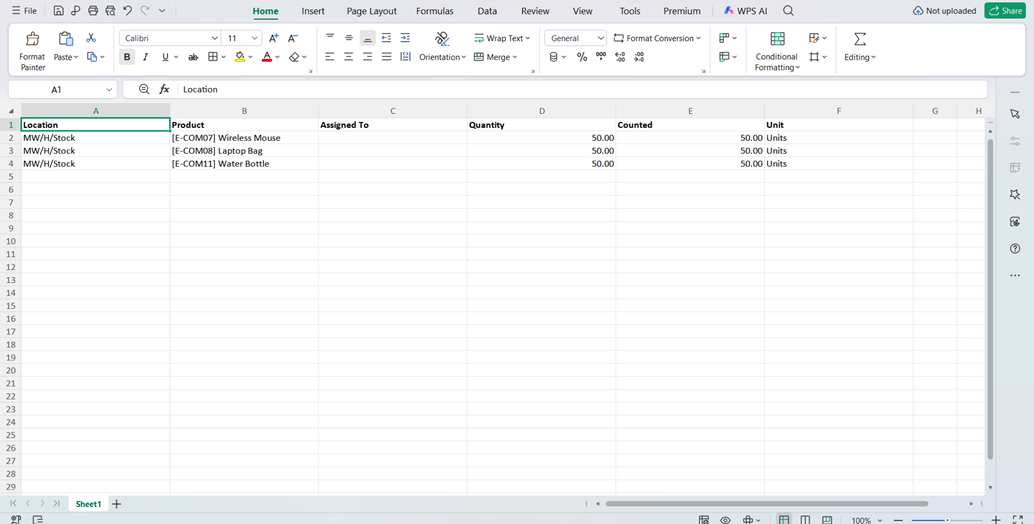
Open the exported spreadsheet and enter the required stock details. Each line should contain the product, warehouse location, counted quantity, and unit of measure. Review the file carefully before importing, because incorrect product names, locations, or units of measure can cause validation errors or incorrect stock updates.
Step 4: Import and Validate the File
Return to the Physical Inventory screen and open the import option from the gear icon. Upload the prepared spreadsheet and click Test before importing. The Test option helps verify whether the file structure and field mapping are valid.
If Odoo shows validation errors, correct the file or field mapping and test again. Once the test is successful, click Import to create the physical inventory lines in Odoo.
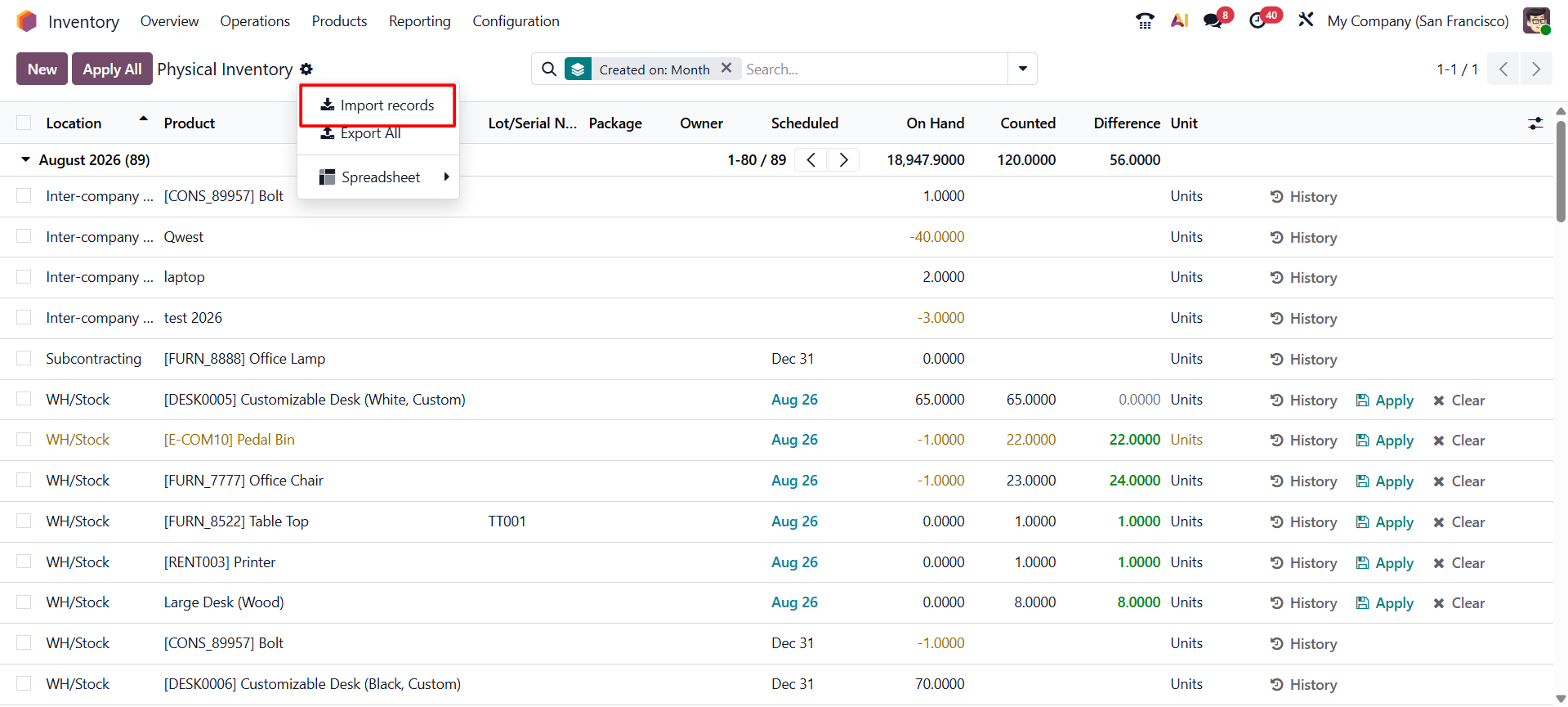
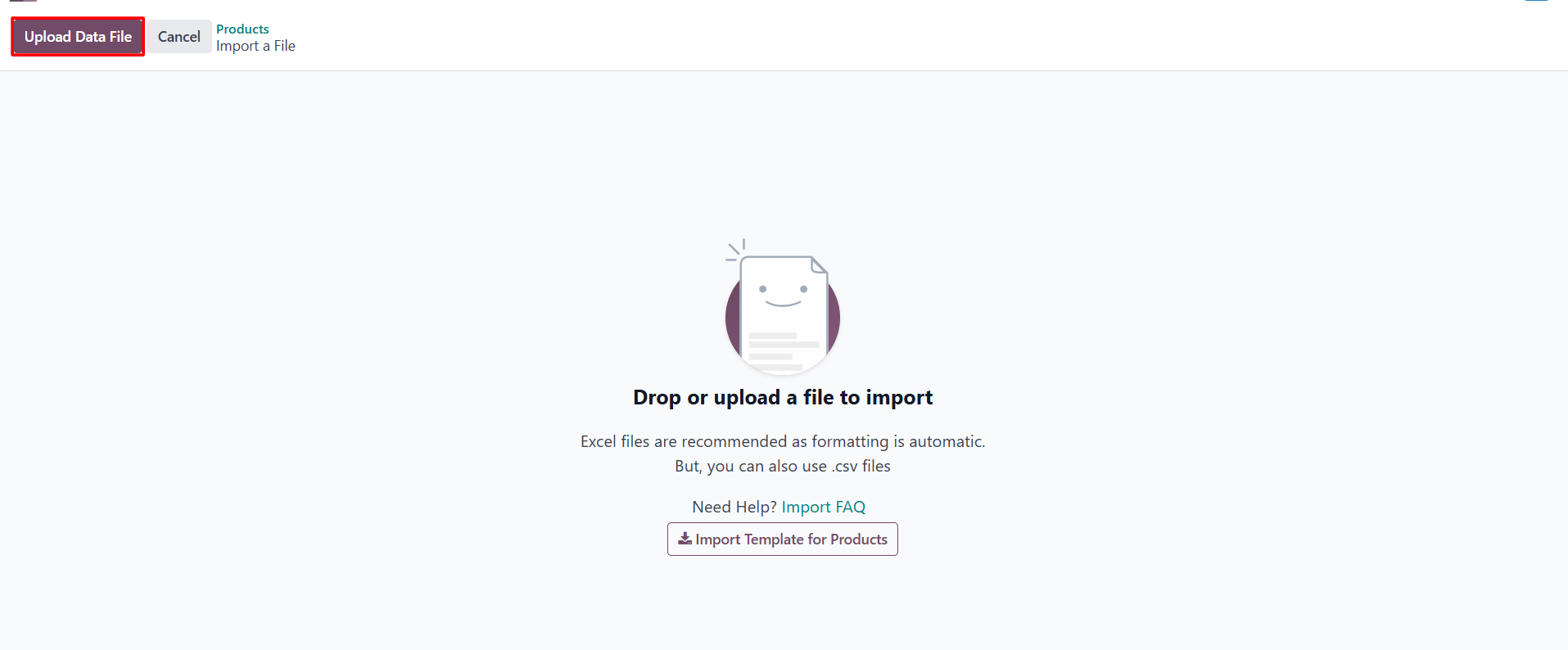
Choose the Import records from the gear icon. Then click on the Upload Data File. And upload the updated sheet here.
After uploading the sheet, the details are shown there. Click on the Test button first.
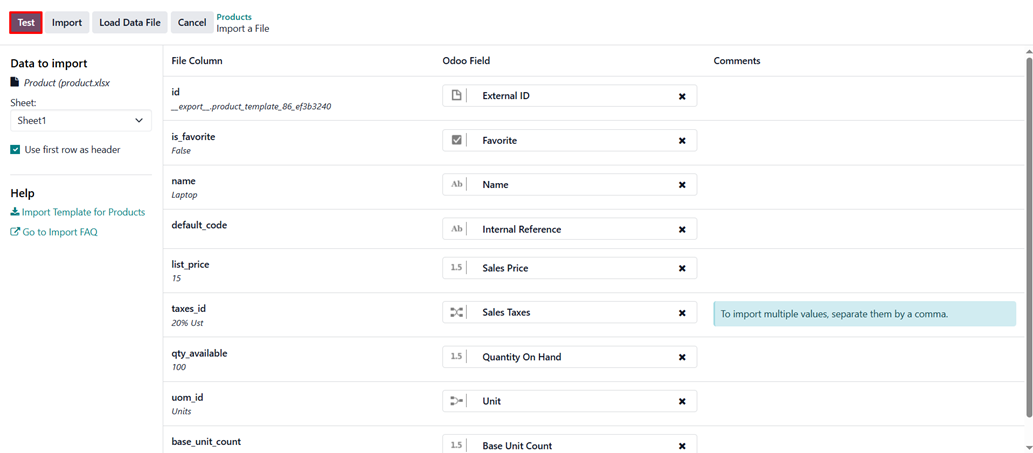
After clicking the Test button, if everything is validated successfully, click the Import button to proceed.
Step 5: Apply Imported Opening Stock Quantities
After the import is completed, the Physical Inventory screen will display the imported inventory lines. Select the required lines and click Apply.
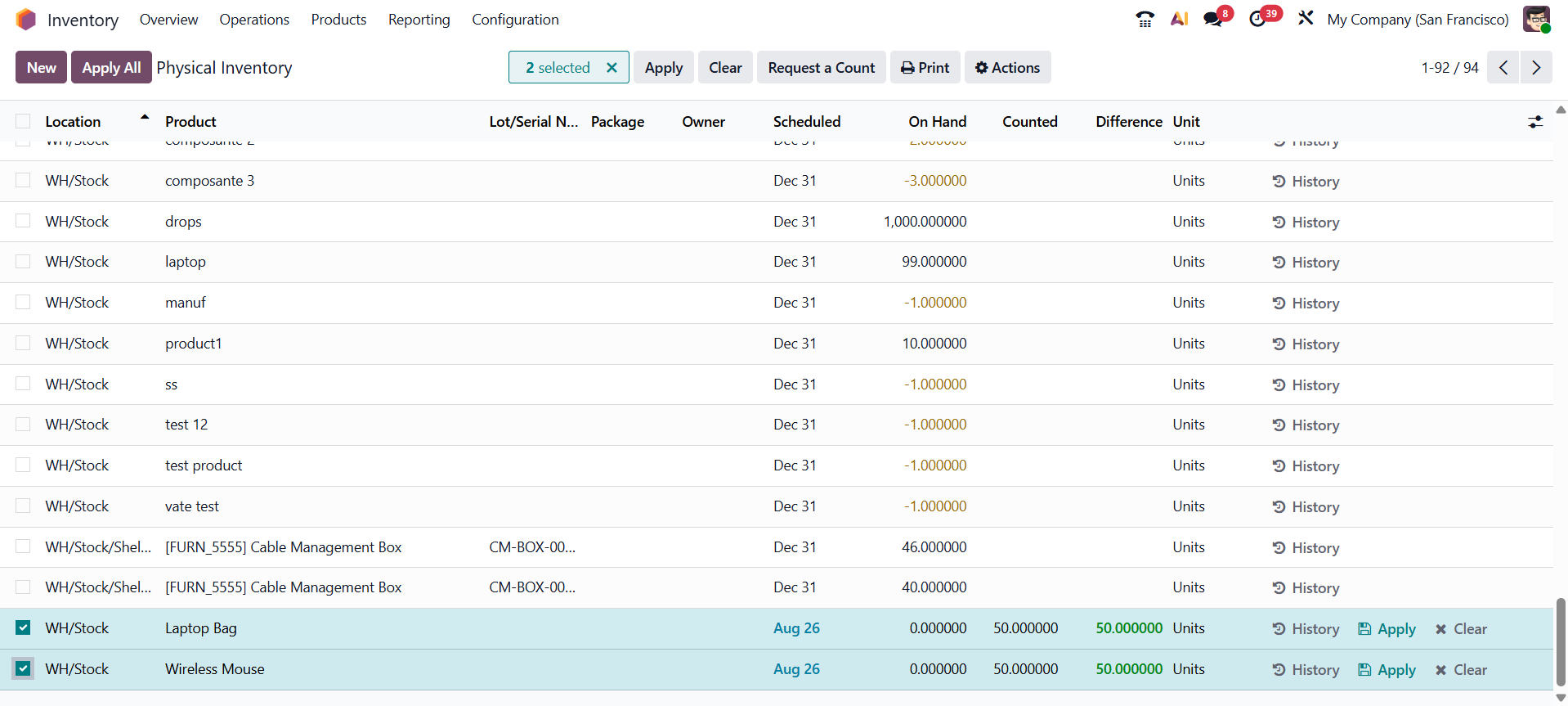
Odoo may ask for an inventory reason and counting date before updating the quantities. Add the required details and confirm the update.
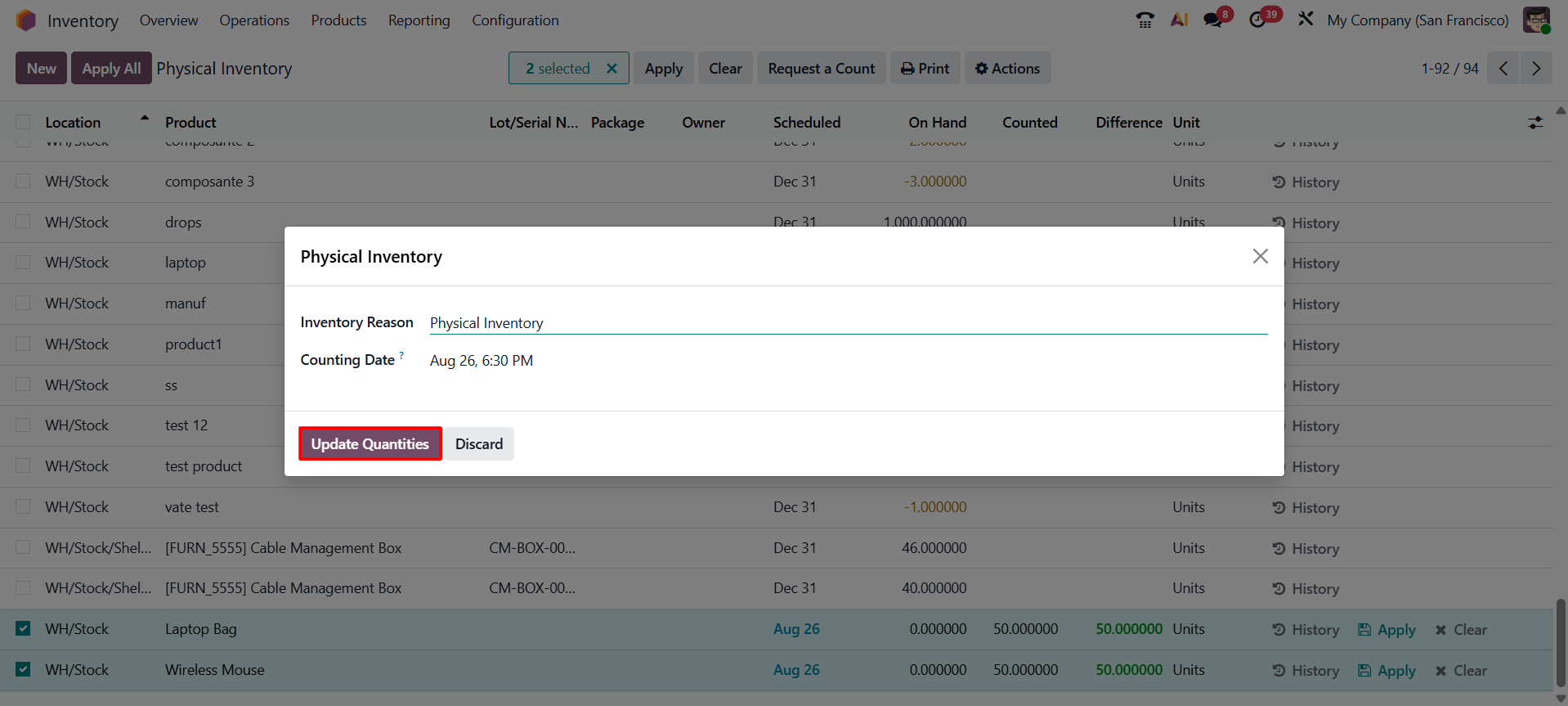
Once applied, the on-hand quantities of the imported products will be updated according to the counted quantities entered in the import file.
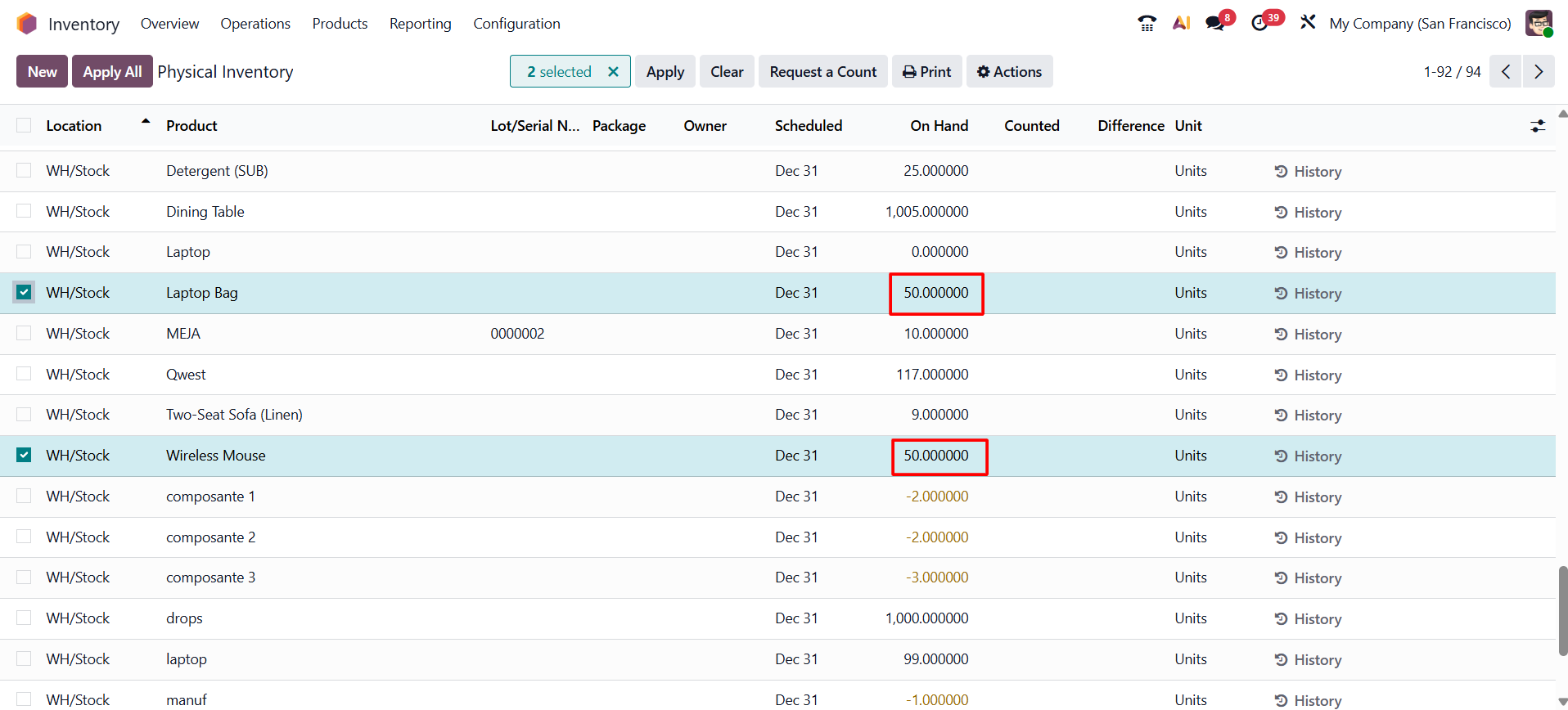
By following these steps, you can successfully add opening stock in the Odoo 19 Inventory module. Proper opening stock management helps businesses maintain accurate inventory records and control stock levels more effectively. With Odoo’s simple interface, inventory adjustments, and real-time tracking features, businesses can manage their stock smoothly and make better decisions for future growth.
Conclusion
Opening stock setup is a key step in building a reliable inventory system in Odoo 19. It creates the starting balance for product quantities and allows the company to continue daily operations with accurate stock information. By using the Physical Inventory feature, users can enter opening stock manually for selected products or import stock quantities in bulk for larger implementations.
When opening stock is entered correctly, Odoo can manage future purchases, deliveries, transfers, replenishment, and inventory valuation more effectively. A clean opening stock process helps businesses reduce discrepancies, improve reporting, and maintain better control over their warehouse operations from the first day of using Odoo.