Introduction
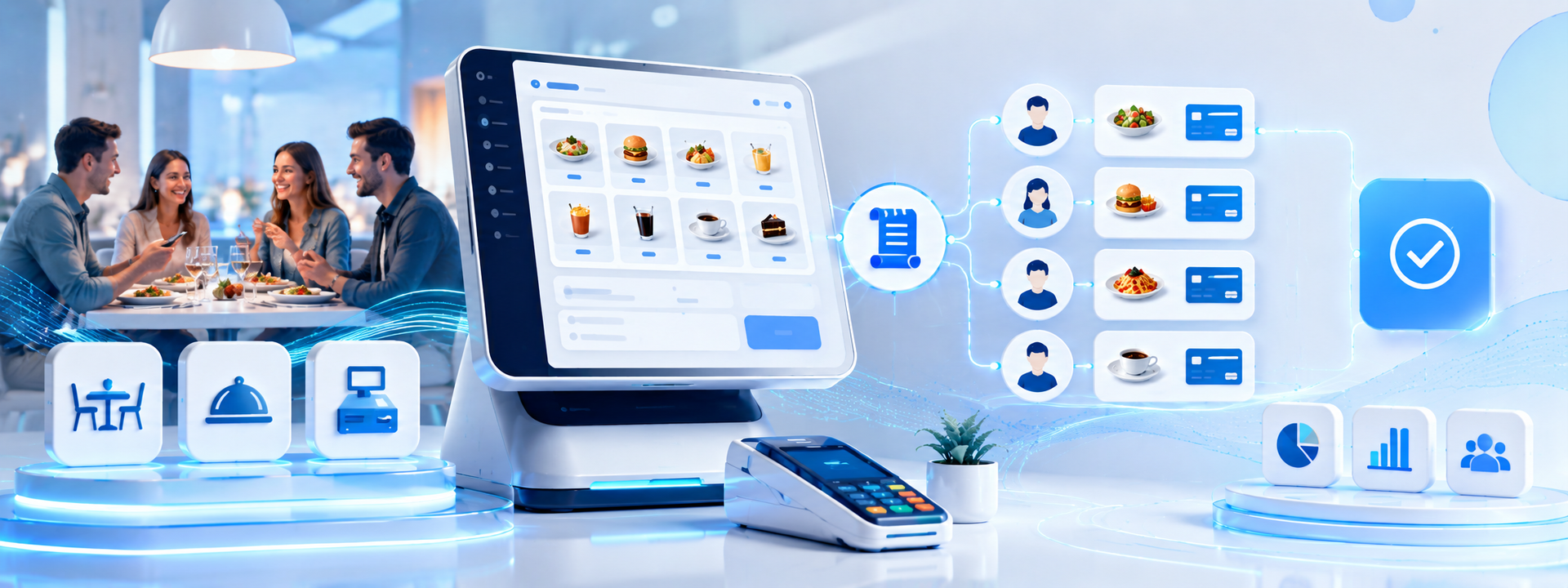
In a restaurant environment, billing can quickly become complicated when multiple customers share the same table but want to pay separately. Some customers may want to pay only for the items they ordered, while others may ask for a separate bill for selected products from the same order. Handling this manually can take time and may also create billing mistakes, especially during busy service hours.
Odoo 19 Point of Sale provides a practical bill splitting feature that allows restaurant staff to separate selected items from one restaurant order and process them as an independent payment. This helps the cashier or waiter manage group payments more accurately, reduce manual calculations, and complete the checkout process faster. For restaurants, cafes, and food businesses, this feature improves both operational speed and the customer experience.
Requirements
Before using bill splitting in Odoo 19 POS, ensure the following requirements are completed:
• Odoo 19 Point of Sale module is installed
• Restaurant Mode is enabled in POS configuration
• A restaurant POS session is configured for table operations
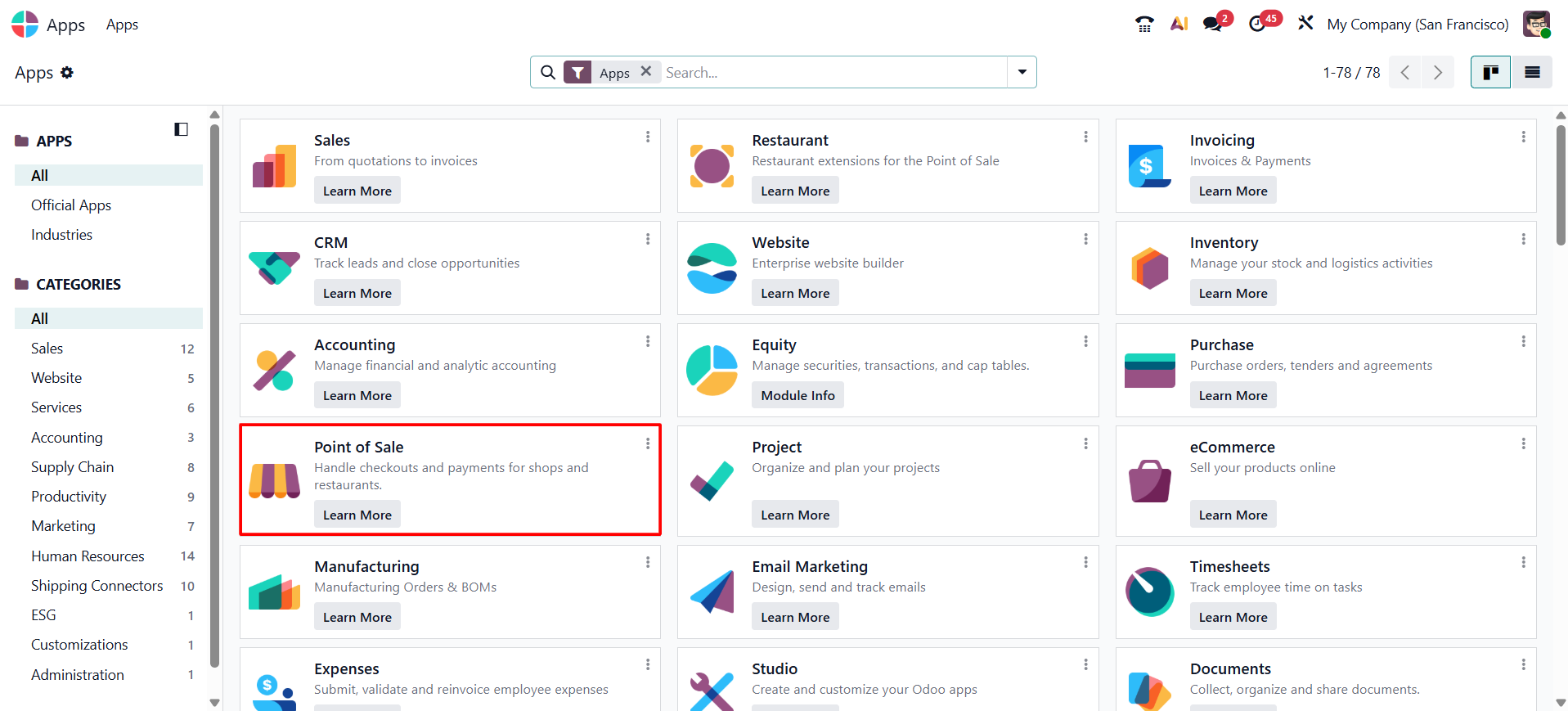
Apps → Search for required modules → Click Install
Why Bill Splitting Is Important for Restaurants
Bill splitting is not only a convenience feature. It directly supports smoother restaurant operations. When customers dine in groups, they often ask for separate payments based on the items they ordered. Without a proper POS feature, staff may need to calculate each guest’s share manually, which increases the risk of mistakes and slows down service.
The bill splitting functionality in Odoo 19 Restaurant POS helps restaurant staff manage group payments efficiently by allowing selected items to be separated into individual orders directly from the POS interface.
Key operational benefits include:
• Faster payment processing during peak hours
• Reduced manual billing calculations
• Improved payment transparency for customers
• Better handling of shared table orders
• Improved checkout efficiency for restaurant staff
Step 1: Open the Point of Sale Module
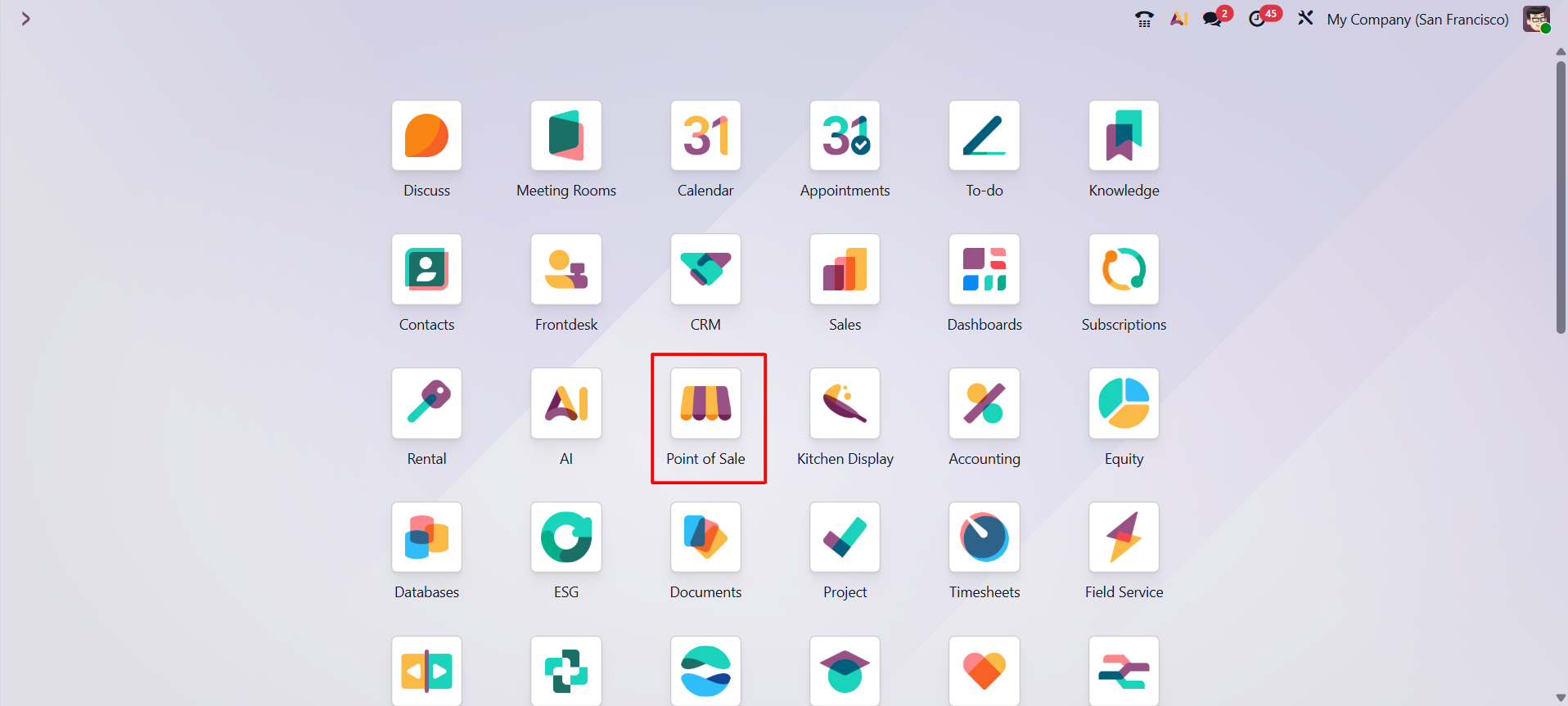
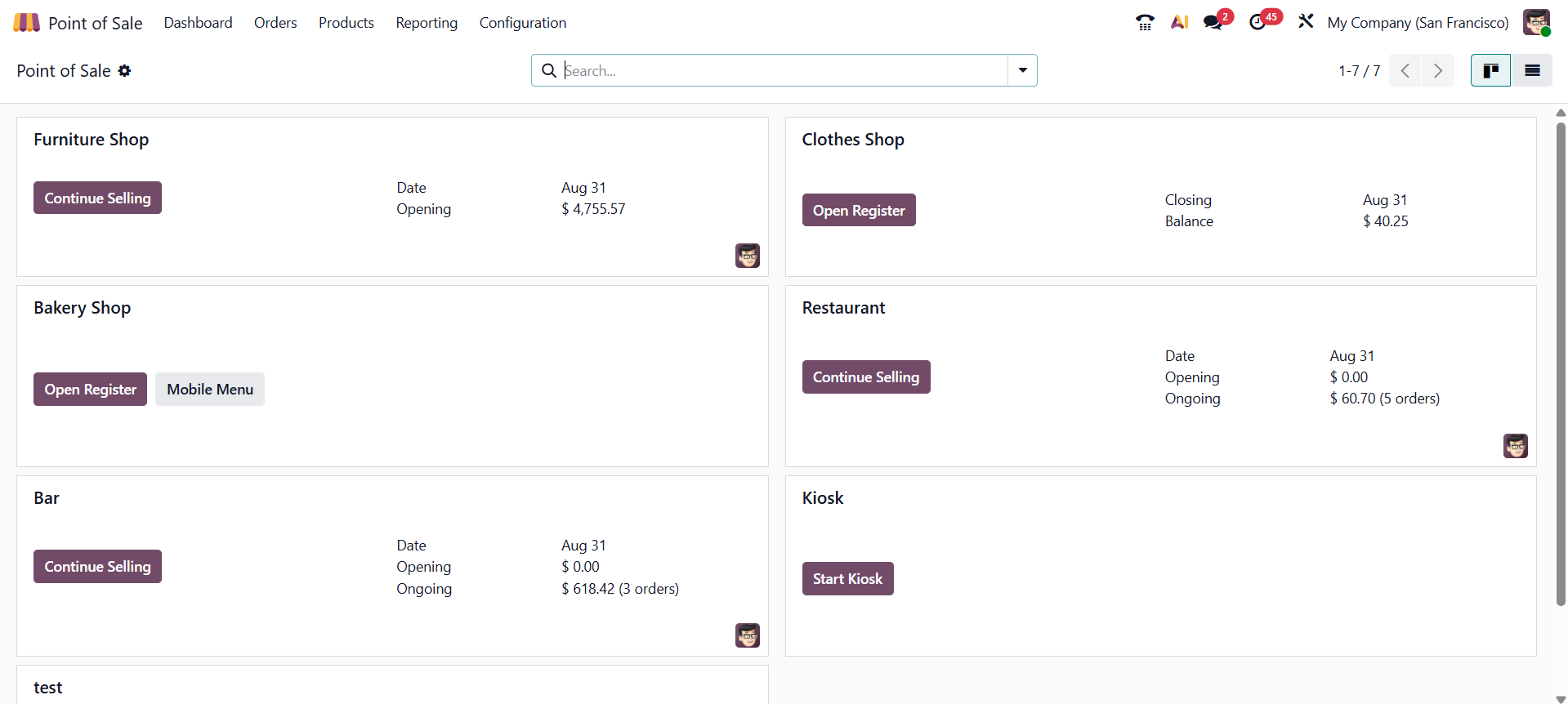
To begin the process, open the Point of Sale module from the Odoo 19 dashboard. This module is used to manage sales sessions, restaurant orders, table service, payment processing, receipts, and other POS-related operations.
Once the module is opened, the system displays the available POS sessions. For restaurant billing, select the restaurant POS session that is configured for table service and food orders.
Step 2: Enable the Bill Splitting Feature
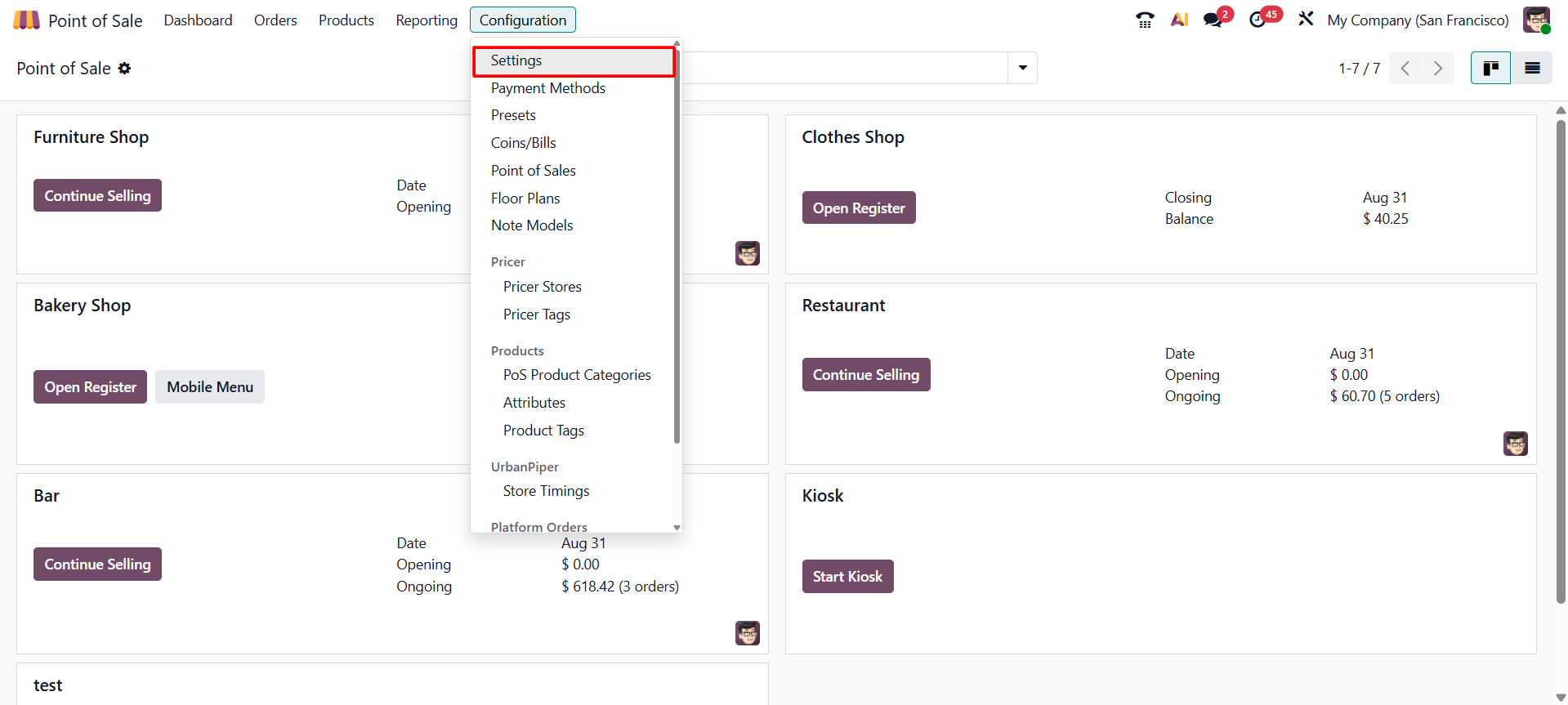
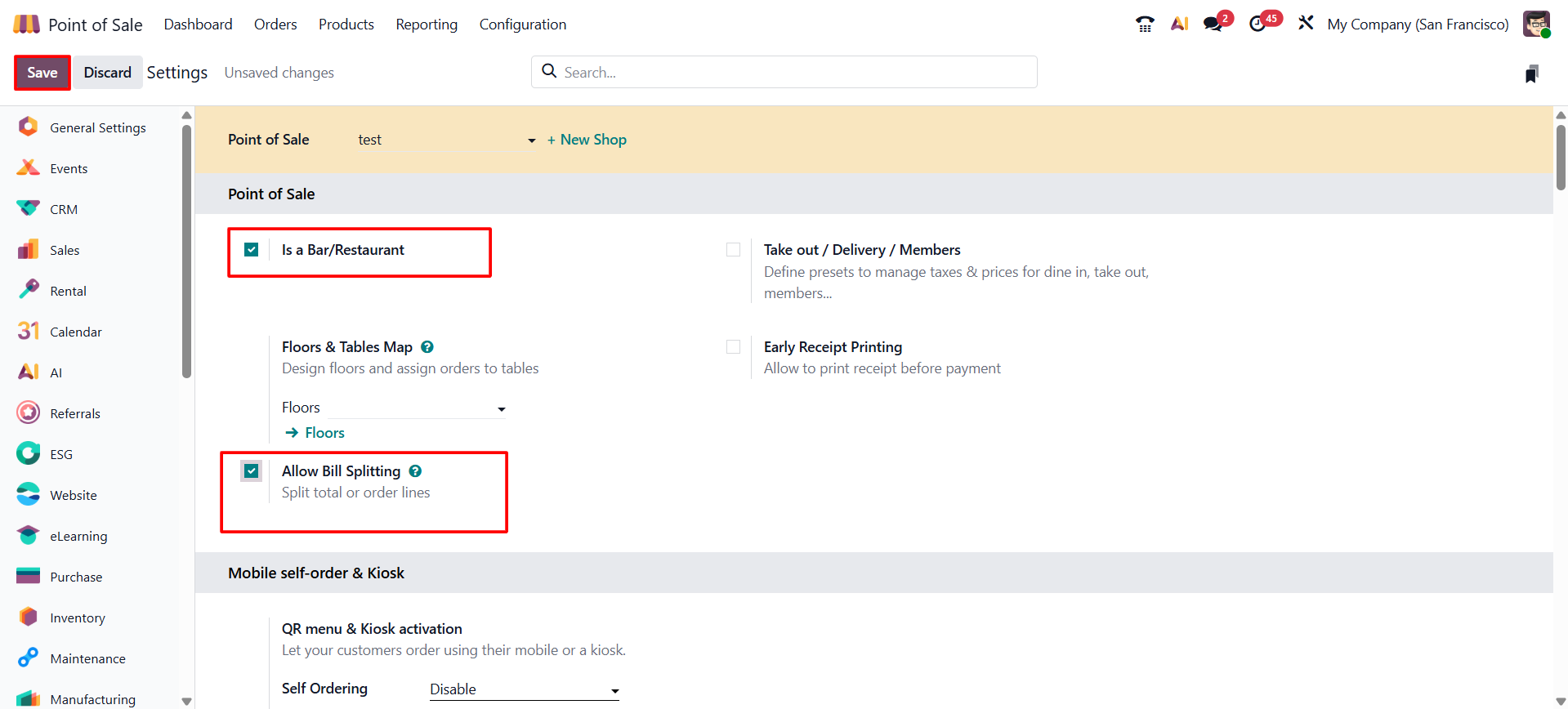
Before using the bill splitting functionality, Restaurant Mode and bill splitting must be enabled in the POS configuration.
Navigate to:
Point of Sale → Configuration → Settings
Open the required POS configuration and enable the following options:
• Bar/Restaurant
• Allow Bill Splitting
Once enabled, Odoo allows restaurant staff to split selected products from an active order directly within the POS session.
Step 3: Start the Restaurant POS Session
After configuring the bill splitting option, return to the Point of Sale dashboard and open the restaurant POS session. This launches the POS interface where staff can create orders, select food items, manage tables, and process payments.
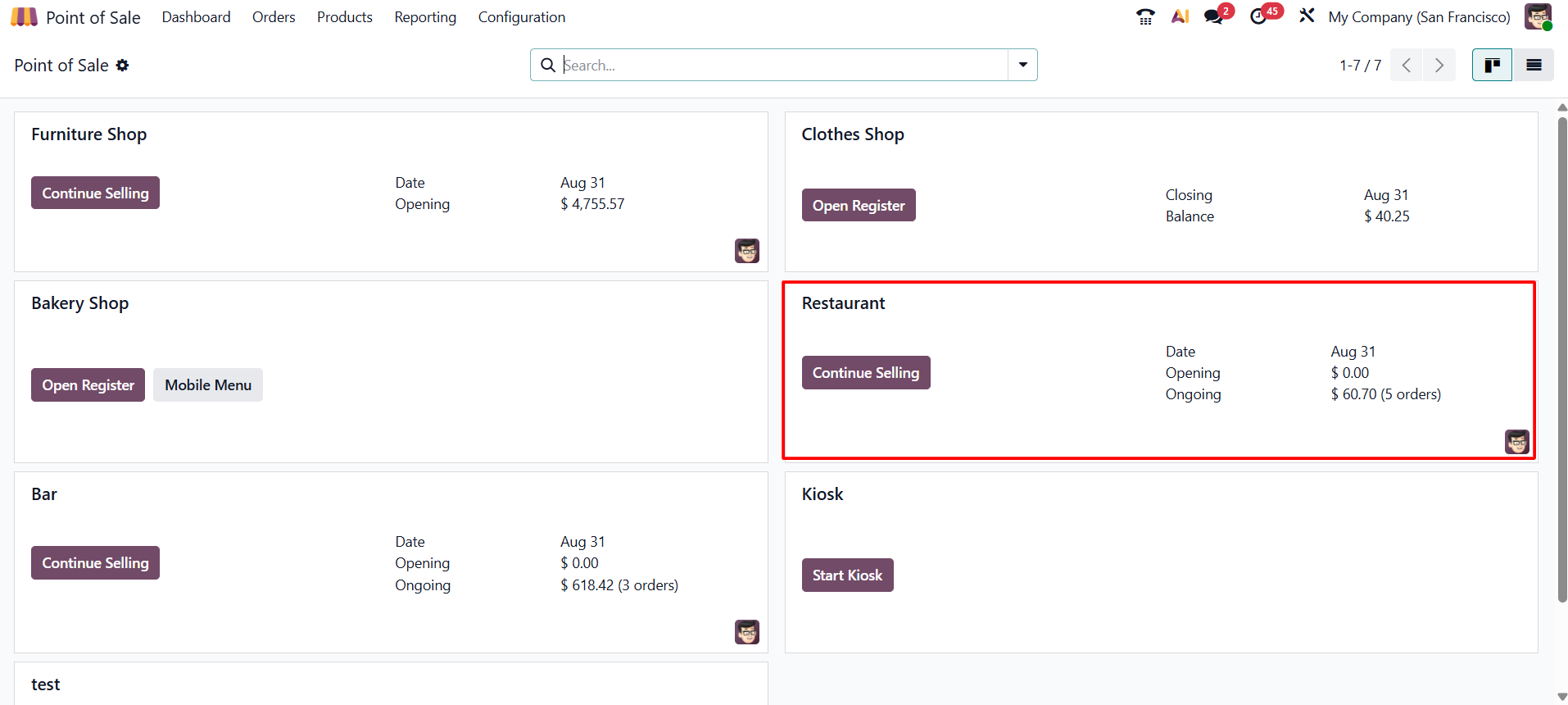
The restaurant POS interface is designed
to make order handling quick and simple. Staff can select food and drink items
from the product screen and add them directly to the current order.
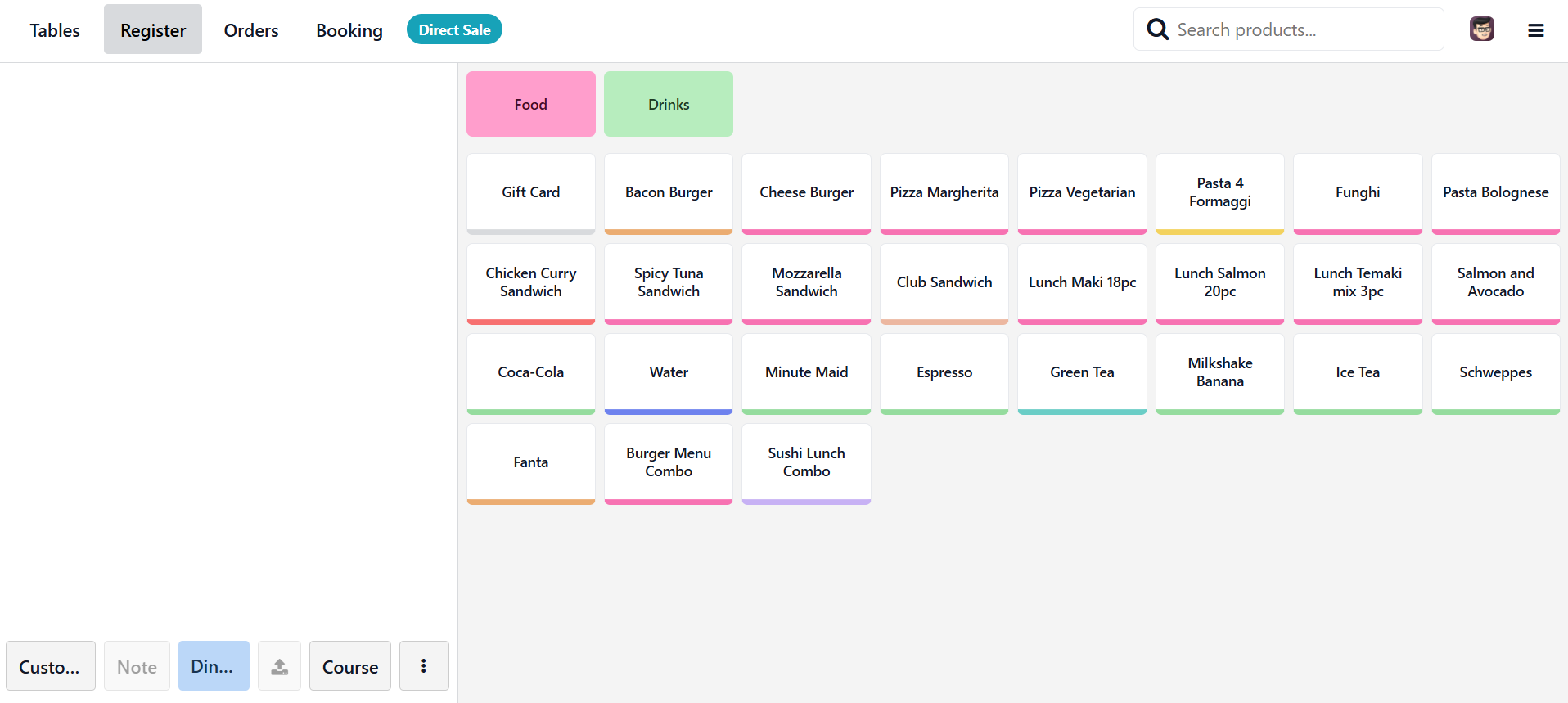
Step 4: Add Food and Drink Items to the Order
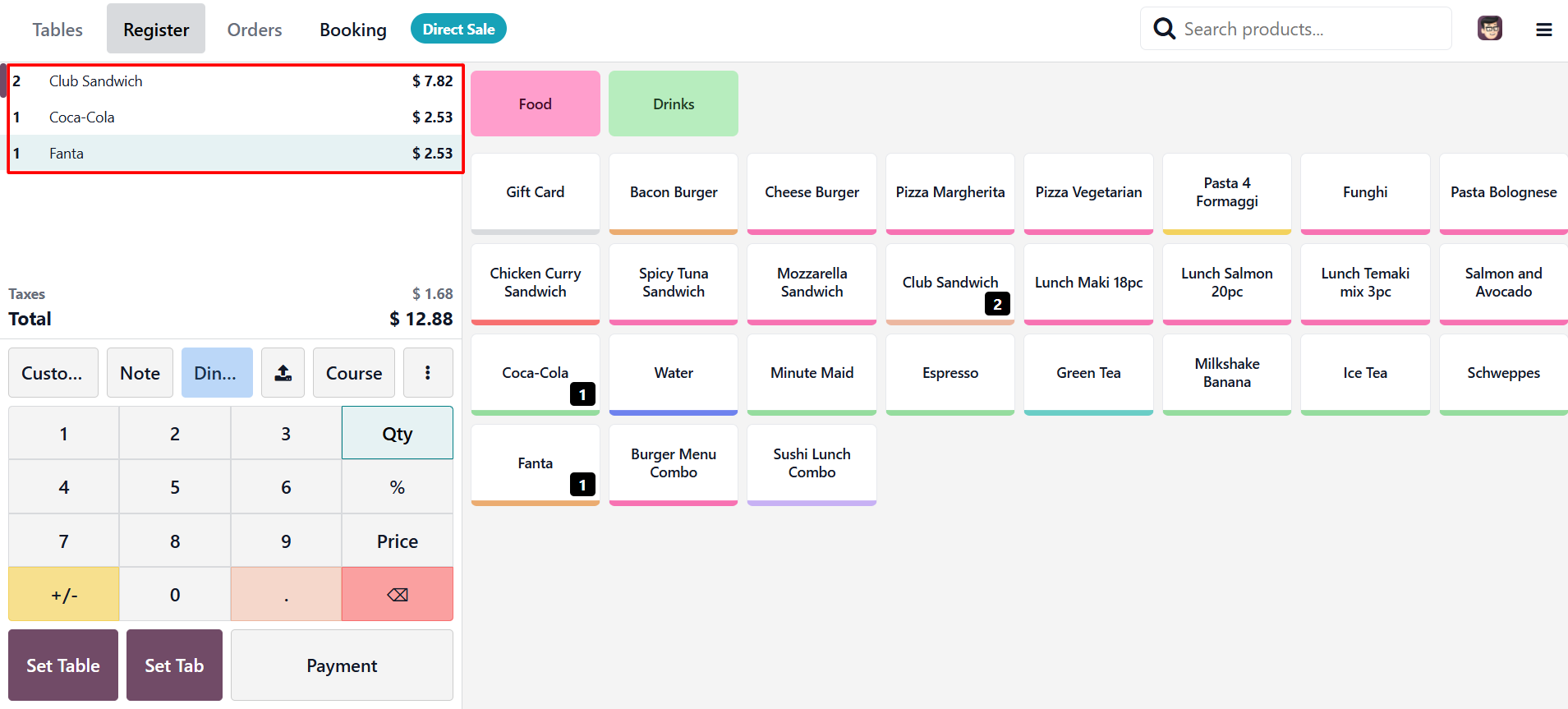
Inside the restaurant POS screen, select the food and beverage items requested by the customer. Each selected product is added to the order list with its quantity and price. After all required items are added, review the order to confirm that the products, quantities, and prices are correct.
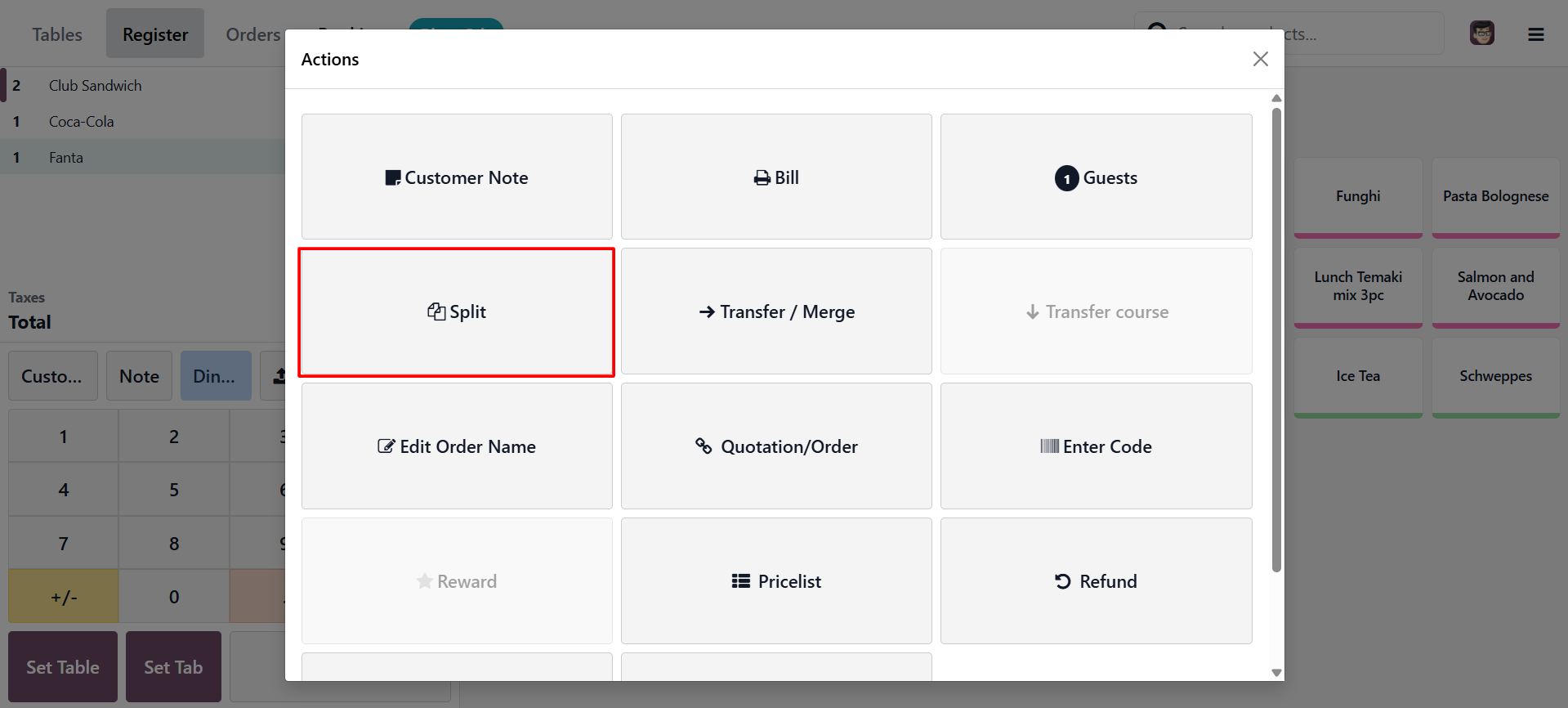
Once the order is ready, click the Actions button, usually shown as a three-dot menu. This menu contains additional order actions, including the option to split the bill.
Step 5: Select the Split Option
From the Actions menu, select Split.
Odoo displays all products currently included in the active restaurant order. Staff members can then select the specific products that need to be separated into another bill.
This workflow is commonly used when customers at the same table prefer to pay only for their own ordered items.
Step 6: Choose the Items to Split
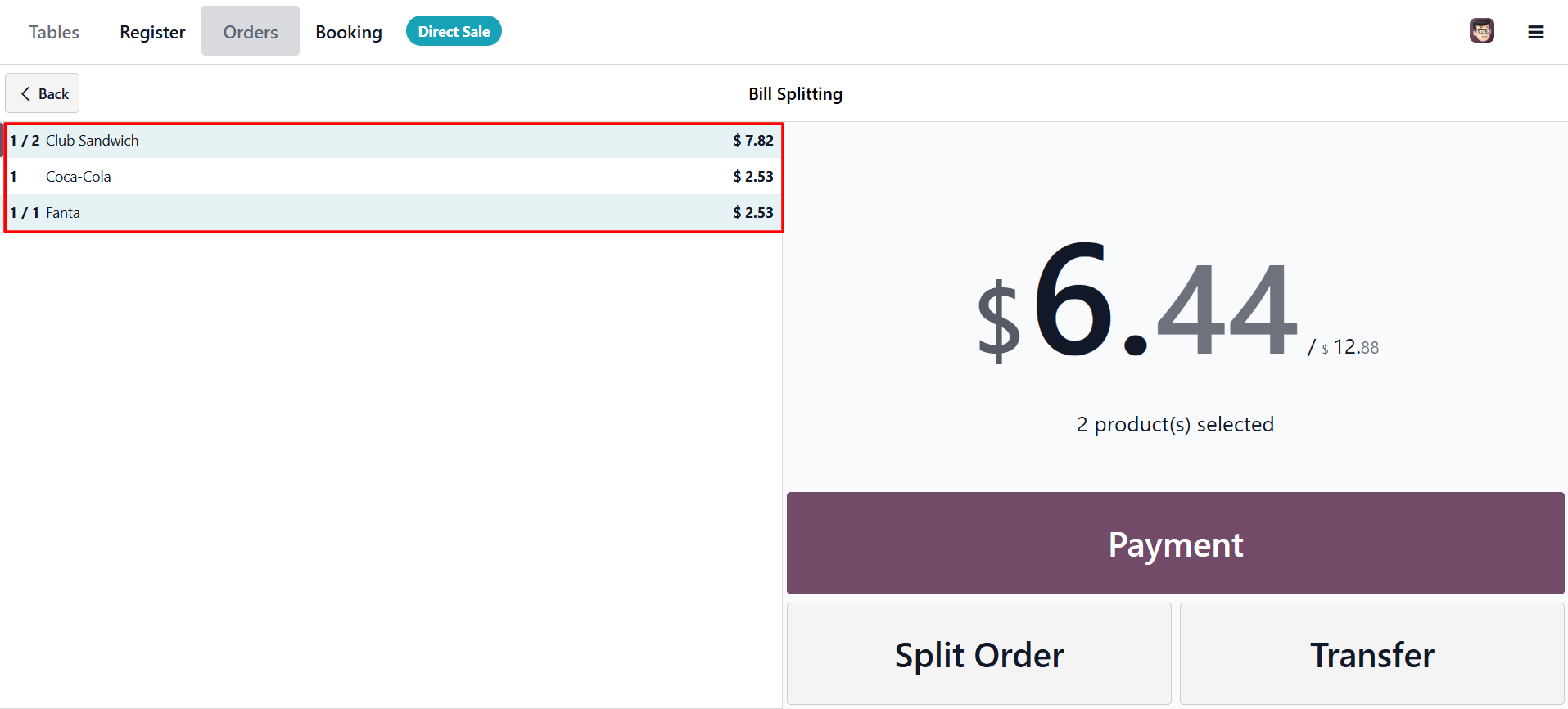
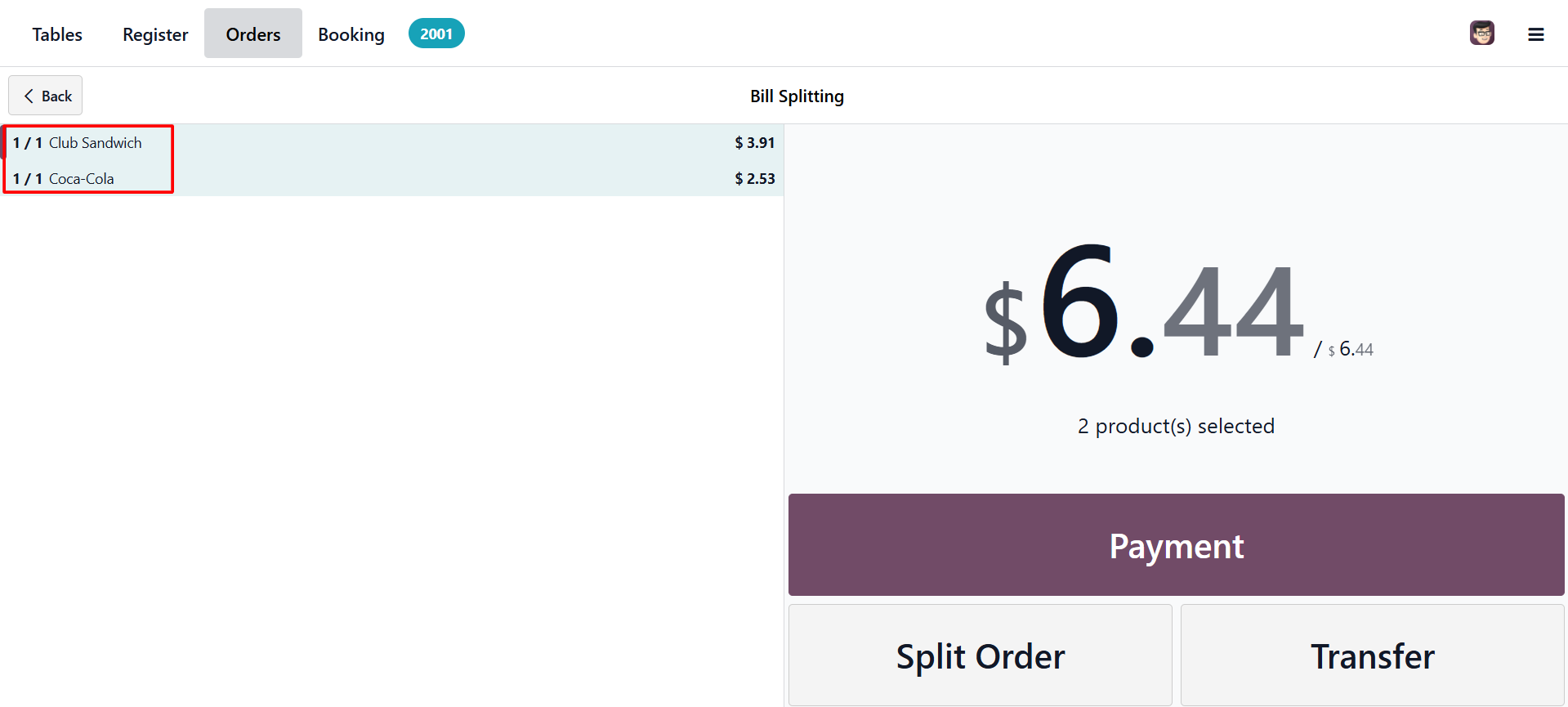
On the split order screen, select the products that need to be separated from the original bill. As items are selected, Odoo updates the amount for the split bill. This makes it easier for staff to verify the total before confirming the split.
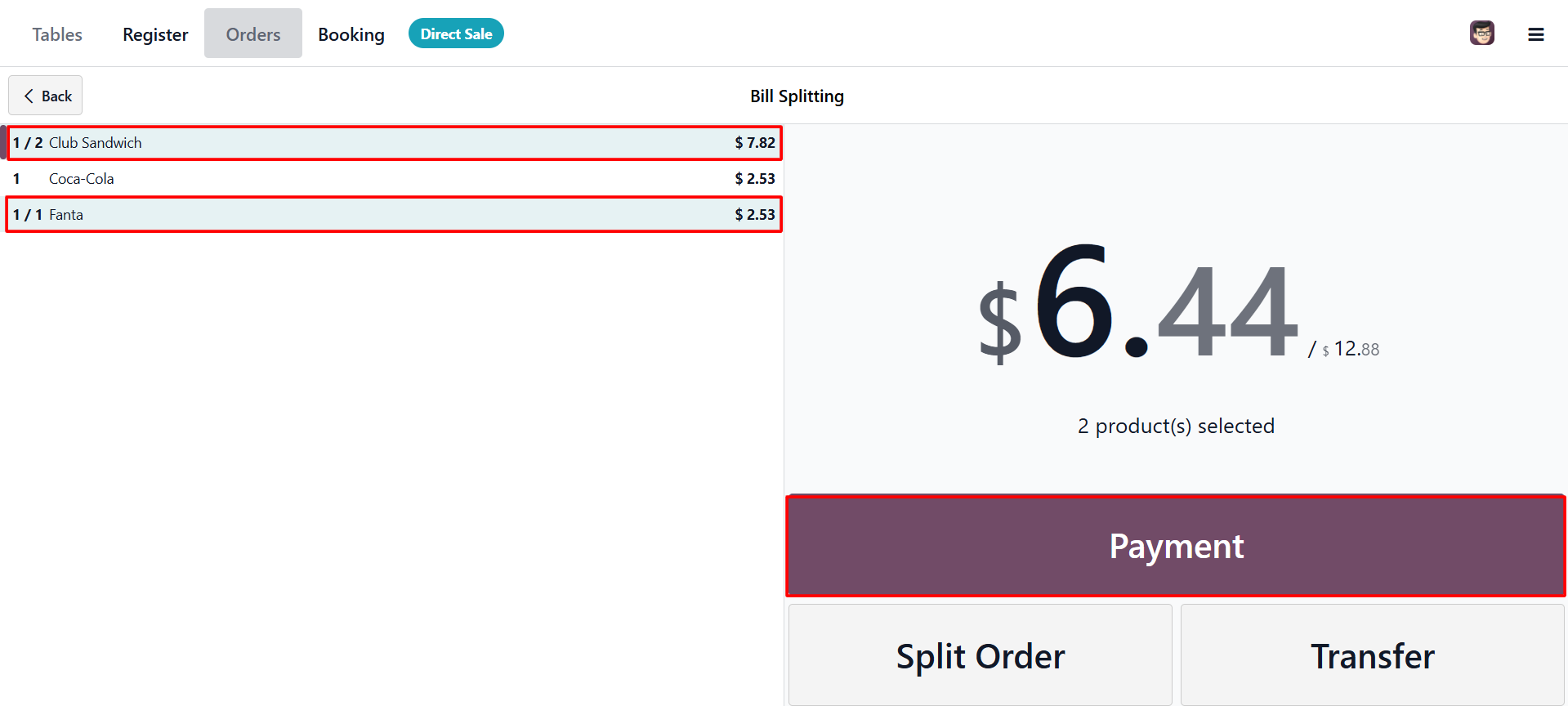
After selecting the correct products, click the Split Order button. Odoo separates the selected items from the original order and moves them to a separate billing screen. This ensures that the selected items can be paid independently.
Step 7: Process Payment for the Split Bill
Once the selected items appear on a separate billing screen, click the Payment button.
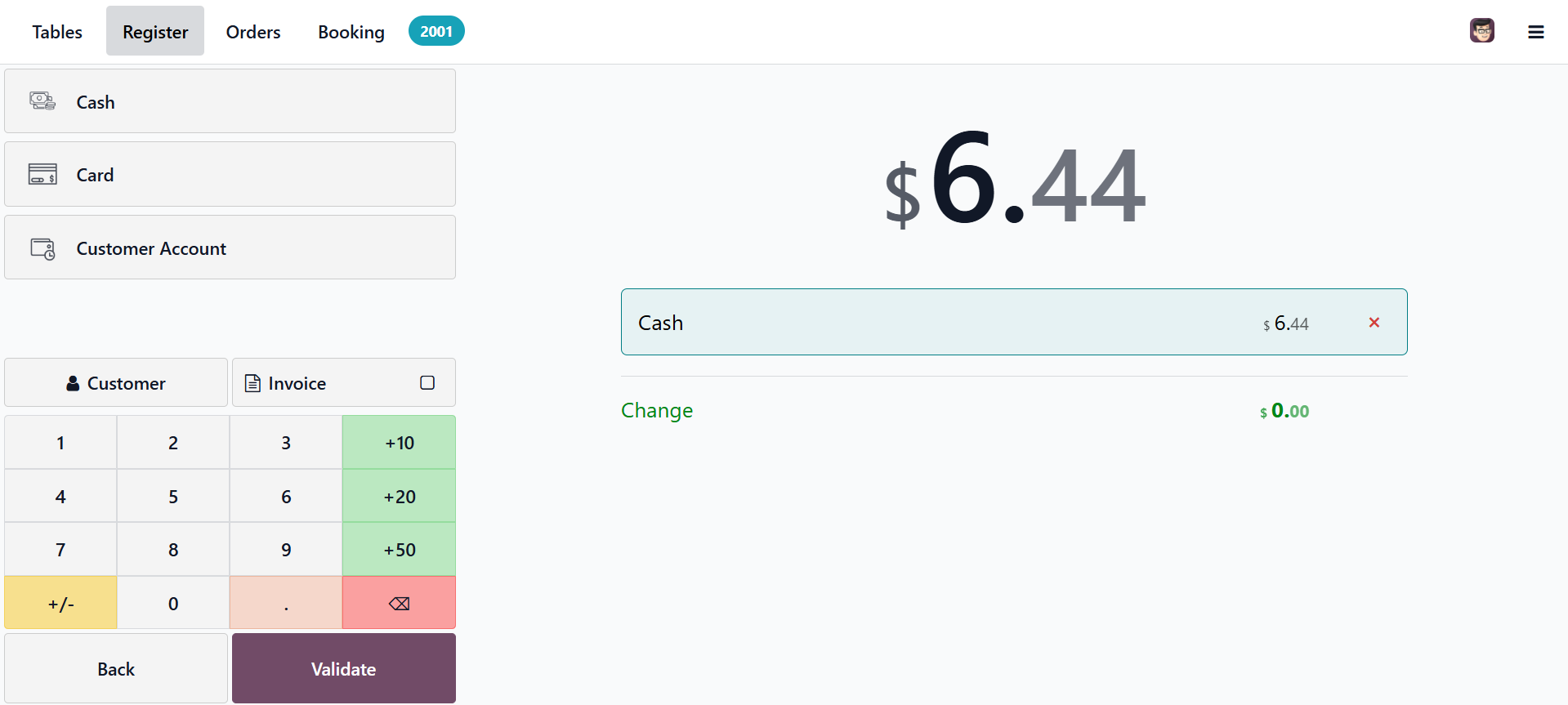
The cashier can then assign a customer if required and choose the payment method, such as cash, card, or any other configured payment option.
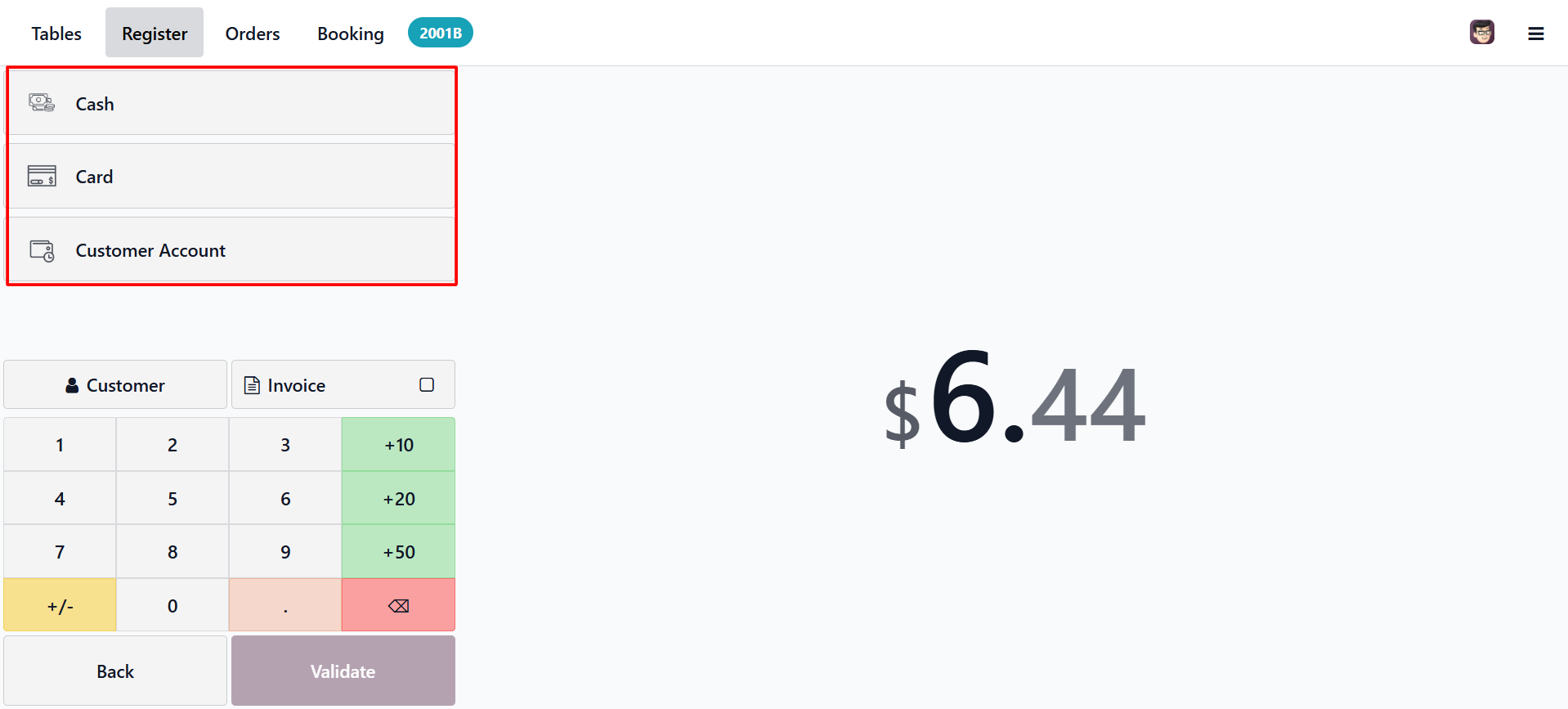
After confirming the payment method,
click Validate to complete the transaction. Odoo generates a receipt for the
paid items. This receipt includes only the items selected during the split
process, making the bill clear for the customer.
Step 8: Complete Payment for the Remaining Items
After the first split payment is completed, Odoo returns to the remaining items from the original order. These items can then be paid separately by another customer or processed as the final remaining bill.
Repeat the payment process by clicking the Payment button, selecting the payment method, and validating the transaction. Once the payment is completed, Odoo generates another receipt for the remaining items. This completes the bill splitting process.
Early Receipt Printing in Odoo 19 POS
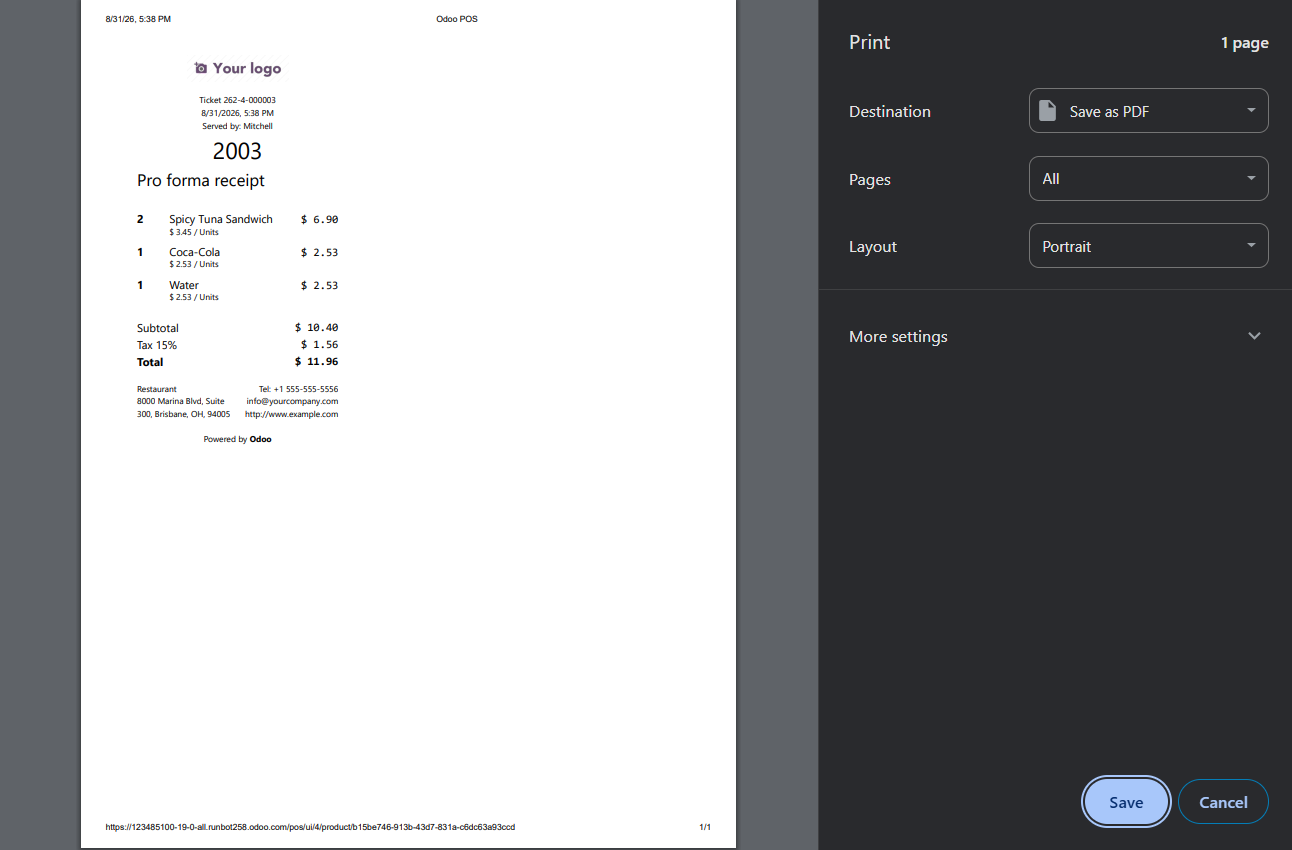
Odoo 19 POS also includes an Early Receipt Printing feature. This feature allows restaurant staff to print or preview the bill before the payment is finalized. It is useful when customers want to review order details, check item prices, or confirm the total amount before paying.
Early receipt printing helps improve transparency between the restaurant and the customer. It also reduces disputes because customers can verify the order before payment is processed. However, this printed bill should be treated as a pre-payment bill, not the final validated receipt. If the order changes after printing, the bill should be reviewed or printed again before payment.
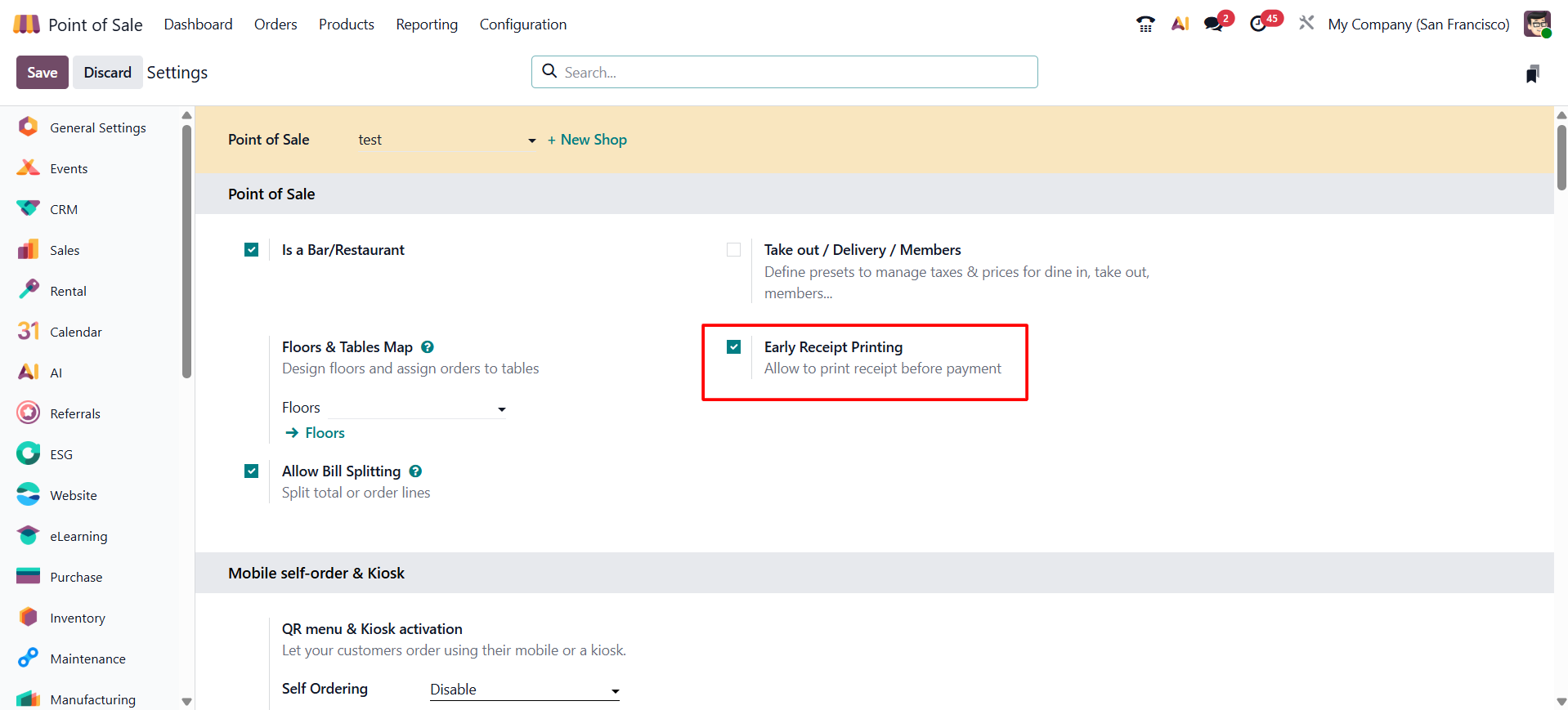
Step 9: Enable Early Receipt Printing
To activate this feature, go to Point of Sale > Configuration > Settings. Open the relevant restaurant POS configuration and enable the Early Receipt Printing option. Once this setting is enabled, the Bill option appears in the POS Actions menu.
Step 10: Print the Bill Before Payment
After enabling early receipt printing, return to the restaurant POS session and add products to the order. Open the Actions menu and select the Bill option. Odoo displays the bill details and allows the staff to print the bill before completing the payment.
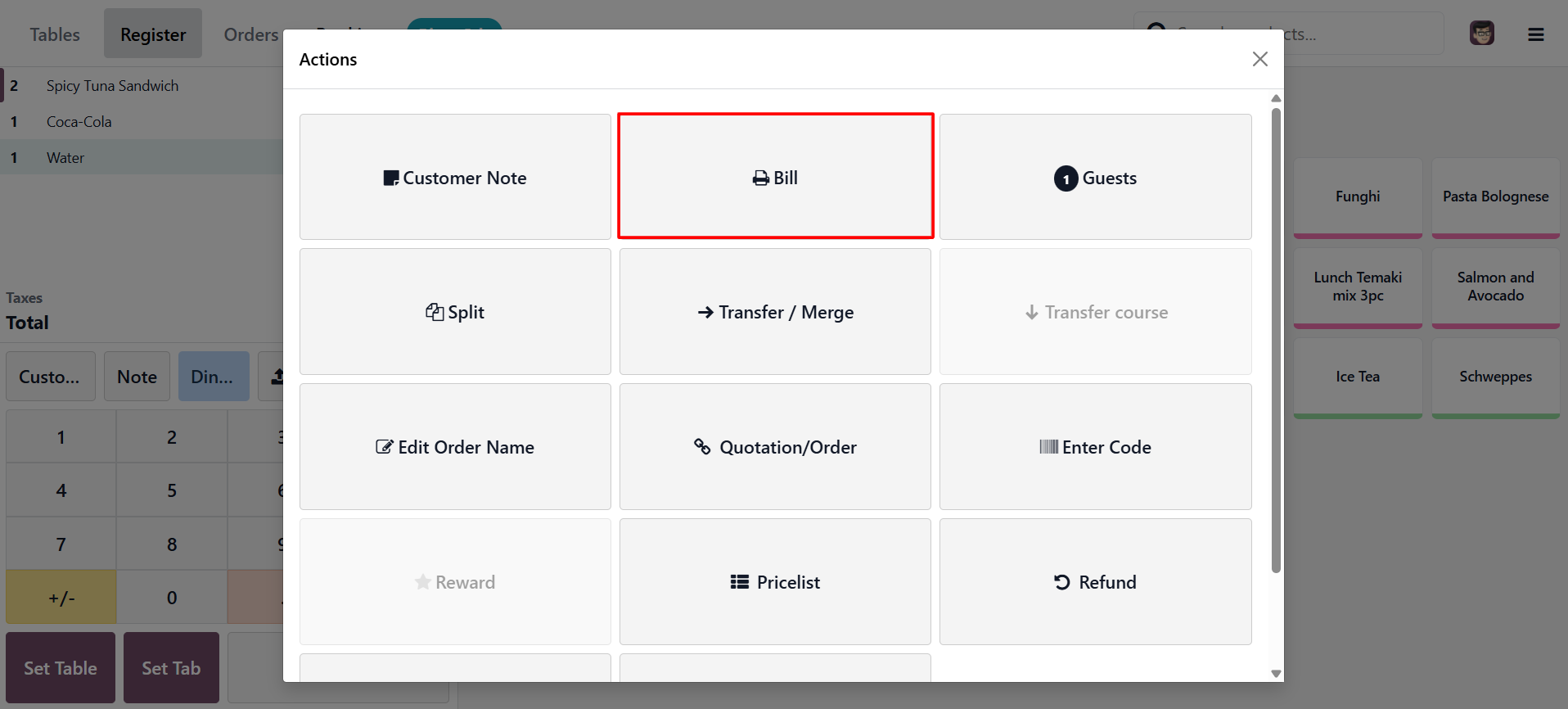
This printed bill can be handed to the
customer for review. After the customer confirms the details, the cashier can
proceed with the payment and validate the order. Once the payment is validated,
Odoo generates the final receipt for the completed transaction.
Conclusion
The bill splitting and early receipt printing features in Odoo 19 Restaurant POS help restaurants manage shared-table payments more efficiently. By allowing staff members to separate selected items into different orders and provide bills before final payment, Odoo simplifies restaurant billing operations while improving customer experience.
For restaurants managing busy dining environments, these features help reduce manual calculations, improve checkout speed, and maintain better billing accuracy directly within the standard Odoo 19 POS workflow.